Why would a game this old suddenly start crash-looping? Because Operation Ares touched everything at once. New anomalies, returning event items, a client update — and the old engine is buckling under all of it. I’ve played through a dozen of these big updates. Same story every time. And the same kinds of fixes bring it back, so let’s get to them.
Why This Happens
Basically? Operation Ares overloaded an engine that was already creaking.
The new Aerial Anomalies spawn more particles than the renderer can survive. The returning Summer event decals leak memory on busy continents (a rendering bug, of all things — on a cosmetic). And the voice chat service fails to hook properly when servers are packed.
Your old settings file makes it worse. It was tuned for the pre-Ares client, and the new build reads it badly.
Oh, and Steam sometimes hands you outdated files during updates. Of course it does.
Fix 1 – Validate Game Files Through the Daybreak Launcher
Don’t use Steam’s file verification for this one — it can pull stale Operation Ares files. The game’s own launcher checks against the right versions.
1 – Open the PlanetSide 2 launcher.
2 – Click the gear icon (Settings) in the bottom-left corner, before hitting Play.
3 – Select Validate Game Assets from the menu.
4 – Click the green Validate button.
Then wait. It checks every file, so give it several minutes. Any corrupted Ares files get replaced automatically.
Fix 2 – Delete Your UserOptions.ini File
This little file holds your graphics settings — and after a big patch, old settings clash with the new client. Deleting it forces a clean rebuild.
1 – Open File Explorer and go to your PlanetSide 2 install folder. Steam users: C:\Program Files (x86)\Steam\steamapps\common\PlanetSide 2.
2 – Find the file named UserOptions.ini.
3 – Right-click it and select Delete. Nervous? Rename it to UserOptions_Backup.ini instead — same effect, and you can go back.
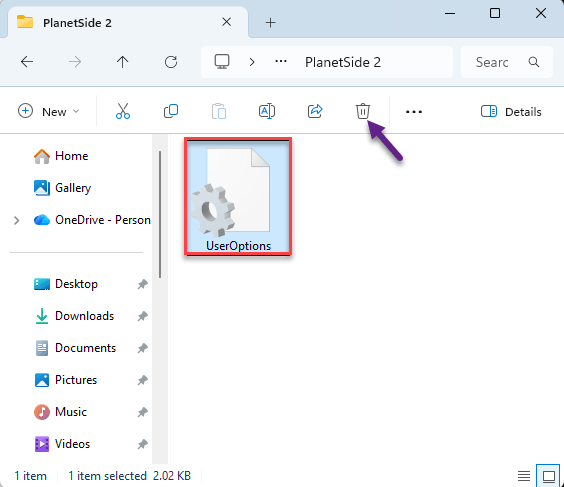
4 – Launch the game. A fresh config file gets created on its own.
You’ll have to redo your graphics settings once. Small price.
Fix 3 – Lower the Particle Distance
The Aerial Anomalies are the crash king of this update. Too many particles, straight to desktop. But you can cap how far out particles render.
1 – Go back to the install folder from Fix 2.
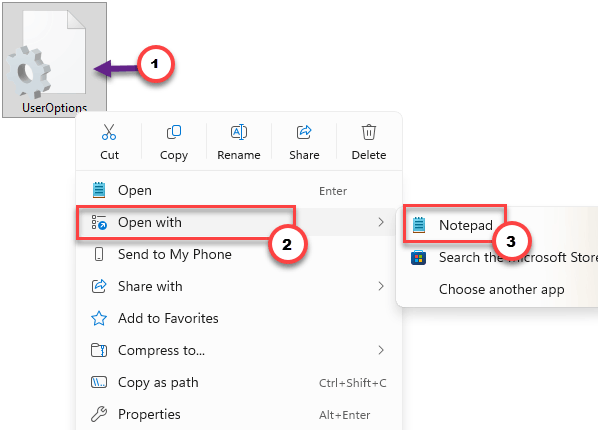
2 – Open UserOptions.ini with Notepad. Do this after the fresh file from Fix 2 exists, not before.
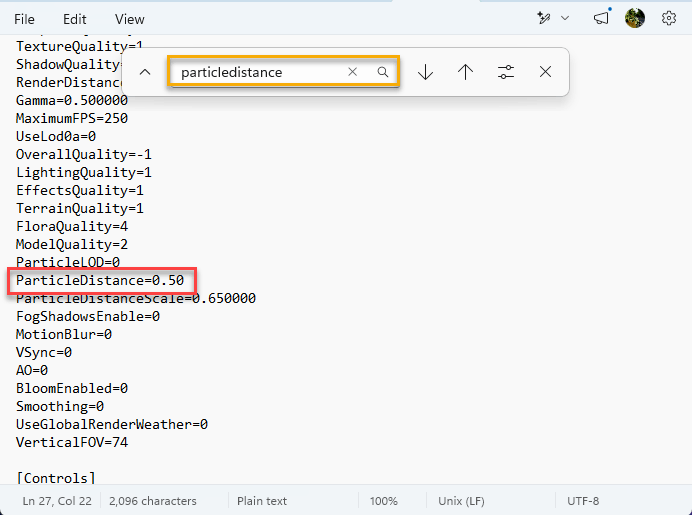
3 – Find the [Rendering] section. Ctrl + F gets you there fast.
4 – Change ParticleDistance to 0.50.
5 – Save the file and close Notepad.
Fights still look fine. The far-off sparkle you lose was costing you the whole client.
Fix 4 – Take Off the Summer Fun Decals
A cosmetic decal crashing the game — that’s where we are. The returning Summer event decals leak memory hard on populated continents.
1 – Open your loadout screen.
2 – Check every character and every vehicle.
3 – Remove the Summer Fun Decal anywhere it’s equipped.
Crashes that hit mid-battle on busy continents, but never in quiet zones? This leak fits that pattern exactly.
Fix 5 – Turn Off the In-Game Voice Chat
The built-in VoIP service is failing to hook during high server load right now, and it takes the client down with it.
1 – Open the in-game Settings.
2 – Go to the Voice tab.
3 – Uncheck Enable Voice.
Most outfits live on Discord anyway. You won’t miss it.
Fix 6 – Use True Fullscreen and Stop Alt-Tabbing
The updated client fights with Windowed Borderless mode, especially around alt-tabs. Deploying, alt-tabbing to check a map guide, coming back — that’s a crash recipe in this build.
1 – Open the in-game Graphics settings.
2 – Change Display Mode from Fullscreen Windowed to Fullscreen.
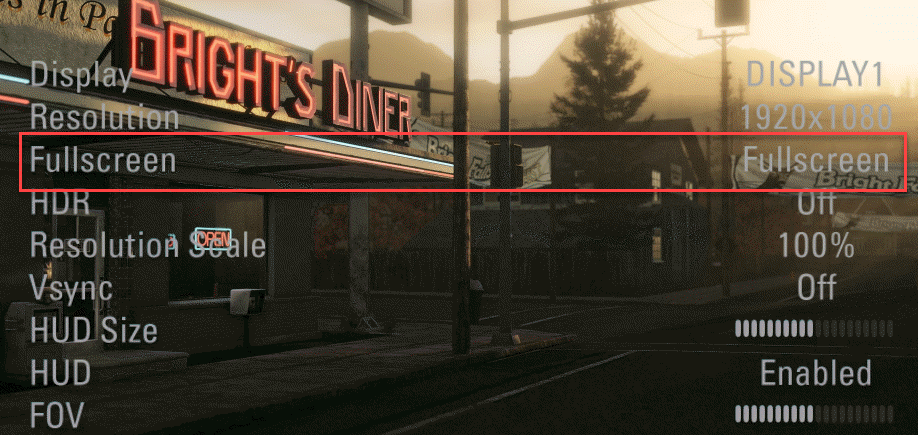
And resist the alt-tab while a deploy screen is up. At least until a patch says otherwise.
Fix 7 – Reinstall BattlEye
Still crashing at launch or right after loading in? The anti-cheat service itself may have broken during the update.
1 – Open your PlanetSide 2 install folder in File Explorer.
2 – Open the folder named BattlEye.
3 – Right-click Uninstall_BattlEye.bat and select Run as administrator. A console window flashes by — let it finish.
4 – Right-click Install_BattlEye.bat and run it as administrator too.
That gives you a clean anti-cheat install without touching the rest of the game.
How to Prevent This
- Validate through the Daybreak launcher after every major update, not through Steam. Takes minutes, dodges the stale-file problem entirely.
- On an Nvidia card? Keep the drivers current. It’s the first thing veteran players check after any big patch.
- Treat your UserOptions.ini as disposable. Old configs and new clients don’t mix — delete it after each major update and rebuild.
People Also Ask
Why is PlanetSide 2 constantly crashing?
Since Operation Ares, the common causes are particle overload from the new Aerial Anomalies, a memory leak tied to Summer event decals, broken voice chat hooks, and outdated settings files. Validate your files through the Daybreak launcher first, then lower ParticleDistance to 0.50.
Why is PlanetSide 2 crashing during the tutorial?
Early crashes usually point to corrupted files or a broken BattlEye install rather than the battlefield bugs. Run Validate Game Assets from the launcher settings, and if that changes nothing, reinstall BattlEye using the two .bat files in the game’s BattlEye folder.
Is PlanetSide 2 still being updated?
Yes. Operation Ares is a full content update with new Aerial Anomalies and returning event items, and hotfixes typically follow within weeks when an update destabilizes the client. Rough launches like this one are common — the fixes above bridge the gap until then.