This one looks bad — hard lockups, forced restarts, sometimes mid-quest. But it’s almost never your hardware. It’s the game’s new UI renderer fighting your overlays and frame generation. Fixable in minutes, most of the time.
The Short Version
The 1.16 and 1.17 patches shipped a new UI renderer. And it does not play nice.
Nvidia’s overlay hooks into it and locks the game. Frame generation (the driver feature that inserts AI-made frames between real ones) chokes when a menu draws over the world. Even the settlement detail view overloads its own cache.
Different triggers. Same freeze.
Fix 1 – Kill the Nvidia Game Filters and Overlay
The overlay’s filter hooks conflict directly with the new UI renderer. Players report this as the single most common cause.
First, clear any active filters:
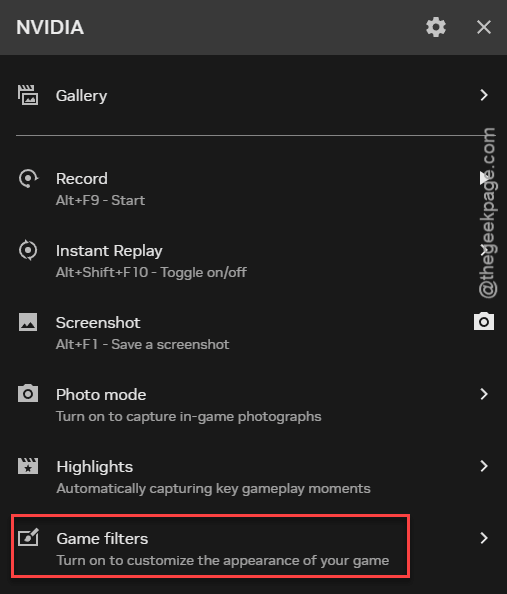
1 – Press Alt + Z while in-game to open the Nvidia overlay. On some keyboard layouts it’s Alt + Y.
2 – Click Game Filters on the left side of the menu.
3 – Delete or switch off any active sharpening or image filters.
Then bury the overlay for good:
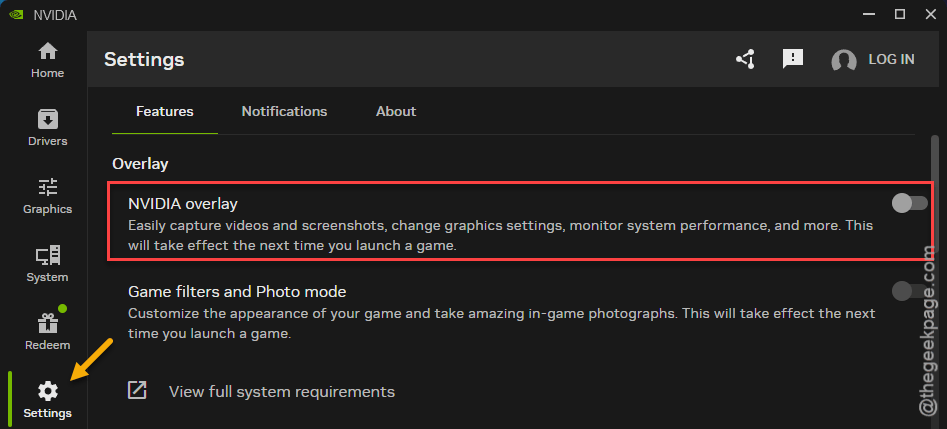
4 – Open the Nvidia App (or GeForce Experience).
5 – Go to Settings.
6 – Toggle NVIDIA Overlay to Off.
Using frame generation? Turn off the Steam overlay too — one player’s crashes stopped only after both were gone.
Fix 2 – Switch to Nvidia Studio Drivers
The current Game Ready drivers are unstable with this engine branch. Studio drivers (the slower-updated, stability-first line meant for creative apps) sidestep the frame-gen crash.
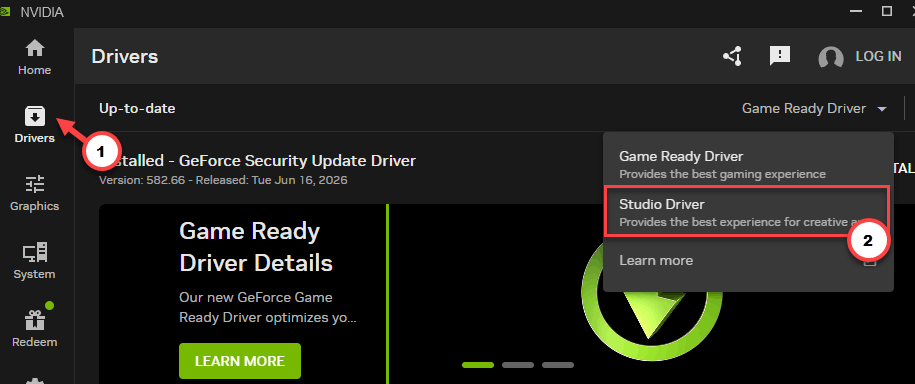
1 – Open the Nvidia App.
2 – Click the Drivers tab.
3 – Click the three dots (⋯) in the top right corner.
4 – Select Studio Driver and install it.
Takes a few minutes, and your screen will flicker during the install. Normal. Games run exactly the same on Studio drivers — you lose nothing but the crashes.
Fix 3 – Only Change Graphics Settings From the Main Menu
Switching DLSS, FSR, or frame generation while you’re loaded into the open world freezes the game instantly. Every time. Not a gamble worth taking.
So make it a habit: close the game completely, restart it, and do all your graphics tweaking on the main title screen before loading your save. Boring rule. Saves your session.
Fix 4 – Turn Off Frame Generation in the Config File
If menus crash before you can even reach the settings, disable frame generation from outside the game.
1 – Press Windows + E to open File Explorer.
2 – Go to C:\Users\[Your_Username]\AppData\Local\Pearl Abyss\CD\save. AppData is hidden by default — type the path straight into the address bar and it opens anyway.
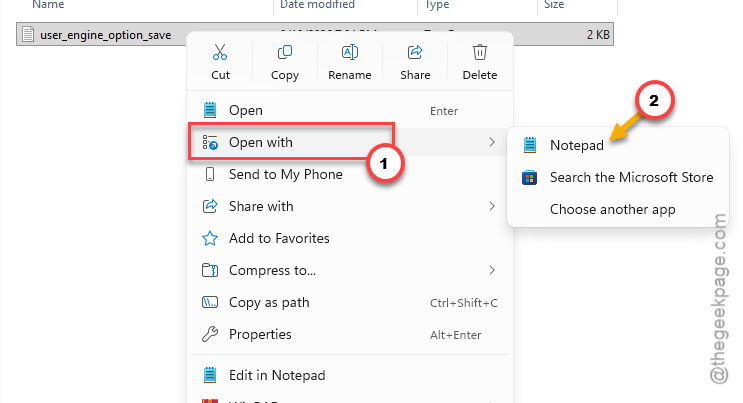
3 – Find the file named user_engine_option_save and open it with Notepad.
4 – Press Ctrl + F and search for _numFramesToGenerate.
5 – Change its value to 0.
6 – Save the file, close Notepad, and restart the game.
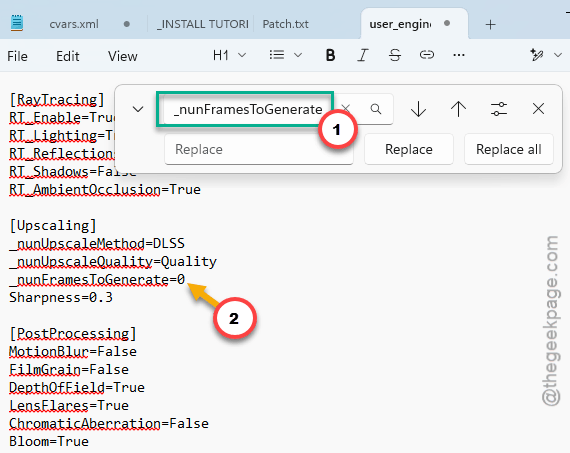
You lose the fake frames. You keep a working game.
Fix 5 – Close the Detail View Before Fast Traveling
The settlement detail view overloads the UI cache. Stack a fast travel on top and the engine dies. And nothing in-game warns you about it.
1 – Close the detail view completely by pressing Esc (or Circle/B on a controller).
2 – Wait 2 seconds.
3 – Start your fast travel from the normal map view.
Two seconds. That’s the whole trick.
Fix 6 – Verify Files and Adjust the Executable
Corrupted files cause freezes that look identical to the overlay ones. Rule them out.
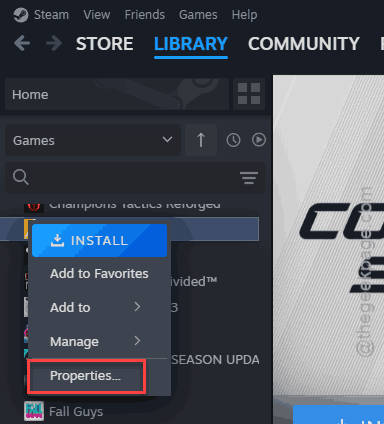
1 – Open your Steam Library, right-click Crimson Desert, and select Properties.
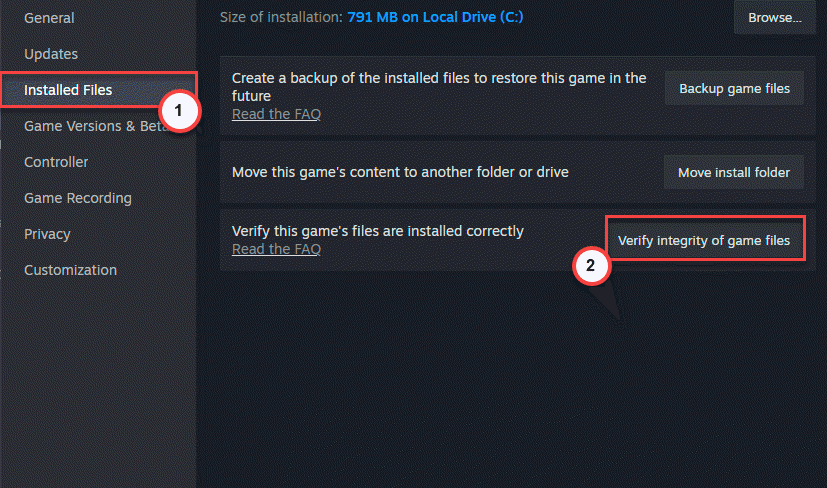
2 – Under Installed Files, click Verify integrity of game files. The scan takes a few minutes — wait for the checkmark.
3 – Click Browse to open the game folder.
4 – Right-click the game’s .exe file and select Properties.
5 – On the Compatibility tab, check Disable fullscreen optimizations and Run this program as an administrator.
6 – Click Apply.
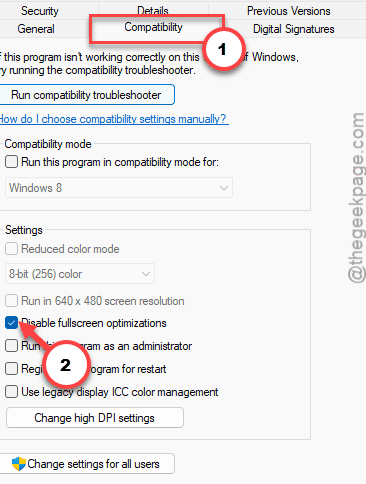
Check if this works.
Fix 7 – Force DirectX 11 Mode
One player fixed everything with a single launch option. Their words: “smooth as butter, 220 fps.” Worth a shot.
1 – Right-click Crimson Desert in Steam and select Properties.
2 – In the General tab, find the Launch Options box.
3 – Type -dx11 in the box.
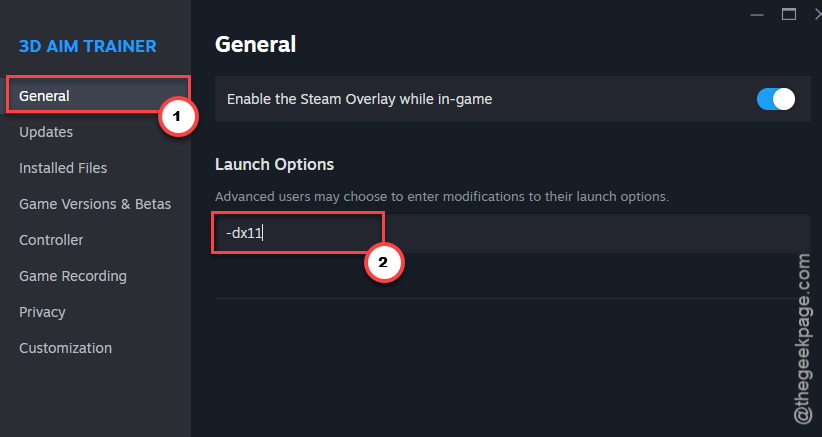
4 – Close the window and launch the game.
This runs the game on the older DirectX 11 path, skipping the DX12 pipeline where the freeze lives. Frame generation won’t work in this mode (it needs DX12). Fair trade.
Fix 8 – Roll Back to the Previous Patch
Nothing stuck? Revert to the older branch until a hotfix lands.
1 – Right-click Crimson Desert in your Steam Library and select Properties.
2 – Go to the Betas tab.
3 – Select the previous version branch from the dropdown menu.
4 – Close the window. Steam downloads the older build on its own — watch the Downloads page for progress.
Check the branch list again in a week or two. Once a hotfix ships, switch back to the default branch and you’re current again.
People Also Ask
Why is Crimson Desert freezing on my PC?
The 1.16/1.17 patches introduced a UI renderer that conflicts with the Nvidia overlay, game filters, and frame generation. Corrupted game files and the settlement detail view cause identical freezes. Start by disabling the overlay — it’s the most common trigger by far.
Why does Crimson Desert crash when I open the menu?
Menus are drawn by the new UI renderer, and overlay hooks or frame generation collide with it at that exact moment. Turn off Nvidia’s in-game overlay, delete any game filters, and set _numFramesToGenerate to 0 in the config file if menus die before you reach settings.
How do I stop the freezing without losing performance?
Switch to Studio drivers and add -dx11 to your Steam launch options — one player reported 220 fps after that change alone. You give up frame generation, but the real rendering performance stays. Verify your game files too, so corruption isn’t hiding underneath.