Another Windows update, another week of games falling over. This time it’s the September preview update, KB5124010, and it has a special dislike for AMD graphics cards. Games that ran fine on Friday now crash to desktop, freeze, or black-screen on Monday. If you’ve got a Radeon card and the crashes started in the last few weeks, this is almost certainly why.
What’s Actually Going On
KB5124010 was an optional “preview” update. Preview is Microsoft’s word for “we’re still testing this on you.” It changed something low in the graphics stack, and AMD’s driver didn’t take it well.
So why hasn’t the emergency patch fixed it? Microsoft did ship one, KB5129195, for the memory crashes the same update caused. But the Radeon rendering crashes were left out. On purpose. Microsoft said so in the notes, which is a rare bit of honesty, but it leaves you with a hotfix that doesn’t touch your problem.
Fix 1 – Uninstall KB5124010
The main fix. Take the update off and the crashes stop for most people the same day.
1 – Press Windows + I to open Settings.
2 – Click Windows Update at the bottom of the left sidebar.
3 – Click Update history.
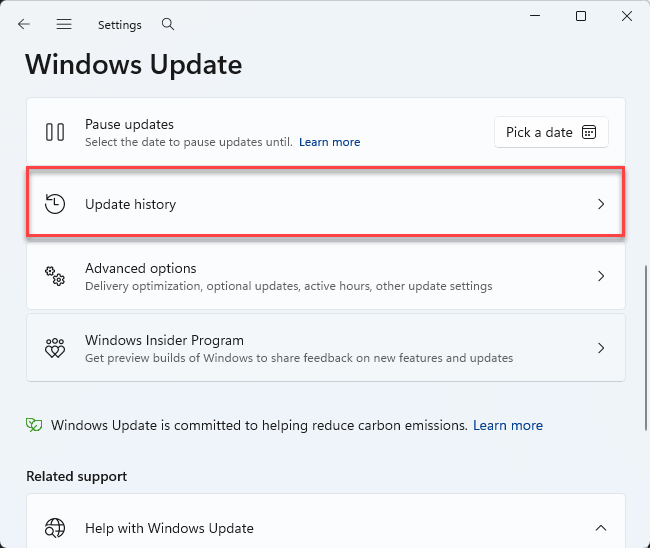
4 – Scroll all the way to the bottom and click Uninstall updates.
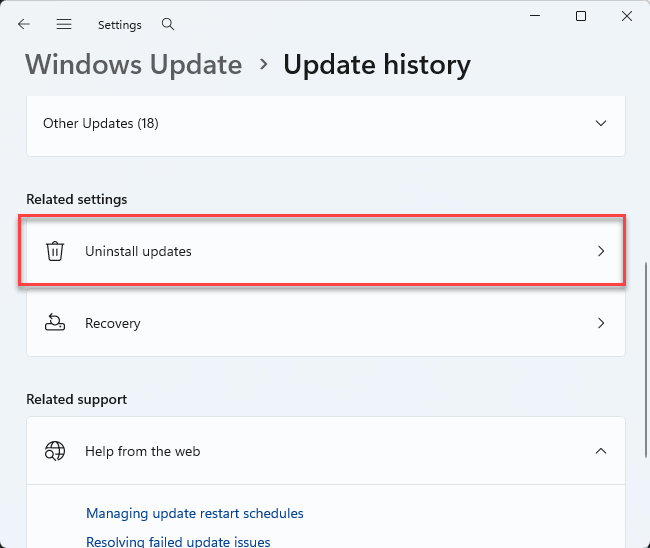
5 – Find KB5124010 in the list and click Uninstall next to it.
6 – Click Uninstall again to confirm, then restart when Windows asks.
The restart takes longer than usual, three to five minutes with a couple of extra reboots. That’s normal. And don’t turn the PC off during it.
Don’t see KB5124010 in the list? Then you never got it (it was optional), and something else is behind your crashes. The AMD driver itself is the next suspect, but that’s a different article.
Fix 2 – Pause Updates So It Doesn’t Come Back
Quick one, and people skip it. Windows will happily reinstall the same update tonight.
1 – Go to Settings, click Windows Update.
2 – Find Pause updates, and pick the longest option you’re offered. You can select a date in the newer Windows version, and set it to the maximum possible.
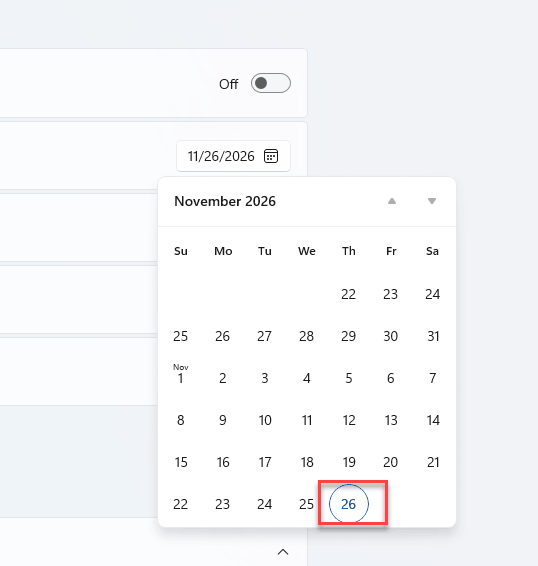
And you can un-pause early once Microsoft ships a fix that actually covers Radeon. Check back in a couple of weeks.
Fix 3 – Repair Windows With DISM and SFC
Still crashing after the update is gone? A bad update can leave damaged system files behind, and uninstalling doesn’t always clean them up. Two built-in tools do. One user who had tried everything else twice reported this is what finally stuck.
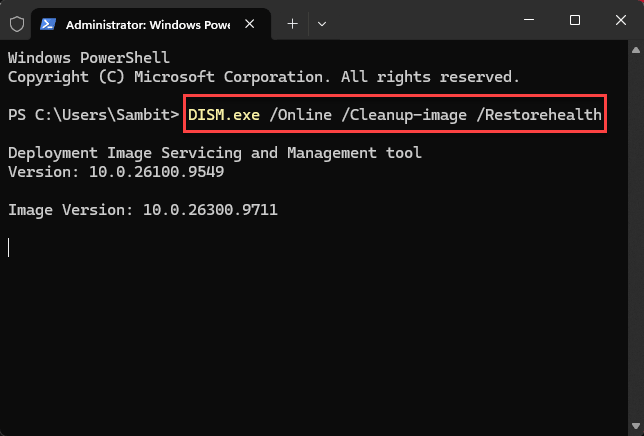
1 – Right-click the Start button and pick Terminal (Admin). Click Yes when Windows asks.
2 – Type the following and press Enter:
DISM.exe /Online /Cleanup-image /Restorehealth
3 – Wait. The progress sits at 20% or so for a long time, then jumps. Ten to twenty minutes is normal.
4 – When it says the restore operation completed, write this down, and press Enter.
sfc /scannow
5 – Wait for verification to reach 100%. Another five to fifteen minutes.
6 – Restart your PC.
If SFC says it found and repaired files, that was your leftover damage. If both tools come back clean, that’s fine too (it rules something out). Move on to Fix 4.
Fix 4 – Verify the Game Files
Each game that crashed hard may have a corrupted config or save index. Verifying puts the broken files back.
1 – Open Steam and click Library.
2 – Right-click the game that’s been crashing and pick Properties.
3 – Click Installed Files in the left sidebar.
4 – Click Verify integrity of game files.
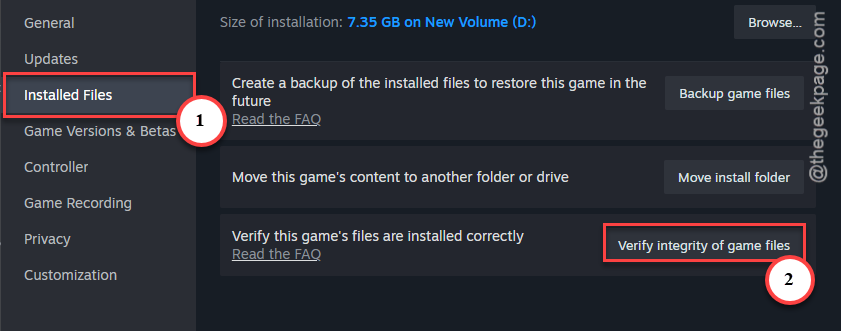
5 – Wait for the bar to finish, then launch the game.
And do this for every game that crashed, not just one.
On Epic, GOG Galaxy, or the EA app, look for Verify or Repair in the game’s options menu.
Same job, different button.
Avoiding This Next Time
- Skip optional preview updates on a gaming PC. If the button says “Download & install” under Optional updates, leave it alone. Let the monthly Patch Tuesday version arrive instead.
- Turn off Get the latest updates as soon as they’re available under Windows Update. That toggle is how previews sneak in.
- Keep a System Restore point from before each Patch Tuesday. Takes a minute. Saves an evening.
- When games start crashing out of nowhere, check Update history first. Before drivers, before reinstalling anything. Period.
Quick Answers
Why are my games crashing after the Windows 11 update?
Because the update changed how Windows talks to the graphics driver, and some drivers (AMD’s especially) do not cope. Check Update history for KB5124010 and remove it. Also verify the files of every game that crashed, since a hard crash mid-save can corrupt the game’s own config.
Does KB5129195 fix the AMD game crashes?
No. Microsoft released KB5129195 as an emergency fix for the memory crashes caused by KB5124010, but it left the Radeon rendering crashes out of that fix. Installing it won’t hurt, but it won’t help here either. Removing KB5124010 is still the only thing that works for AMD users right now.
Why does AMD keep crashing my games?
Usually it is not the card, it is what’s around it. A Windows update, a fresh driver, or a borderline overclock. Start with Update history and remove any recent preview update. Then verify your game files.