What does a 48 kHz audio setting have to do with a game crashing? Everything, in this Metal Gear Master Collection Volume 2. That’s the kind of week you’re in for with Vol. 2 on PC. You open the Database. Fatal error. You load into a cutscene. Access violation. The launcher Konami wrapped around these games is built on Unreal Engine 5, and it’s fussier than any of the actual games inside it. Fun.
Why This Happens
Here’s the deal. The games themselves are old and mostly fine. The UE5 front end around them is the problem. It compiles shaders on the fly, and on a mid-range or older GPU that takes long enough for the graphics driver to assume something hung. So the driver resets itself, the UE5 container loses its DirectX 12 device, and you get the fatal error dialog. And all while you’re just browsing the menus.
Shader caches make it worse after patches. The engine doesn’t clear the old compiled files. And stale ones cause an instant crash the moment you enter the game world.
Then there’s audio. The collection’s sound middleware falls over if your headset or DAC is set to 96 or 192 kHz. Cutscene with lots of voices? Crash. But a sample rate causing an access violation? Ridiculous. Here we are anyway.
Fix 1 – Force DirectX 11 in Steam
First and easiest. Dropping the UE5 front end back to DirectX 11 stops the driver timeouts cold, and the Database stops crashing on older cards.
1 – Open Steam and click Library.
2 – Right-click Metal Gear Solid: Master Collection Vol. 2 and pick Properties.
3 – On the General tab, find the Launch Options box at the bottom.
4 – Type -dx11 in the box.
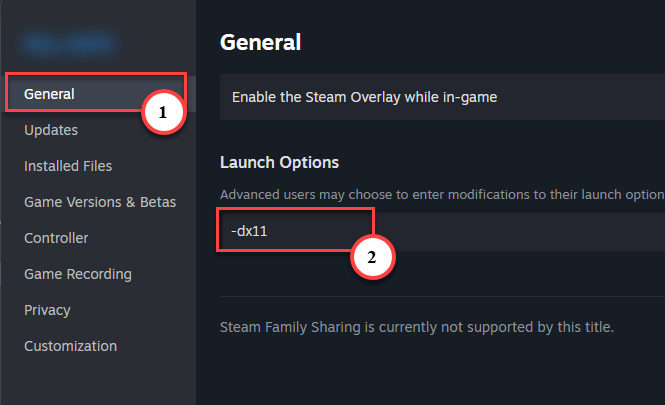
5 – Close the window and launch the collection.
Still crashing in the same place? Try -d3d11 or -force-d3d11 instead. Different builds of Unreal honor different spellings. But one of the three will stick.
Fix 2 – Lock Windows Audio to 24-bit, 48000 Hz
Sounds unrelated. It isn’t.
1 – Press Windows + R at once.
2 – Type mmsys.cpl, and press Enter.
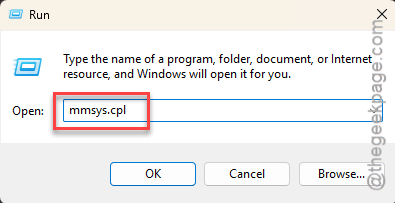
The old Sound control panel opens.
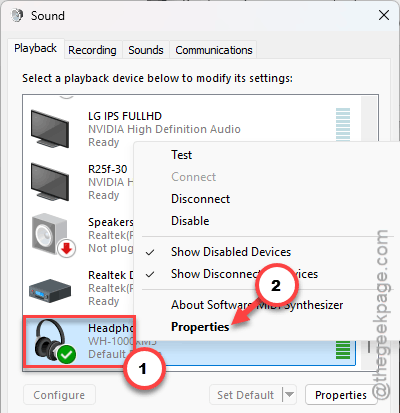
3 – Go straight to the Playback tab.
4 – Then, right-click your default device (the one with the green checkmark) and pick Properties.
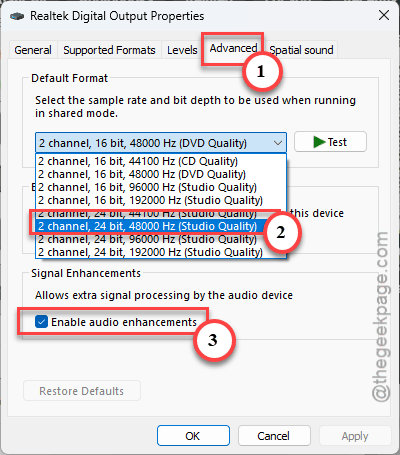
5 – Click the Advanced tab.
6 – Under Default Format, pick 24 bit, 48000 Hz (Studio Quality).
7 – Untick Enable audio enhancements if you see it. Some devices show this on a separate Enhancements tab instead.
8 – Click Apply, then OK, and restart your PC.
Switch between headphones and speakers? Do this for both. Windows keeps a separate format for each device, and the game crashes on whichever one is set too high.
Fix 3 – Clear the Shader Caches
Crashing the instant you load into the game world, after a patch? That’s leftover shader files from the old version. The engine won’t throw them out. So you do it.
1 – Close the game and Steam completely.
2 – Press Windows + R, paste %localappdata%\NVIDIA and press Enter. (AMD users, skip to step 4.)
3 – Open DXCache, delete everything inside, go back, open GLCache, and delete everything there too.
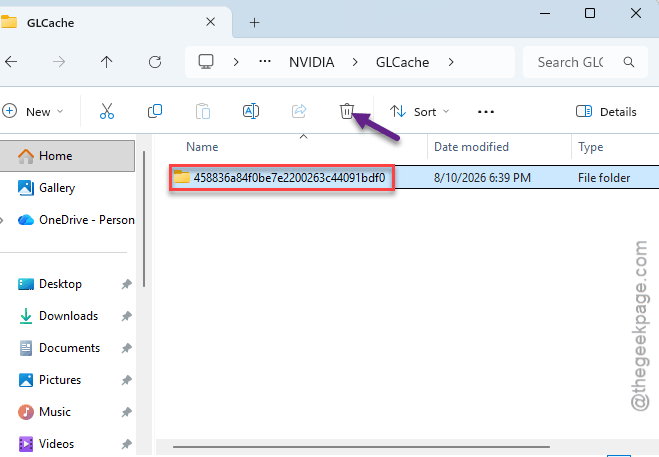
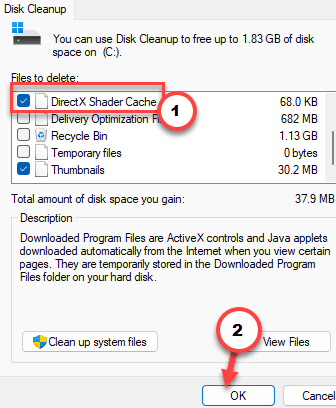
4 – Press Windows + R, type cleanmgr, and press Enter.
5 – Pick drive C: and click OK.
6 – Tick DirectX Shader Cache in the list, then click OK and Delete Files.
7 – Launch the collection. The first load takes longer while the shaders rebuild. Give it a few minutes.
Want to stop this from happening after every patch? The community made a fix mod for exactly this. Search Nexus Mods or r/metalgearsolid for the MGS Master Collection fix, grab the latest version, and extract it into the folder where the main shipping .exe lives. Its loader skips the invalid shader lookups on boot. Not required, but people who run it stop seeing the cache crash entirely.
Fix 4 – Give Windows a 16 GB Page File
Here’s the memory one. When the launcher spikes during loading and there’s nowhere to spill over, it dies. So a bigger virtual memory file (the space on your drive Windows uses as backup RAM) gives it room.
1 – Click Start, type Advanced system settings, and open View advanced system settings.
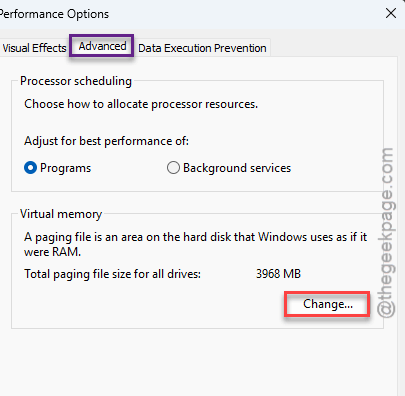
2 – On the Advanced tab, click Settings under Performance.
3 – Click the Advanced tab in the new window, then click Change under Virtual memory.
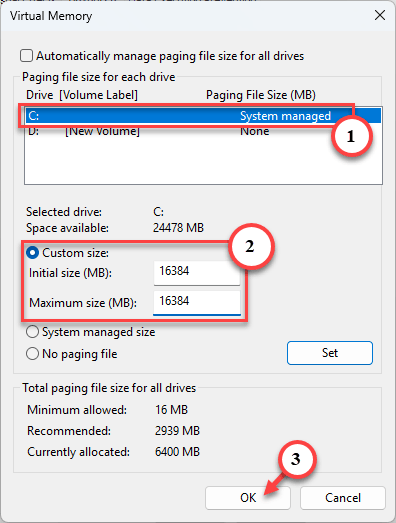
4 – Untick Automatically manage paging file size for all drives at the top.
5 – Select your C: drive, pick Custom size, and type 16384 in both the Initial size and Maximum size boxes.
6 – Click Set, then OK on every window, and restart.
That’s 16 GB of drive space, so make sure you have it free. And if you have 32 GB of RAM already, this one probably isn’t your problem, but it does no harm.
How to Prevent This
- Leave -dx11 in your launch options for good. The DX12 path in this launcher isn’t worth the frame or two it gains.
- Check your audio format after plugging in any new headset. New devices default to high sample rates, and the crash comes right back.
- After every patch, clear the shader caches before your first launch. Two minutes.
- Install the community fix mod if you’d rather not babysit the cache. It’s the closest thing to a permanent fix.
People Also Ask
Did Konami fix the MGS Master Collection?
Partly. There have been patches since launch, but the UE5 launcher still crashes on some PCs, especially in the Database and during heavy cutscenes. The community fix mod and the -dx11 launch option cover most of what the patches missed. Konami has not fully resolved it.