Why does a controller from the company that makes Windows keep falling off a Windows PC? Power saving, mostly. Windows suspends the Bluetooth radio mid-game to shave a few milliwatts, and your controller pays for it. I’ve fought this on more builds than I can count. And it’s fixable — usually with two checkboxes.
The Short Version
Three things cause nearly all of these drops.
Windows power management is the big one. It’s allowed to switch off your Bluetooth adapter to save energy, and it does so aggressively. Even mid-match. Brilliant.
Old controller firmware is next — the controller has to understand the newer Windows 11 Bluetooth polling rates, and pads that haven’t been updated in years just don’t.
And sometimes the controller’s own pairing memory is the traitor. It remembers your phone or an old console, drops the PC, and wanders off looking for its ex.
Fix 1 – Update the Controller Firmware Over USB
Try updating the controller firmware device.
1 – Plug the controller into your PC with a USB-C cable.
2 – Open the Xbox Accessories app. Don’t have it? It’s free on the Microsoft Store — search for it there and install it.
3 – Click the three dots (⋯) on your controller’s card.
4 – Click the firmware update option if one is offered, and let it finish. Keep the cable in the whole time — takes a couple of minutes.
No update offered? Fine, you’re current. Move on.
Fix 2 – Stop Windows From Powering Off the Radio
Try stopping the Windows from switching off the radio.
1 – Right-click the Start button and select Device Manager.
2 – Expand the Bluetooth section.
3 – Right-click your Bluetooth adapter — something like Intel Wireless Bluetooth — and select Properties.
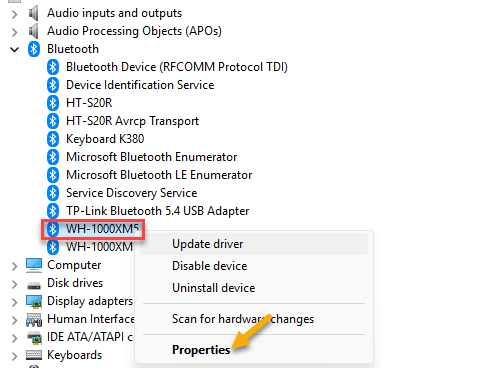
4 – Open the Power Management tab.
5 – Uncheck Allow the computer to turn off this device to save power and click OK.
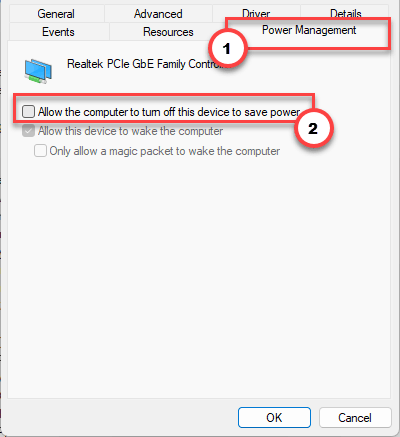
Now the hidden second one:
6 – Expand Human Interface Devices — not the Bluetooth section, this catches everyone.
7 – Right-click Bluetooth LE XINPUT compatible input device and select Properties.
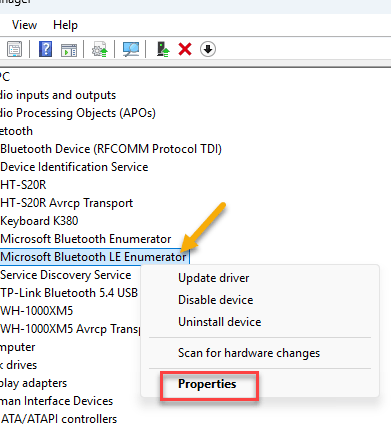
8 – On the Power Management tab, uncheck the same box, click OK, and reboot your PC.
That second entry is the controller’s actual input driver. Leaving it checked is why the drops survive the “obvious” fix.
Fix 3 – Make the Controller Forget Its Old Devices
A controller that’s been paired to a phone, a console, and a PC keeps a confused little address book. It drops your PC to go looking for the others.
1 – With the controller on, hold the sync button (the small button on top, next to the USB port) for a full 15 seconds.
2 – Wait for it to vibrate twice. That’s the pairing memory wiping.
3 – On the PC, press Windows + I, go to Bluetooth & devices, remove the old controller entry, and pair it fresh with Add device.
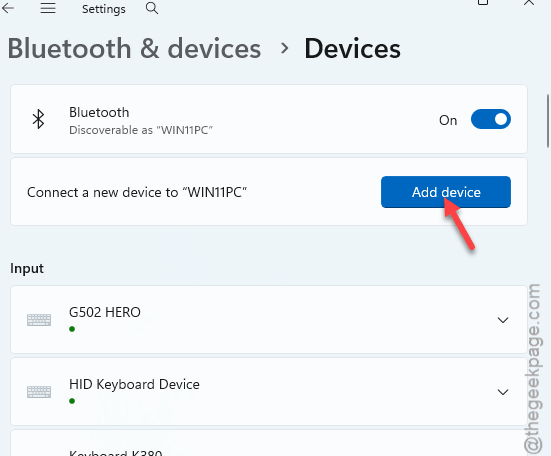
From now on, this controller only knows your PC. No wandering.
Fix 4 – Disable the Bluetooth LE Enumerator
Windows prefers Bluetooth Low Energy — great for earbuds, flaky for controllers. Disabling the LE enumerator forces classic Bluetooth, which holds a steadier stream of input packets.
1 – Open Device Manager again, like in Fix 2.
2 – Expand Bluetooth.
3 – Right-click Microsoft Bluetooth LE Enumerator and select Disable device.
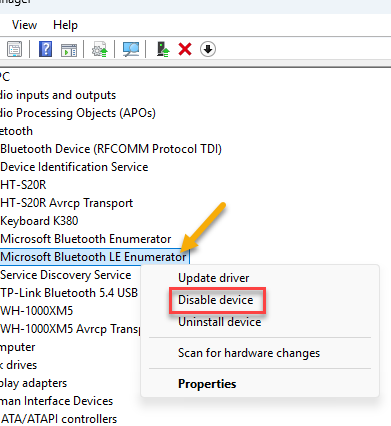
4 – Click Yes on the warning, then re-pair the controller.
Heads up: other LE gadgets (some earbuds, trackers) may need this re-enabled. It’s a right-click away to undo, so test your setup for a day.
Fix 5 – Set the Device Association Service to Automatic
This background service manages wireless pairings. When it’s set to Manual, Windows can time out the pairing handshake — and the controller drops the moment that happens.
1 – Press Windows + R, type services.msc, and press Enter.
2 – Scroll down to Device Association Service. The list is alphabetical.
3 – Right-click it and select Properties.
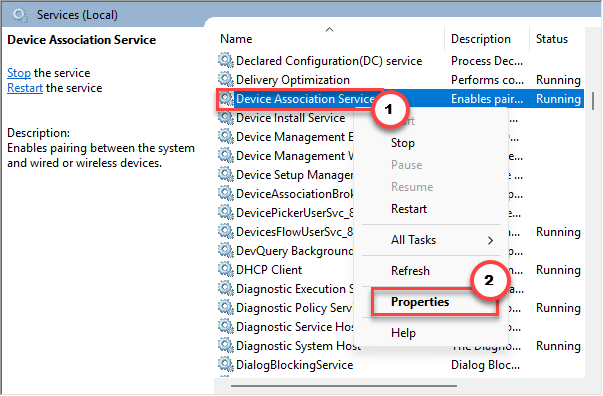
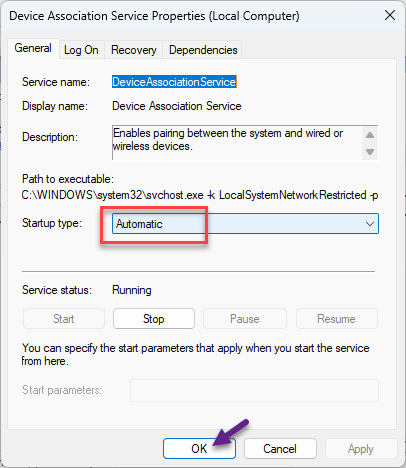
4 – Change Startup type from Manual to Automatic.
5 – Click Apply, click Start if the service is stopped, then OK.
6 – Restart your computer.
Fix 6 – Get the Xbox Wireless Adapter
The honest last resort. Some motherboard Bluetooth chips just don’t get along with the current Windows Bluetooth stack, and no checkbox will change the silicon.
Microsoft’s own Xbox Wireless Adapter for Windows plugs into a USB port and talks to the controller over the same proprietary 2.4GHz protocol an actual Xbox uses. It bypasses Bluetooth completely. It costs money, sure — but it’s the connection the controller was really built for, and the drops end. Consider it the cure for a chip that was never going to cooperate.
Keeping It Connected
- Recheck both Power Management boxes after major Windows 11 updates. Feature updates love re-checking them. Quietly.
- Update controller firmware over USB every few months — it only takes a couple of minutes and it tracks the Bluetooth changes Windows keeps shipping.
- Keep the controller within clean line of sight while playing. A metal desk between the pad and the PC’s rear-mounted antenna weakens an already-fussy link.
Quick Questions
Is the Xbox Wireless Adapter better than Bluetooth?
Yes, clearly. It uses the same proprietary 2.4GHz protocol as an actual Xbox console — lower latency, a stronger link, and none of the Windows Bluetooth stack’s power-saving interference. If your motherboard’s Bluetooth chip is fundamentally incompatible, it’s the definitive fix.
Will disabling the Bluetooth LE Enumerator break my other devices?
It can affect gear that depends on Low Energy mode, like some earbuds and fitness trackers. Your controller gets a steadier classic-Bluetooth link, though. Test your other devices for a day, and re-enable the enumerator in Device Manager if anything misbehaves.