Can’t upload story on your Instagram app from your iPhone? Checking out the stories on the Instagram has become the habit of our daily lives. But, the inability to upload the story on your Instagram can annoy you quickly. The resolution to this issue is quite simple and takes less than twenty seconds to enact the fix.
Fix 1 – Open and Force-close Instagram app
Force-close the Instagram app and re-open the Instagram app.
Step 1 – If you have closed the Instagram app already, open the Instagram app.
Step 2 – Load all the recent apps by swiping up from the bottom-left part of the iPhone screen.
Step 3 – Close the Instagram app and the other apps as well.

After closing the Instagram app, relaunch it. Try to upload the story from your Instagram page.
Fix 2 – Disable and enable the Airplane mode
Disable and re-enable the Airplane mode to temporarily reset the network system on your iPhone.
Step 1 – Swipe down from the top to find the Control Center.
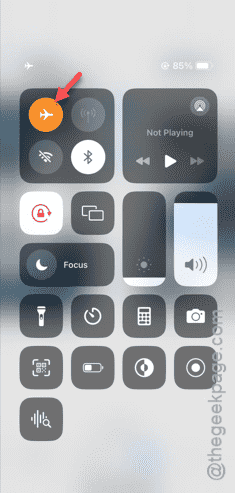
Step 2 – Simply, tap the Airplane mode button to disable the network activity on your device.
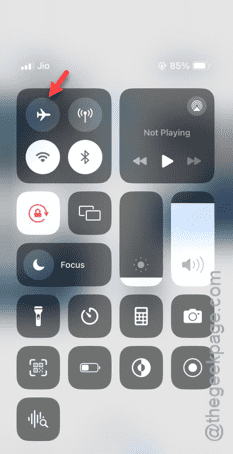
Step 3 – Then, wait for a few seconds in that condition.
Step 4 – Later, enable the Wi-Fi or Cellular data.
Step 5 – Once you are online, you can load the Instagram and try uploading an Instagram story.
Check whether you can actually do that or not.
Fix 3 – Restart the iPhone and retry
If you still can’t upload your Instagram story, do a simple reboot process and try again.
Step 1 – At first, you must close all the apps on your iPhone.
Step 2 – When you are done and no other apps are running, press and hold the Power button and the Volume Up button on your iPhone.
Step 3 – This action will start the reboot process on your iPhone. So, drag the slider from the left to right to power off the iPhone.
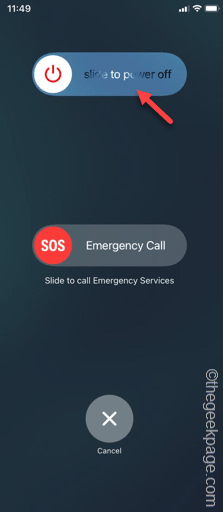
Step 4 – Later, when the iPhone is switched off, press and hold the Power button on the right side to switch On the device.
Once it is switched on, and you are connected to the internet, you can use the Instagram to upload the story.
Fix 4 – Remove the Instagram app and reinstall it
Uninstall the current version of the Instagram app and reinstall the same app on your iPhone.
Step 1 – Look for the “Instagram” app on your home page.
Step 2 – If you can’t find it directly on your Home Screen, swipe right-way to open the App Library.
Step 3 – Find and hold down the “Instagram” app.
Step 4 – Next, use the “Delete App” function to delete the app from your iPhone.
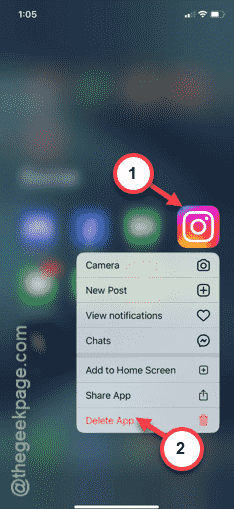
Step 5 – Next, simply, tap the “Delete” function to remove the app from your iPhone.
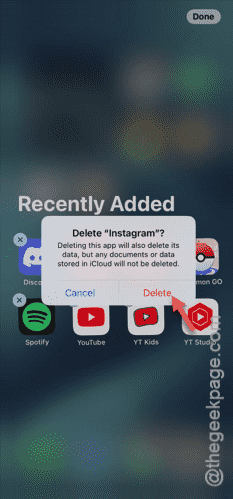
Step 6 – Once you have removed the Instagram app, return to the App Store.
Step 7 – Type “Instagram” in the search box.
Step 8 – Install Instagram on your iPhone.
Once you have loaded Instagram, you can upload your story directly from there.
Check whether you can upload it or not.
Fix 5 – Use Instagram on browser
If things are not working well on the Instagram app, you must use the social media from a browser.
Step 1 – Open any browser of your choice (like, Safari or Chrome).
Step 2 – Go to the Instagram.
Step 3 – You have to log in using your credentials. Or, you may use your Facebook credentials to log into it.
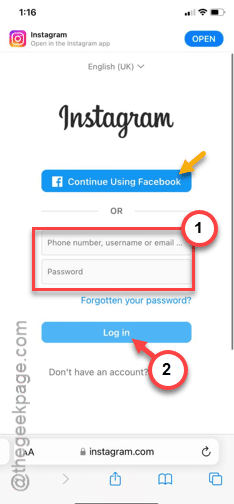
Step 4 – After logging into Instagram, you will see the “Story” mode button at the top.
Step 5 – Tap that and choose the origin of the picture to upload it in your story.

See whether you can upload the story or not.
Hope these fixes have helped you solve the issue.