Another month, another sim-breaking update. This time it’s a Windows patch and a sim update landing in the same week, and Flight Simulator 2024 is throwing 0xc0000005 at the loading screen. Or mid-flight. Or both, if you’re lucky like me. It’s not your hardware. And it’s not a bad install. Keep reading.
What Actually Broke
0xc0000005 is an “access violation.” Plain English: the sim reached for a chunk of memory that wasn’t there anymore. That’s it. The code is useless for telling you why, which is very Microsoft.
Two things lined up badly in September. The optional Windows preview update, KB5124010, changed how memory gets handed out, and the sim trips over it constantly. Microsoft already shipped an emergency fix (KB5129195), so at least they admitted it.
After the Sim Update, rewrote how terrain and photogrammetry get streamed. Your old rolling cache still points at the old layout. So the sim loads a tile, looks in the wrong place, and falls over.
Add-ons make it worse. Scenery and liveries built against the old SDK (the toolkit developers use to build add-ons) read memory the new sim no longer allocates. Why does one outdated airport take the whole sim down? Because this engine has never failed gracefully. Not once.
Fix 1 – Install the KB5129195 Emergency Update
Microsoft pushed this hotfix specifically for the memory crashes from the September update. Grab it first. And it’s the one fix that costs you nothing.
1 – Press Windows + I to open Settings.
2 – Click Windows Update at the bottom of the left sidebar.
3 – Click Check for updates or tap Install all.
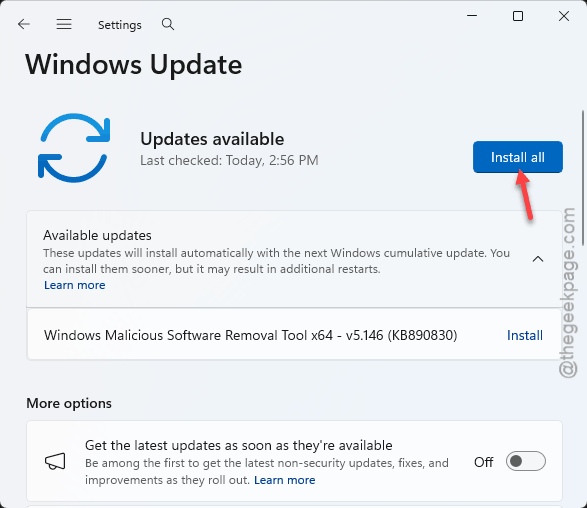
4 – Look for KB5129195 in the list and let it install. Wait for the progress bar to finish.
5 – Click Restart now.
Not showing up yet? Microsoft rolls these out in waves, so check again tomorrow. Or move on to Fix 2 and pull the bad update instead.
Fix 2 – Uninstall KB5124010
If the hotfix isn’t available, take the problem update off yourself. It was an optional preview anyway. You lose nothing by removing it.
1 – Open Settings and click Windows Update.
2 – Click Update history.
3 – Scroll all the way to the bottom and click Uninstall updates.
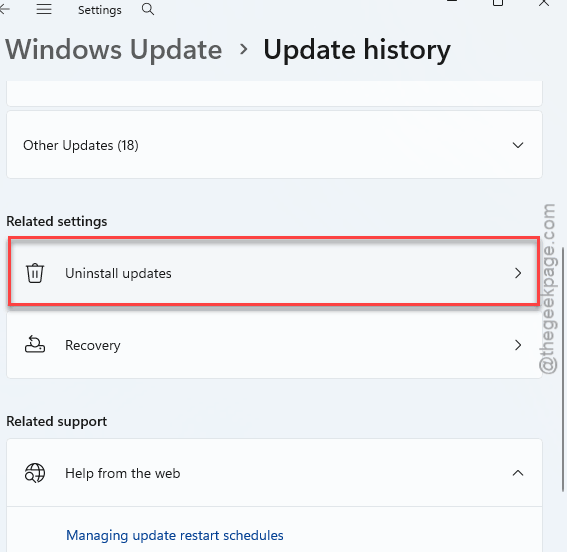
4 – Find KB5124010 in the list and click Uninstall next to it.
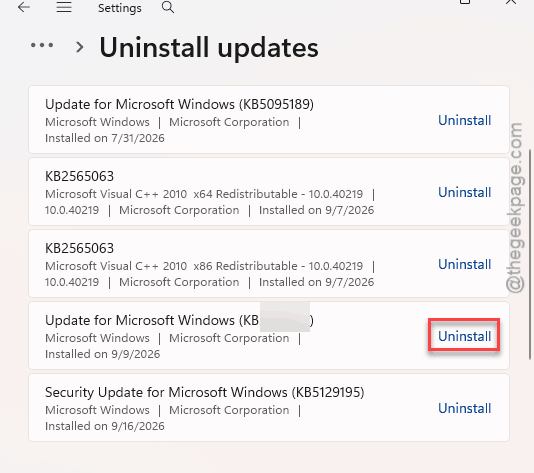
5 – Restart when Windows asks. The restart takes longer than usual, about three to five minutes.
And once it’s gone, pause updates for a couple of weeks. Windows Update, then Pause updates, pick a date. Otherwise Windows helpfully reinstalls the same patch overnight. Ask me how I know.
Uninstall button missing or failing? Jump to Fix 5.
Fix 3 – Move the Community Folder Aside
Here’s where most 0xc0000005 crashes actually live. One stale add-on. The sim won’t tell you which one. So you test with none and work back.
1 – Close Flight Simulator completely.
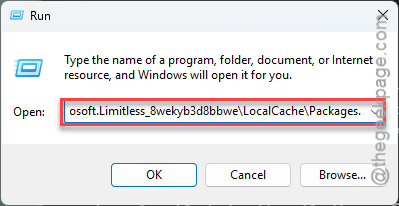
2 – Press Windows + R at once.
3 – Next, paste the path for your version, and press Enter.
Microsoft Store or Game Pass:
%localappdata%\Packages\Microsoft.Limitless_8wekyb3d8bbwe\LocalCache\Packages
Steam:
%appdata%\Microsoft Flight Simulator 2024\Packages
4 – Then, right-click the Community folder, pick Rename.
5 – You can call it Community_BACKUP.
6 – Go up one level to the LocalCache folder (Store) or the Microsoft Flight Simulator 2024 folder (Steam).
6 – Find Content.xml and delete it. The sim rebuilds a clean one on the next start.
7 – Launch the sim and load a flight.
Flies fine now? Good, it was an add-on. Make a new empty Community folder and copy your add-ons back in a few at a time, testing between batches. Tedious, yes. But it’s the only way to find the guilty one. Keep a list of what you added when, and this never takes more than one evening again.
Fix 4 – Delete the Rolling Cache and Shader Caches
Sim Update 5.1 changed the terrain layout. And your cached tiles didn’t get the memo.
1 – If the sim will open, go to Options, then General Options, then Data.
2 – Scroll down to Rolling Cache and click Delete.
3 – Switch the rolling cache Off for now. You can turn it back on after the next sim update settles.
Can’t reach the menu?
1 – Press Windows + R keys at once.
2 – Then, paste this and hit Enter:
%localappdata%\Packages\Microsoft.Limitless_8wekyb3d8bbwe\LocalCache\
NOTE – Steam users, go to the Packages folder from Fix 3 instead.
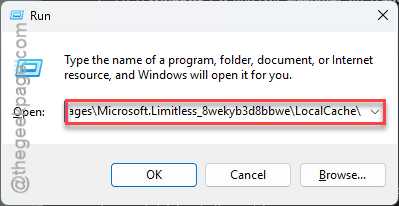
3 – Delete ROLLINGCACHE.CCC by hand.
4 – Then clear the Windows shader cache too.
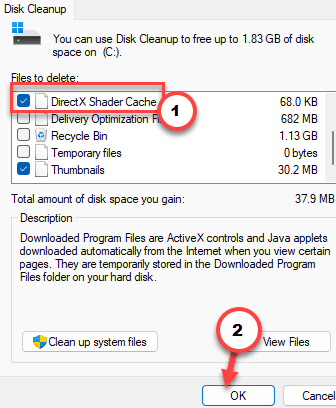
4 – Press Windows + R, and type cleanmgr, press Enter.
5 – Pick your C: drive, tick DirectX Shader Cache, and click OK.
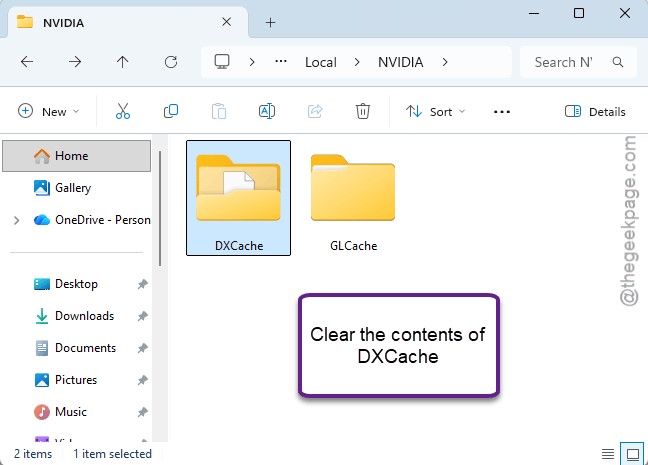
6 – On an NVIDIA card, also empty the %localappdata%\NVIDIA\DXCache folder (the folder itself stays, just delete what’s inside).
First flight after this will stutter for a few minutes while everything rebuilds. That’s normal. Don’t panic and start reinstalling.
Fix 5 – Roll Windows Back With System Restore
If Fix 2 wouldn’t uninstall the update (it happens more than it should), System Restore puts Windows back to an August build. Your files stay. Only system changes get undone.
1 – Press Windows + R, type rstrui, and press Enter.
2 – Click Next.
3 – Pick a restore point dated before the September update. Tick Show more restore points at the bottom left if you only see recent ones.
4 – Click Next, then Finish, then Yes.
The PC restarts and works on it for ten to twenty minutes. Leave it alone. No restore points from August? Then this route is closed, and the hotfix in Fix 1 is your way out. So keep checking for it.