After recieving the recent Windows updates, some users have complained of experiencing ghost tabs opening up in the File Explorer. According to them, the ghost tabs are only spawning upon clicking the middle click.
The Short Version
Explorer tries to preload tab contents before you actually open them. Smart idea. Bad execution.
The preload leans on the folder view cache — a registry area called BagMRU that remembers how each folder looked. When that cache corrupts, the new-tab request fails, so Explorer asks again. And again. That loop is your tab flood.
Fix 1 – Restart Explorer From Command Prompt
Do this first to stop the flood. And skip Task Manager — when tabs are spawning, the interface is usually too frozen to click through.
1 – Press Windows + R to open the Run box.
2 – Type cmd and press Enter.
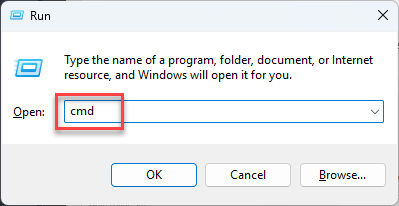
3 – Next, write this down, and press Enter:
taskkill /f /im explorer.exe && start explorer.exe
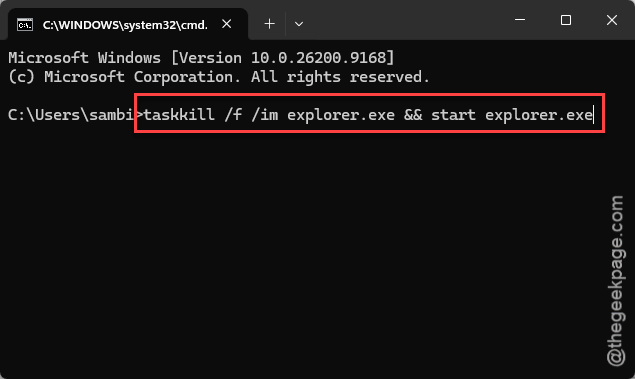
Your screen will flash and the taskbar disappears for a second or two. That’s expected. Explorer comes back clean, ghost tabs gone.
But this only stops the current flood. It will not stop the next one — keep going.
Fix 2 – Delete the Folder View Cache
The real repair. You’re wiping the corrupted BagMRU cache so Explorer rebuilds it from scratch.
Small trade-off: Windows forgets your per-folder view settings (icon sizes, sort order). Annoying, but that’s exactly the data that’s corrupted.
1 – At first, Press Windows + R keys at once.
2 – Type regedit , and press Enter.
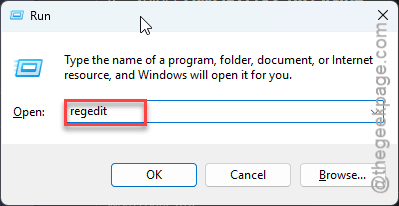
2 – Paste this into the address bar at the top and press Enter:
HKCU\Software\Classes\Local Settings\Software\Microsoft\Windows\Shell
3 – In the left pane, right-click the BagMRU key and select Delete.
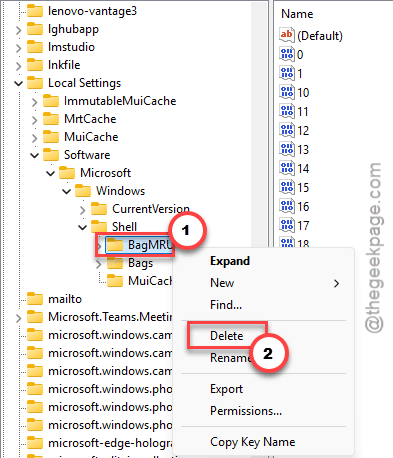
5 – Do the same with the Bags key, right below it.
6 – Close the Registry Editor and restart your PC.
Middle-click a folder after the restart and check. One tab should open. Just one.
Fix 3 – Turn Off Tab Preloading
Still spawning? Kill the preloader itself. No preloading, no loop.
1 – Open regedit again, like in Fix 2.
2 – Go to this key:
HKCU\Software\Microsoft\Windows\CurrentVersion\Explorer\Advanced
3 – Right-click an empty spot in the right pane and choose New, then DWORD (32-bit) Value.
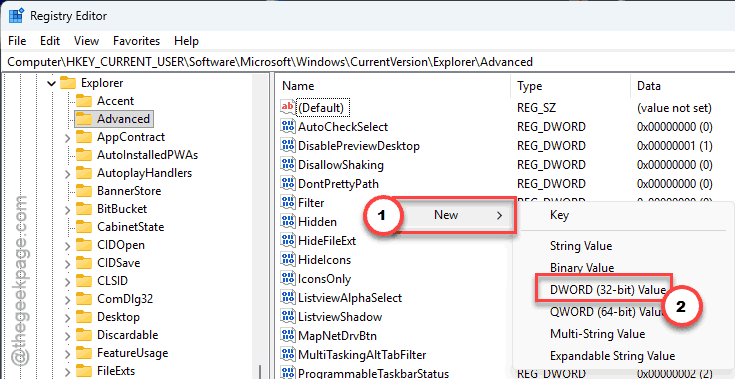
4 – Name it DisableTabPreload and press Enter.
5 – Then, double-click it.
6 – Set the value to 1, and click OK.
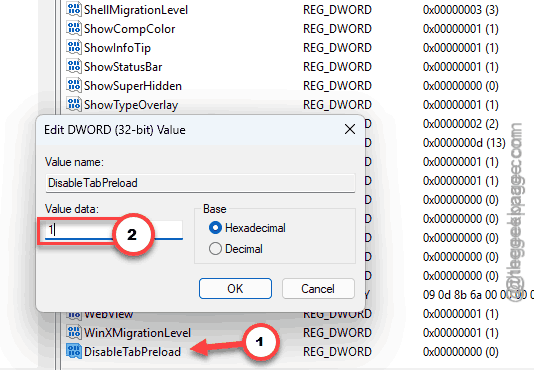
Restart Explorer like in Fix 1.
And leave the key in place afterward. It’s what keeps this bug from coming back — Explorer tabs work fine without preloading, just a hair slower on first open.
Fix 4 – Open Folders in Separate Windows
The bypass option. It sidesteps the tab system entirely, so nothing can spawn. Not pretty. Works, though.
1 – Open File Explorer.
2 – Click the three dots (⋯) in the toolbar at the top.
3 – Click Options.
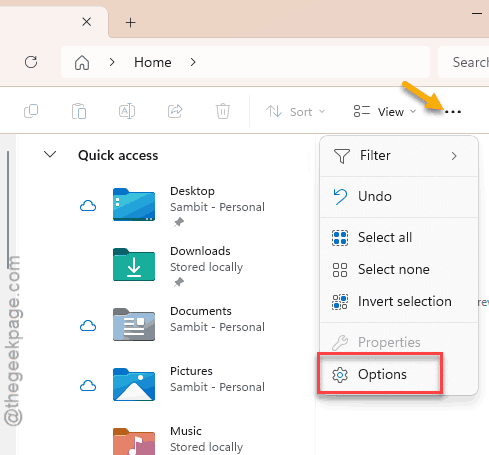
4 – On the General tab, select Open each folder in its own window.
5 – Click OK.
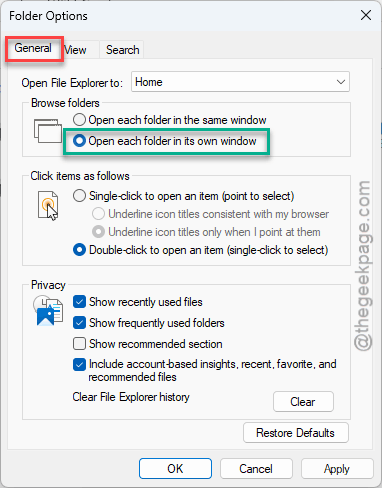
Use this until a Windows patch lands, then switch back if you miss tabs. Old-school windows everywhere takes some getting used to.
People Also Ask
Why is my middle mouse button not opening new tabs in Chrome?
That’s a different problem than the Explorer bug. In Chrome, middle-click should open links in a new tab — if it doesn’t, test the button in another app first. Button works elsewhere? Then a Chrome extension is likely eating the click. Dead everywhere? Check your mouse driver.
How do I know if my middle mouse button is broken?
Test it outside File Explorer. Middle-click a link in your browser — it should open in a new tab. If that works but Explorer floods with tabs, your mouse is fine and the tab preload bug is the cause. If middle-click does nothing anywhere, it’s the mouse or its driver.