Your whole Dev Drive suddenly refuses writes, builds fail, git chokes, everything’s frozen. But usually a two-minute unlock, not dead hardware. Here’s why it happens. ReFS (the filesystem Dev Drives run on) has a paranoid safety reflex: the moment it suspects metadata damage or a file deadlock, it slams the volume into read-only to protect your data. Defender’s real-time scanner is a known trigger, it can deadlock files on a Dev Drive and trip the lock for no good reason. Classic Windows, protecting you from itself. Here are some solutions to fix this issue.
Fix 1 – Check Whether the Volume Is Actually Damaged
Thirty seconds, and it decides everything. A healthy drive means a simple policy lock. An unhealthy one means real metadata trouble.
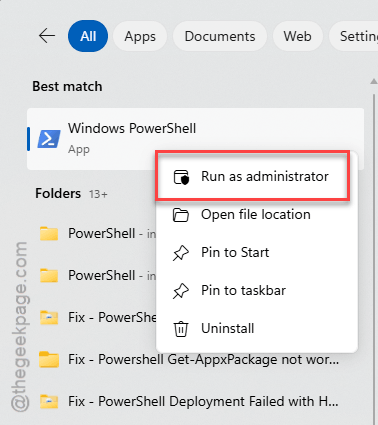
1 – Press the Windows key and type “PowerShell“.
2 – Right-click Windows PowerShell and choose Run as administrator.
3 – Type this and press Enter:
Get-Volume | Format-List FileSystem, DriveLetter, HealthStatus
4 – Find your Dev Drive in the list (the FileSystem line says ReFS) and read its HealthStatus.
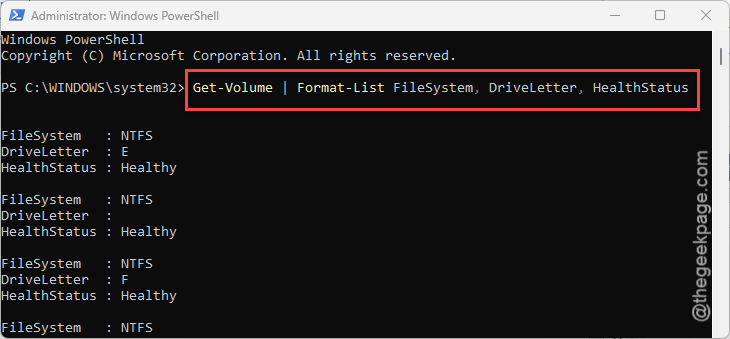
Says Healthy? Good news — go straight to Fix 2 and skip the salvage stuff. Says Unhealthy? The lock is protecting corrupted metadata, and Fix 5 is where you’re headed after trying the ones in between.
Fix 2 – Clear the Read-Only Attribute
The direct approach. Windows sets a write-protection flag on the volume, and diskpart can just… turn it off. Why there’s no button for this anywhere in Settings, nobody knows.
1 – Open the Start menu and type “cmd”.
2 – Right-click Command Prompt and select Run as administrator.
3 – Type diskpart and press Enter.
4 – Type this and press Enter. Find your Dev Drive’s volume number in the table.
list volume
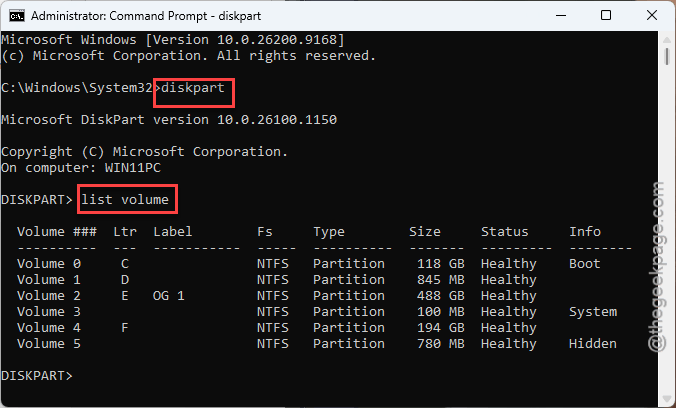
5 – Type (swap X for your number) and press Enter.
select volume X
attributes volume clear readonly
6 – Type and press Enter.
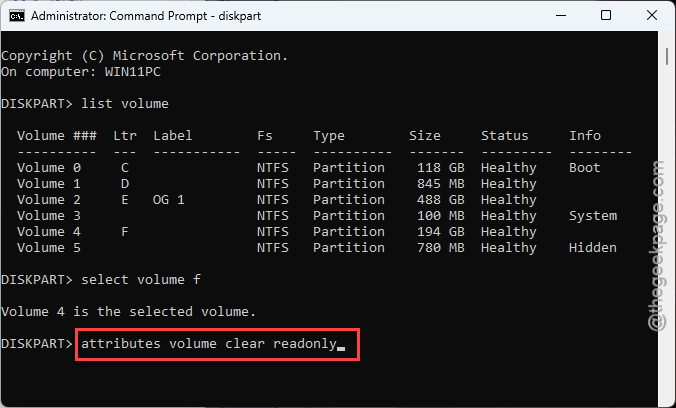
7 – Type exit twice to leave the tool.
Try saving a file to the drive. And if the lock snaps right back on, something is still tripping the safety reflex — keep going.
Fix 3 – Remount the Volume
Temporary I/O locks survive the attribute fix. Bouncing the disk offline and back clears them out.
1 – Open Admin Command Prompt and start diskpart, like in Fix 2.
2 – Type these codes and then for your Dev Drive.
list volume
select volume X
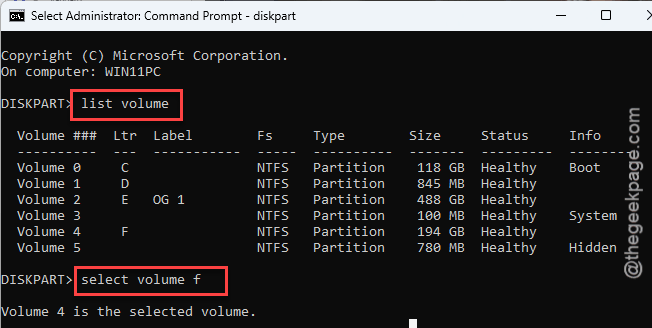
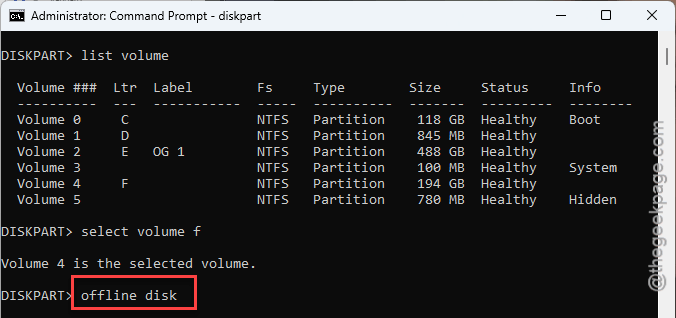
3 – Next, type this and press Enter.
offline disk
The drive vanishes from File Explorer. Don’t panic — that’s the point.
4 – Type this, and press Enter.
online disk
5 – Type twice.
exit
The drive remounts fresh, with any stuck locks gone.
Fix 4 – Get Defender Off the Drive’s Back
Still locking up? Defender’s real-time scanner deadlocking your files is the usual repeat offender. Turn it off briefly to test — and turn it back on right after, this is a diagnosis, not a lifestyle.
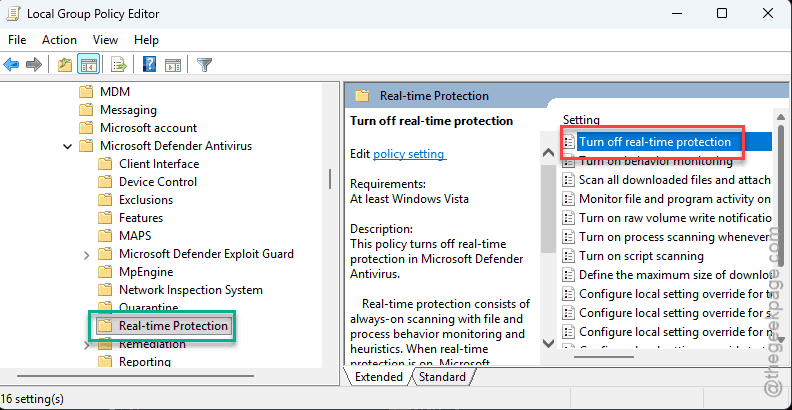
1 – Press Windows + R, type gpedit.msc, and press Enter.
2 – In the left pane, go to
Computer Configuration > Administrative Templates > Windows Components > Microsoft Defender Antivirus > Real-time Protection
3 – Double-click Turn off real-time protection in the right pane.
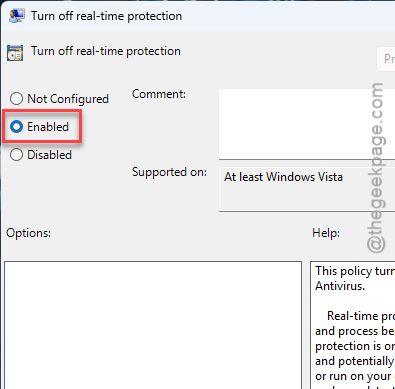
4 – Select Enabled, then click OK.
5 – Clear the read-only attribute again like in Fix 2, then work on the drive for a bit.
No more lockups with the scanner off? You’ve found your culprit. Flip the policy back to Not Configured when you’re done testing — running without real-time protection is not a plan.
Fix 5 – Salvage the Volume With refsutil
The big gun, for drives that report Unhealthy. ReFS can’t be repaired with chkdsk like a normal drive — Microsoft ships a separate tool called refsutil that reads the broken volume and clones everything recoverable to a second drive.
You’ll need another drive with enough free space to hold the recovered files. Not optional.
1 – Open Command Prompt as administrator.
2 – Type this and press Enter:
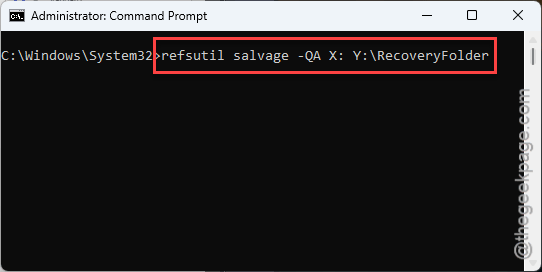
refsutil salvage -QA X: Y:\RecoveryFolder
3 – Swap X for your Dev Drive letter and Y:\RecoveryFolder for a folder on the backup drive.
4 – Wait it out. Big volumes take a while — the tool is walking every file’s metadata.
When it finishes, your recoverable data sits in the recovery folder. From there you can reformat the Dev Drive and copy things back.
Keep It From Coming Back
- Turn Defender’s real-time protection back on after testing — but remember it was the trigger. If the lock returns every few days, that’s your smoking gun for an exclusion conversation with IT.
- Run the Get-Volume health check from Fix 1 once in a while. Catching Unhealthy early beats finding out mid-deadline.
- Keep a drive with free space around. refsutil is useless without somewhere to put the salvage.
People Also Ask
Why did my Dev Drive suddenly switch to read-only?
ReFS locks itself the moment it suspects trouble — corrupted metadata or a file deadlock. It’s a safety reflex, not a failure. Defender’s real-time scanning is a common trigger on Dev Drives. Check the volume’s HealthStatus in PowerShell first; a Healthy drive just needs the diskpart unlock.
Does refsutil salvage delete my files?
No — it works the other direction. It reads the damaged volume and copies everything recoverable into a folder on a second drive, leaving the original untouched. You do need enough free space on that second drive. Afterward, most people reformat the Dev Drive and copy their data back.