Ever fixed a stutter, loaded into a strike, and watched it come right back two minutes later? That’s Destiny 2 frame pacing for you. The counter says 100+ fps. Your eyes say 40. Little hitches every few seconds, worst in busy fights. And it got noticeably rougher after Bungie quietly moved the game to a windowed fullscreen mode. Let’s take it apart, one layer at a time.
The Short Version
Destiny 2’s stutter almost never has one cause. It’s a pile-up.
The engine now runs in windowed fullscreen whether you asked for it or not. Windows treats that mode differently — its own “optimizations” fight it, overlays inject themselves into it, and HDR gets flaky inside it. On top of that, old settings files carried over from previous engine versions can quietly corrupt frame pacing all by themselves.
The good news? Every layer has an off switch. Work through the fixes in order and test after each one. Wondering where to test? A strike or a crowded patrol zone shows stutter fastest — much faster than orbit ever will.
Fix 1 – Disable the Steam Overlay
Easiest one first. The overlay injects itself into the game to draw that Shift+Tab menu, and the injection itself can interrupt frame delivery. Severe hitching, straight from your game launcher.
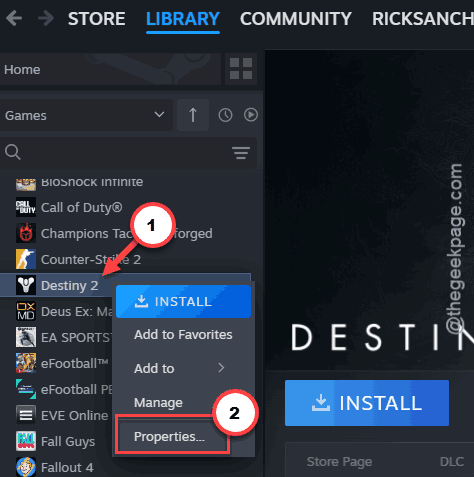
1 – Open your Steam library.
2 – Right-click Destiny 2 and select Properties.
3 – In the General tab, toggle off Enable the Steam Overlay while in-game.
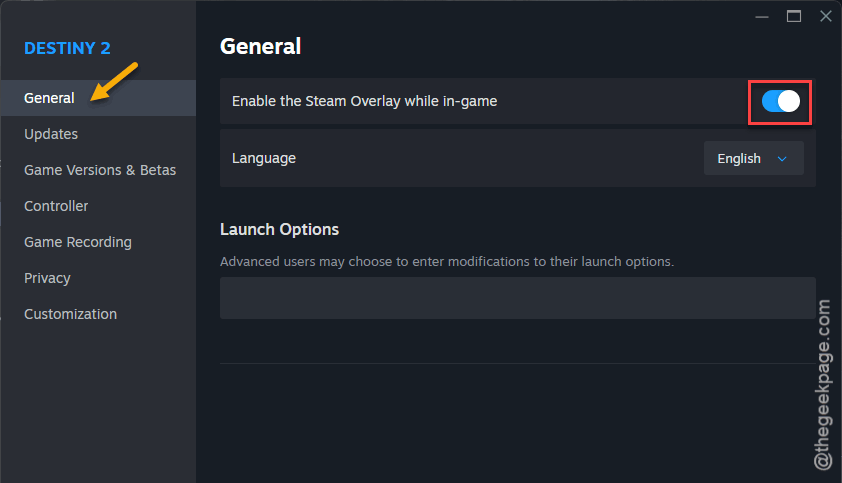
4 – Close the window and launch the game.
The cost is losing Shift+Tab in game. That’s it. Cheap trade for smooth frames.
Fix 2 – Turn Off Fullscreen Optimizations
Fullscreen optimizations are a Windows layer that sits between the game and your screen. It’s meant to help. With Destiny 2’s forced windowed-fullscreen change, it does the opposite.
1 – Right-click Destiny 2 in Steam, click Manage, then Browse local files.
2 – Find destiny2.exe in the folder that opens.
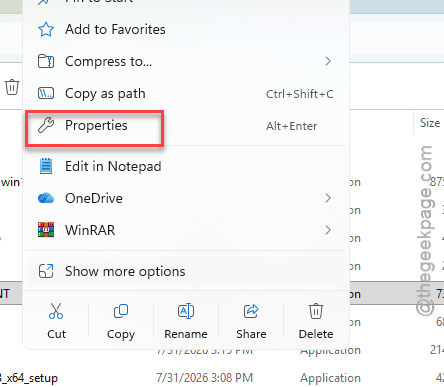
3 – Right-click it and pick Properties.
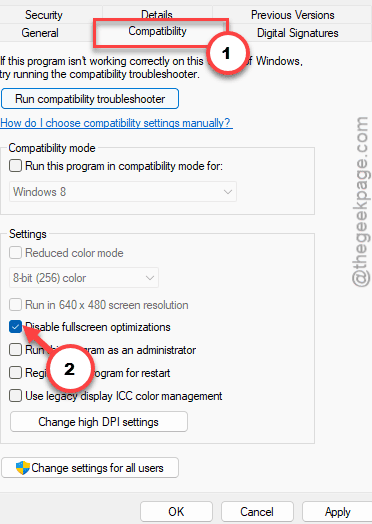
4 – Open the Compatibility tab.
5 – Check the box for Disable fullscreen optimizations.
6 – Click Apply, then OK.
Check if this works.
Fix 3 – Lock the Game to High Performance Graphics
Windows sometimes hands games to the weaker graphics chip, or juggles power modes mid-session. Laptops are the worst offenders here. So tell Windows exactly which chip runs Destiny.
1 – Press Windows + I to open Settings.
2 – Click System in the left sidebar, then Display.
3 – Scroll down and click Graphics.
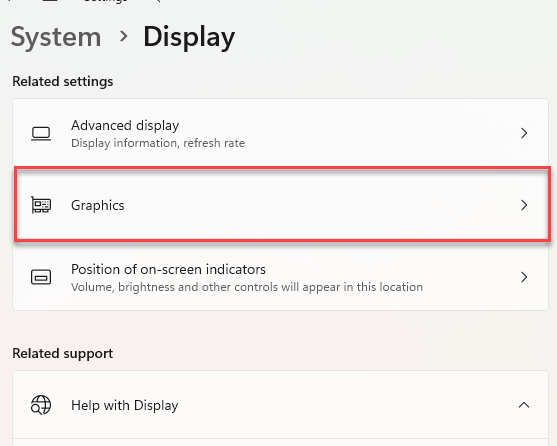
4 – Click Browse and add destiny2.exe — it’s in the same folder you found in Fix 2.
5 – Click the game in the list, then click Options.
6 – Pick High performance and save.
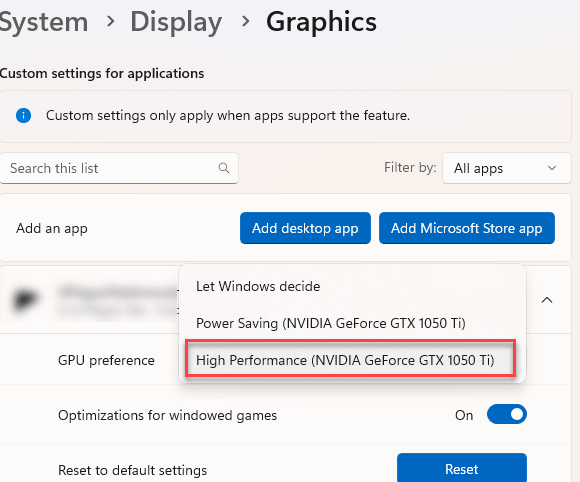
Nothing visible changes right away. The setting kicks in on the next launch.
Fix 4 – Use One Frame Limiter, Not Two
Running a frame cap in the Nvidia Control Panel and another one in the game? The two limiters fight over timing, and that fight is textbook bad frame pacing.
1 – Open the Nvidia Control Panel.
2 – Go to Manage 3D Settings, find Max Frame Rate, and switch it off.
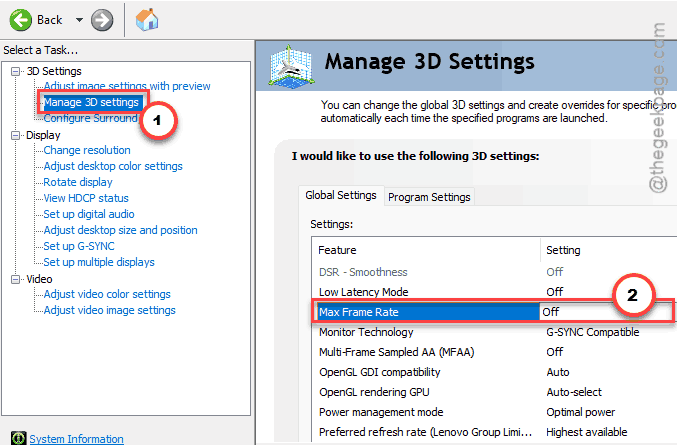
Then set your cap with the in-game limiter instead. Some setups behave better the other way around — limiter on in the driver, off in the game. Try both arrangements and keep whichever feels smoother. Just never both at once.
Fix 5 – Turn Off In-Game HDR
HDR (the high-brightness color mode for newer monitors) misbehaves inside the new windowed mode. It’s fine for a while, then dense visual areas — big public events, particle-heavy fights — send it erratic.
1 – Open Destiny 2’s settings menu.
2 – Go to the video tab.
3 – Find the HDR option and switch it off.
4 – Head to a busy area and compare.
Sad to lose the pretty highlights, I know. Turn it back on later if a patch sorts the windowed mode out.
Fix 6 – Delete the CVARS Files and Start Clean
cvars.xml is the file where Destiny 2 stores every graphics setting and keybind. And when it carries over from an older engine version, it causes random microstutters that no menu setting can reach. Deleting it forces the game to build a clean one.
Screenshot your settings and keybinds first (seriously — future you will be grateful).
1 – Close Destiny 2 completely.
2 – Press Windows + R, type %appdata%\Bungie\DestinyPC\prefs, and press Enter.
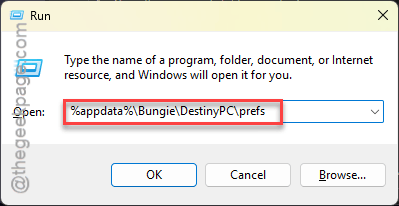
3 – Delete both cvars.xml and cvars.old.
4 – Launch Destiny 2 and set your graphics and keybinds up again.
But don’t skip this one just because redoing keybinds is a chore. Corrupted carry-over settings are one of the most common stutter causes in this game.
Fix 7 – Shut Off Nvidia Reflex in the Config File
Reflex is supposed to cut input lag. In Destiny 2’s engine it piles extra load onto the CPU queue instead, and the result is big frame drops. The in-game toggle doesn’t always release it properly, so you’ll flip it off in the config directly.
1 – Open the same prefs folder as in Fix 6.
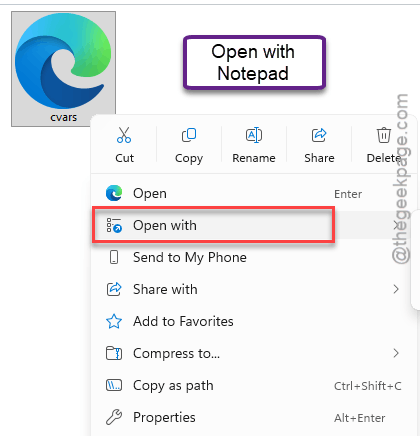
2 – Right-click cvars.xml and open it with Notepad.
3 – Press Ctrl + F and search for low_latency_mode.
4 – Change its value from 1 (or 2) to 0.
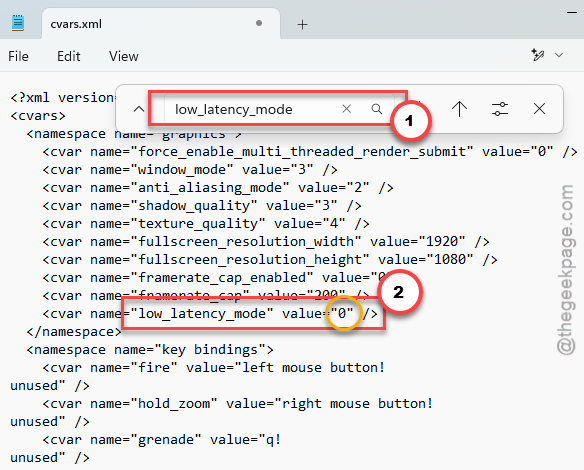
5 – Save with Ctrl + S and launch the game.
One thing to watch: if you deleted the cvars files in Fix 6, make this edit after the game rebuilds the file. Otherwise your change gets wiped along with everything else.
Fix 8 – Game Hangs at the Opening Cinematic? Spam Escape
This one’s for a different symptom from the same update: the game freezing completely during the opening cinematic. There’s a memory leak in that sequence.
The workaround is gloriously dumb. Press Esc repeatedly during the cinematic until it skips. That’s the whole fix — bypassing the cinematic dodges the leak, and the game loads normally afterward. Use it every launch until Bungie patches the leak itself.
Avoiding This Next Time
– After every big Destiny patch, delete the cvars files and let the game rebuild them. Two minutes, and it stops ghost settings from old engine versions haunting the new one.
– One frame limiter. Ever. Pick a lane and stay in it.
– Run the fewest overlays you can live with. Each one is another injection into the game’s rendering.
– Keep a screenshot of your settings somewhere handy, so a config wipe costs you nothing but a minute of clicking.
Quick Answers
Why does Destiny 2 stutter even at high FPS?
Because average FPS and frame pacing are different things. Your card can push 120 frames a second and still deliver them unevenly — a few instantly, then a gap. That gap reads as a hitch. Overlays, doubled-up frame limiters, and corrupted config files all cause uneven delivery.
Where are Destiny 2’s settings files on PC?
Press Windows + R, type %appdata%\Bungie\DestinyPC\prefs, and hit Enter. The main file is cvars.xml, with a backup called cvars.old. Graphics options, keybinds, and hidden values like the Nvidia Reflex setting all live in there as plain, editable text.
Does deleting cvars.xml reset my characters or progress?
Not at all. Characters, gear, and progress live on Bungie’s servers, untouched by anything on your disk. Deleting cvars.xml only clears local settings — resolution, graphics quality, keybinds. The game rebuilds the file with defaults the next time it starts.
Should Nvidia Reflex be on or off in Destiny 2?
Off, at least for now. Destiny 2’s engine handles Reflex badly — it overloads the CPU’s frame queue and causes heavy drops in demanding scenes. Set low_latency_mode to 0 in cvars.xml. The input lag difference is tiny; the stability difference isn’t.