The fix-of-last-resort just failed you. That stings. Reset This PC either errors out the second you start it, or grinds to 99% and rolls everything back like nothing happened. But here’s the usual story: a recent update switched off the recovery agent (WinRE — the mini repair system that resets run from), or the local Windows image the reset copies from is corrupted. Both are fixable. And even if your reset stays broken, two other routes get you the same fresh Windows.
Fix 1 – Re-Enable the Recovery Agent
Reset dies the instant you click it? Then WinRE is probably switched off entirely — updates have a habit of doing that. One command turns it back on.
1 – Click Start and type “cmd”.
2 – Right-click Command Prompt and choose Run as administrator.
3 – Type the command below and press Enter.
reagentc /enable
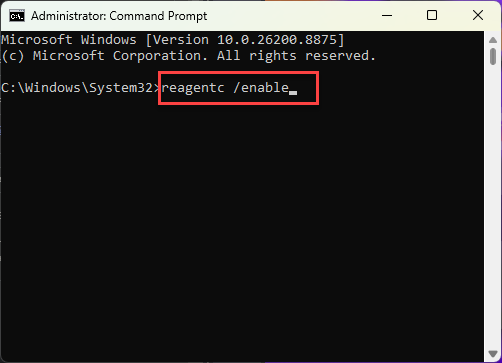
4 – Look for “Operation Successful” in the window, then close it and try the reset again.
If it reports a failure or a missing image instead? WinRE is damaged beyond a quick flip. Keep going down the list — Fixes 4 and 5 don’t need it at all.
Fix 2 – Use Cloud Download Instead of Local Reinstall
Reset getting most of the way there, then rolling back? The local Windows image it copies from is likely corrupted. Cloud Download skips that image and pulls a fresh copy straight from Microsoft (about 4GB of downloading, so give it time).
1 – Press Windows + I to open Settings.
2 – Click System, then scroll down to Recovery.
3 – Click Reset PC.
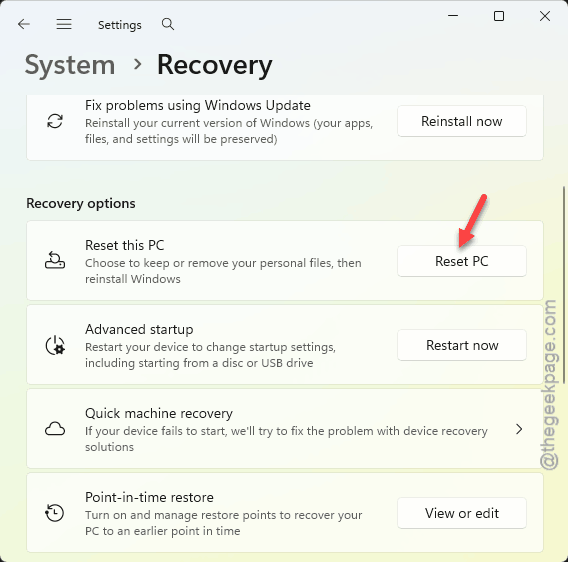
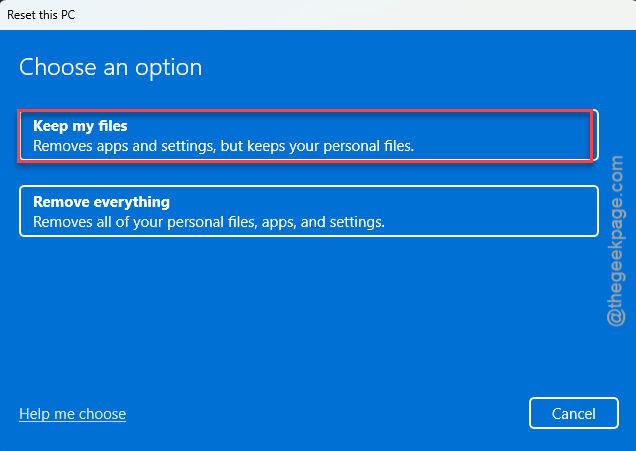
4 – Choose whether to keep your files or remove everything.
5 – When it asks how to reinstall Windows, pick Cloud download — not Local reinstall.
6 – Follow the prompts and let it run.
A corrupt local image can’t sabotage a reset that never touches it. That’s the whole trick.
Fix 3 – Run the Reset From Outside Windows
Locked system files can also kill a reset started from the desktop. Starting it from the recovery menu means Windows isn’t fully running. So nothing is locked and nothing fights back.
1 – Click Start, then click the Power button.
2 – Hold the Shift key and click Restart at the same time.
3 – Wait for the blue recovery screen to appear.
4 – Click Troubleshoot.
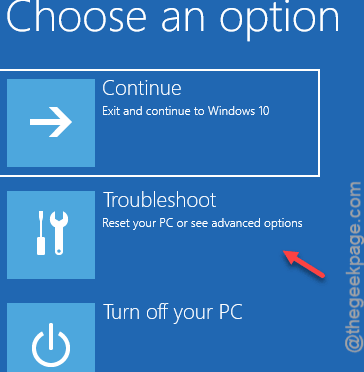
5 – Click Reset this PC and make the same choices as before.
Same reset, different launchpad. And for a lot of people, that’s the difference between 99%-and-rollback and actually finishing.
Fix 4 – Do an In-Place Upgrade Instead
Rather keep your files and apps anyway? An in-place upgrade reinstalls all of Windows underneath them — the same fresh-system result the reset promised, through a door that isn’t broken.
1 – Download the Windows 11 ISO from Microsoft’s website. It sits on the same download page as the Media Creation Tool, further down.
2 – Double-click the downloaded ISO to mount it. A virtual drive appears in File Explorer.
3 – Open that drive and run setup.exe.
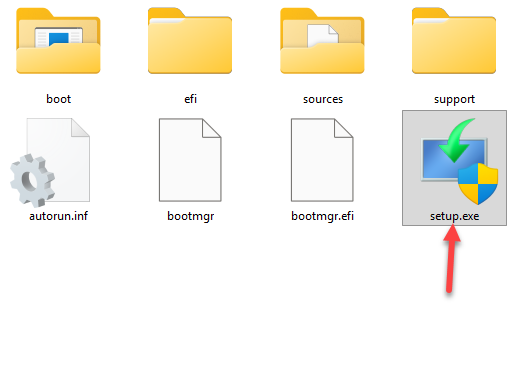
4 – Click Yes on the permission prompt and follow the installer.
5 – When it asks what to keep, choose Keep personal files and apps.
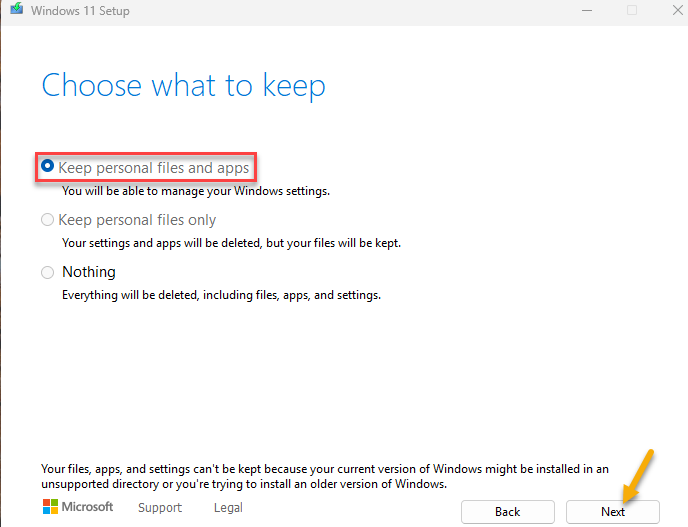
6 – Let it run. Expect an hour or so, with a few automatic restarts along the way.
Your desktop comes back looking untouched (wallpaper, apps, the lot). But underneath, every system file is brand new. It’s the gentlest deep repair Windows has.
Fix 5 – Clean Install From a USB Stick
Try clean installing from a USB stick.
1 – On any working PC, download the Media Creation Tool from Microsoft’s site.
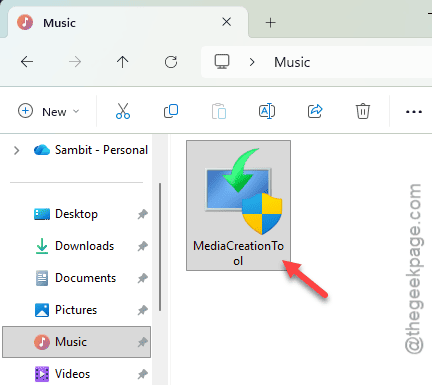
2 – Run it and let it build a bootable USB stick (8GB or larger).
3 – Plug the stick into the broken PC and boot from it.
4 – Follow the installer until it asks for the installation type.
5 – Choose Custom: Install Windows only (advanced).
6 – Select the drive Windows lives on and continue. The installer formats it and installs fresh.
Everything on that drive is gone afterward — that’s the point. And a machine that refused every other fix boots like new from this one.
Keep It From Coming Back
– Run “reagentc /info” in an admin Command Prompt after big updates (it shows whether WinRE is enabled).
– Keep a Media Creation Tool USB in a drawer. Make it before disaster, not during.
– Back up files continuously — OneDrive, an external drive, anything.
People Also Ask
Why does Reset This PC roll back at 99 percent?
Usually a corrupted local Windows image or locked system files — the reset hits something it can’t process, gives up, and restores your old install. Use Cloud download instead of Local reinstall, or start the reset from the recovery menu (Shift + Restart) so nothing is locked.
Does an in-place upgrade delete my apps or files?
No. Choose “Keep personal files and apps” and everything stays — documents, programs, most settings. Windows swaps out its own system files underneath. It’s slower than a reset, about an hour, but it repairs the same deep corruption without flattening your setup.