You hit mute on your Bluetooth headset. The headset beeps. Teams still shows your mic as live.
Or the reverse — you unmute, nobody hears you, and you spend the next minute saying “can you hear me now.” Every meeting. It gets old.
Why This Happens
Two computers are arguing about who’s muted. One is your headset. The other is Windows.
When you press mute on the earcup, the headset sends a little message over Bluetooth: “user pressed mute.” Windows is supposed to catch it and switch the mic off. Then Windows tells your app. Three links in a chain, and any of them can drop the message.
So the headset thinks it’s muted. Windows thinks it’s live. Your app shows whatever it heard last. Nobody’s lying — they just stopped agreeing.
What breaks the chain? Mostly two features. Absolute Volume lets your headset control Windows volume directly, and it hijacks the same control channel the mute button uses. And Hands-Free Telephony is the mode Windows switches into for calls — that’s the mode where the mute button is supposed to work, and it’s also the buggiest thing in the Windows Bluetooth stack.
Ever noticed your audio go tinny the second a call starts? That’s Hands-Free mode kicking in.
Fix 1 – Turn Off Absolute Volume
Try turning off the absolute volume feature on your machine.
1 – Start by pressing the Windows + R keys together.
2 – Then, type regedit, and press Enter.
2 – Paste this into the address bar at the top of the Registry Editor and press Enter:
HKEY_LOCAL_MACHINE\SYSTEM\CurrentControlSet\Control\Bluetooth\Audio\AVRCP\CT
3 – Right-click an empty area in the right pane and choose New > DWORD (32-bit) Value.
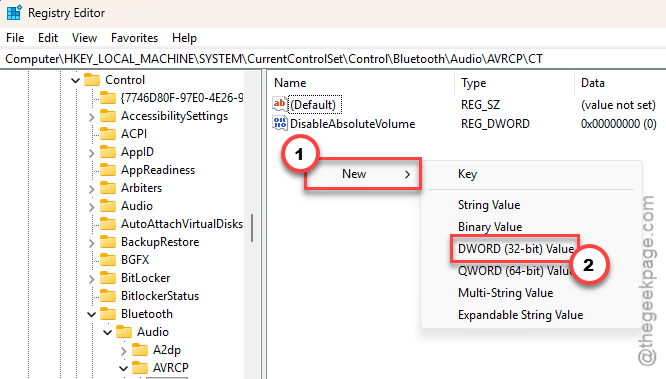
4 – Name it DisableAbsoluteVolume and press Enter.
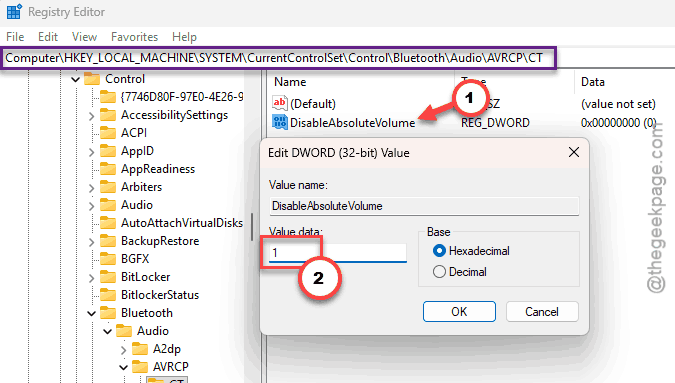
5 – Then, double-click it.
6 – Later, type 1 in the Value data box, and click OK to save it.
7 – Restart your PC.
One side effect. Your headset’s volume buttons and Windows’ volume slider now move separately, so you set volume in two places instead of one. Small price.
Fix 2 – Restart the Audio and Bluetooth Services
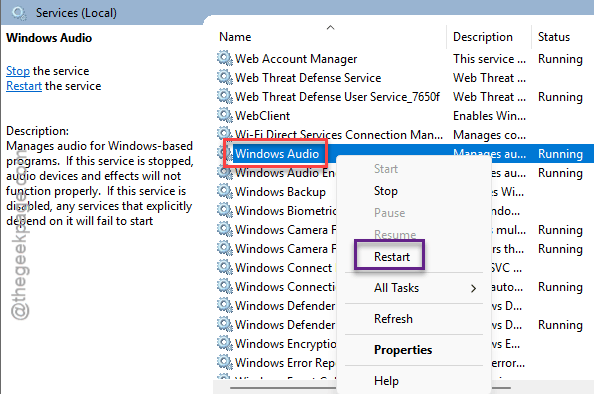
1 – You can Press Windows + R, type services.msc and press Enter.
2 – Scroll to Windows Audio, right-click it, choose Restart.
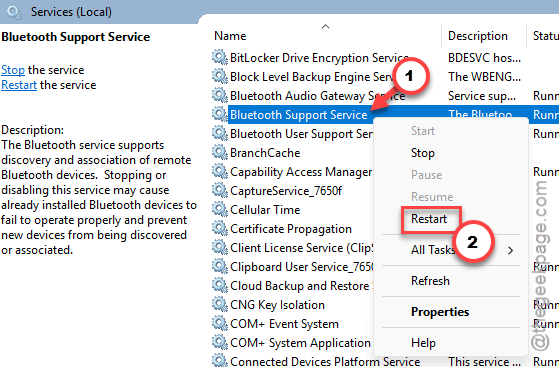
3 – Then scroll down to Bluetooth Support Service and restart that one too.
Your sound cuts out for a second. When it comes back, press the mute button and watch your app. If they agree now, the services had just fallen out of step and you’re done.
Fix 4 – Mute From One Place Only
You can use the app’s mute button to mute the headset. Not the headset’s.
If you are using Microsoft Teams app, you may use the Ctrl + Shift + M.
Like on Zoom app, it’s Alt + A.
This way, you can easily mute the headset directly from the respective app.
Fix 5 – Remove the Device and Pair It Fresh
Windows keeps a saved profile for every headset it has ever met. When that profile goes bad, re-pairing on top of it just loads the same bad profile again.
1 – At first, press Windows + I together.
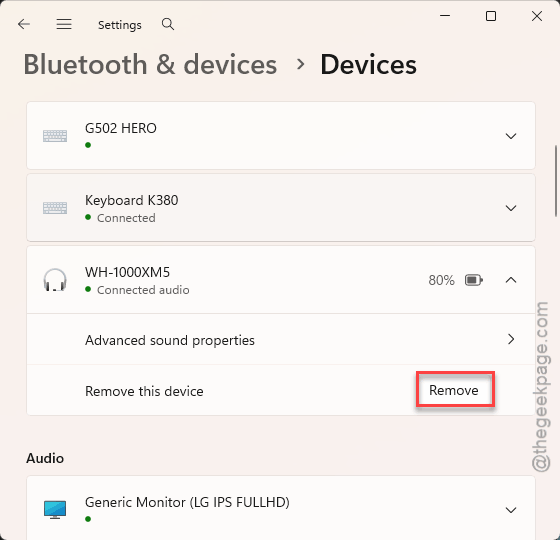
2 – Then, click Bluetooth & devices. Later, find your headset, click the three dots (⋯) next to it, and finally, choose Remove device.
2 – Next, right-click the Start button and choose Device Manager.
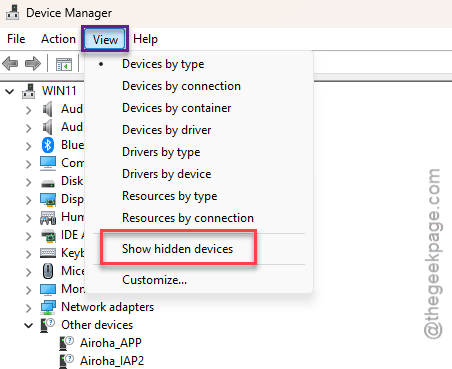
3 – Go to the View in the menu bar. Then, use the Show hidden devices feature.
4 – Expand Bluetooth and expand Audio inputs and outputs.
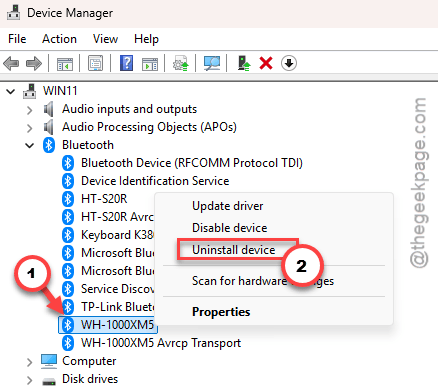
5 – Look for greyed-out entries with your headset’s name. Greyed out means Windows remembers it but it isn’t connected.
6 – Right-click each greyed-out entry and choose Uninstall device.
7 – Then, restart your PC.
8 – Put the headset in pairing mode (usually hold the power button until the light flashes blue).
9 – Next, pair it afresh.
Now redo Fix 1 if you’d already done it. A fresh pairing can reset that registry behavior.
How to Prevent This
– Leave DisableAbsoluteVolume on. It stays through updates and it fixes the volume-jump problem as a bonus.
– Mute from the app, not the headset. One source of truth, no argument.
– Don’t pair the same headset to your phone and your PC at once. It switches between them mid-call and the mute state goes with it.
– Got an important call? Test the mute button once beforehand. Ten seconds. Saves the whole meeting.
People Also Ask
Why isn’t my mute button working on my headset?
The button probably works. Windows just isn’t hearing it. The message travels over the same Bluetooth channel that Absolute Volume uses, and the two collide. Add a DisableAbsoluteVolume DWORD set to 1 under the AVRCP\CT registry key, then reboot.
Why is my Bluetooth audio out of sync?
Bluetooth compresses audio before sending it, and that compression takes time — you’re always hearing the past. Windows switching between call mode and stereo mode makes it worse. Restart the Windows Audio and Bluetooth Support services first. If it persists, re-pair the headset from scratch.