If you are getting the incompatibility error while connecting to the Abiotic Factor server, don’t worry. This error sounds like something is badly broken. It isn’t. Irritating, but easily fixable in a few minutes.
Why This Happens
Abiotic Factor gets patched a lot. Hotfixes land with little warning (sometimes two in one week).
Your game updates through Steam without you lifting a finger. The dedicated server doesn’t. It sits on the old build until someone updates it by hand. And the moment the two builds differ, the server turns you away.
But it can go the other way too. Maybe the server did update, and your own Steam client hasn’t grabbed the hotfix yet. Same error, opposite cause. Confusing? Very.
A few smaller things produce the same message. One is a beta branch on one side. A PC clock that runs a few minutes off is another, and so is old cached connection data. So the fixes below start with the common causes and work down.
Fix 1 – Update the Server With SteamCMD
SteamCMD is the small command-line tool that downloads server files from SteThe automatic update script often misses hotfixes, so do it by hand.
1 – Shut down your Abiotic Factor dedicated server completely.
2 – Then, open the folder that holds SteamCMD.exe and launch it.
3 – Type login anonymous and press Enter.
4 – Type force_install_dir followed by the path to your server folder, then press Enter.
For example: force_install_dir C:\AbioticServer
5 – Type app_update 2857200 validate and press Enter.
6 – Wait for the download to finish. A line starting with “Success!” tells you it’s done.
7 – Type quit and press Enter.
8 – Start your server again.
The number 2857200 is the Steam ID for the server tool. Type it exactly as shown.
Fix 2 – Restart Steam So Your Game Updates
Server is up to date and you still get the error? Then check your side. Steam sometimes sits on a hotfix until you restart it.
1 – Close Abiotic Factor.
2 – Click Steam in the top left corner of the main Steam window.
3 – Select Exit.
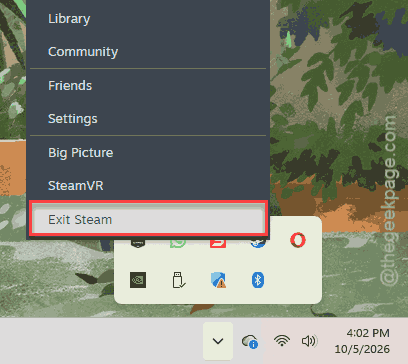
This shuts Steam down completely, not just the window.
4 – Open Steam again.
5 – Go to your Library.
A download for the game should start right away. Let it finish, then try the server again.
And ask your friends to do the same. One person on an old build gets the exact same rejection.
Fix 3 – Leave the Beta Branch on Both Sides
If your game is on an experimental test branch and the server is on the public one, they will never match. It works the other way round too. So check both.
1 – Right-click Abiotic Factor in your Steam Library.
2 – Select Properties.
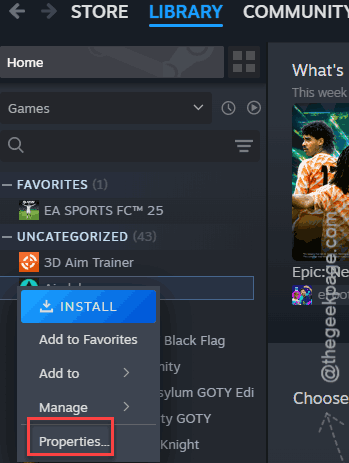
3 – Click the Betas tab on the left.
4 – Set the Beta Participation drop-down to None.
5 – Launch the game and try to connect.
Check if this works.
Fix 4 – Sync Your Windows Clock
This sounds unrelated. The game signs you in through Epic Online Services (the system that runs its multiplayer), and that sign-in gets rejected if your PC’s clock is off by even a few minutes.
Why does a wrong clock show up as an incompatible error? Good question.
1 – At first, right-click the time and date. You will find it in the bottom right corner of your taskbar.
2 – Then, choose the Adjust date and time.
3 – Make sure the Set time automatically toggle is On.
4 – Scroll down and click Sync now.
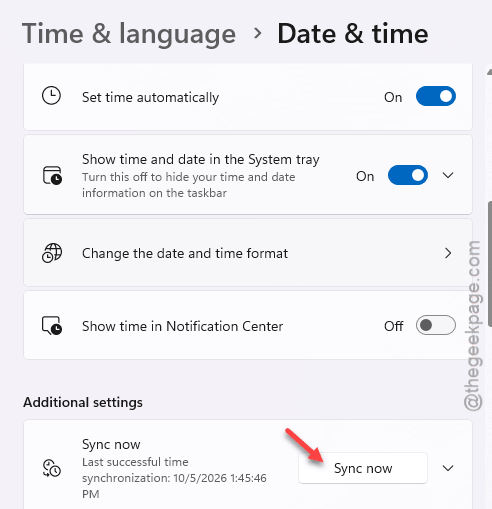
5 – Restart your computer.
A small checkmark shows up next to the button when the sync works.
Fix 5 – Delete the Server’s Saved Cache
Old connection data from before the hotfix can keep the Incompatible loop going even after you update.
But don’t delete anything blind. If you also play the game on the server PC, your own worlds can live in the same folder. That’s why step 4 makes a backup first.
1 – At first, press Windows + R keys together.
2 – Type this code, and press Enter.
%localappdata%
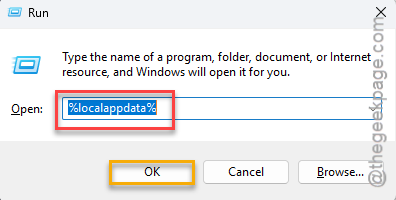
3 – Open the AbioticFactor folder.
4 – Copy the Saved folder to your desktop (hold Ctrl while you drag it).
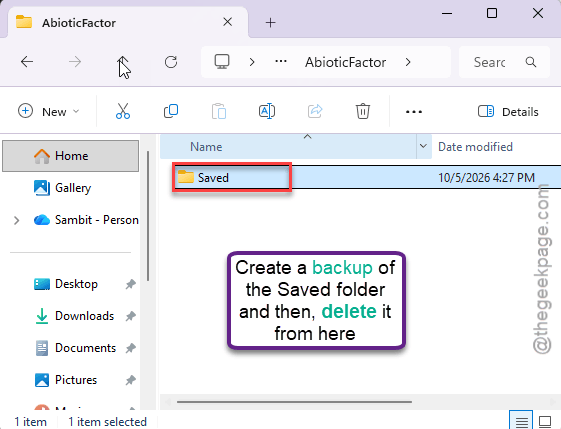
5 – Delete the Saved folder inside AbioticFactor.
6 – Restart the dedicated server.
Fix 6 – Verify the Server Tool Files
You can let Steam verify and repair the game files on the go.
1 – Open your Steam Library.
2 – Click the drop-down above your games list, at the top of the left sidebar.
3 – Check the Tools box.
4 – Right-click Abiotic Factor Dedicated Server and select Properties.
5 – Go to Installed Files.
6 – Click Verify integrity of tool files.
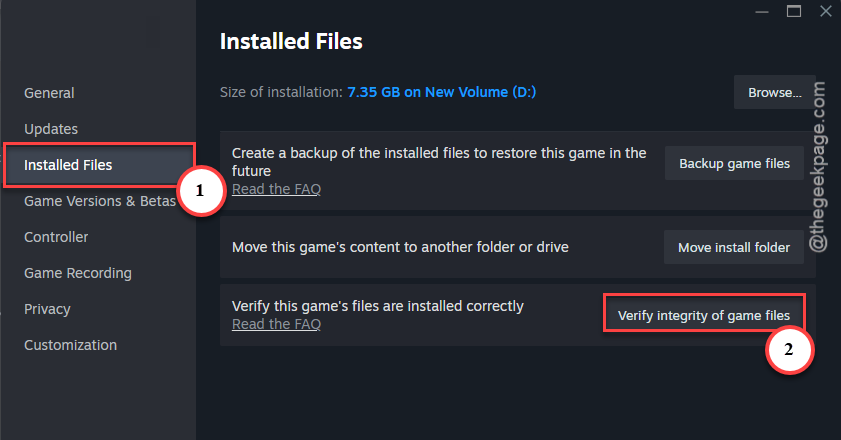
The check takes a couple of minutes. Steam replaces any file that is missing or damaged, including the ones a hotfix can wipe by accident.
Fix 7 – Add the Server to Steam Favorites
Server running but invisible? Sometimes the server is fine and the in-game browser is the problem. For some reason it just won’t list it. So skip the browser and connect through Steam.
1 – Open Steam and click View at the top.
2 – Select Game Servers.
3 – Go to the Favorites tab.
4 – Click the + icon.
5 – Type your server’s IP address, a colon, and the port. It looks like this: 192.168.1.100:7777 (your numbers will be different).
6 – Click OK.
The server now sits in your Favorites list, and you can join from there.
Fix 8 – Let the Server Through Windows Firewall
One host found that none of the above mattered. Windows Firewall on the server PC was blocking every friend who tried to join.
1 – On the server PC, press the Windows key and type Allow an app through Windows Firewall.
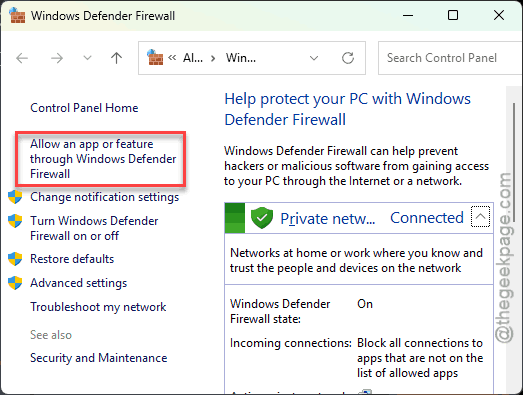
2 – Open the result.
3 – Click Change settings near the top right.
4 – Click Allow another app at the bottom.
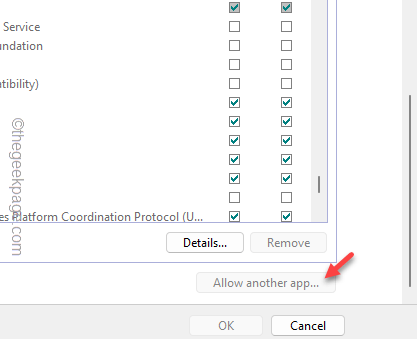
5 – Click Browse and pick your server’s .exe file (the file you double-click to start the server).
6 – Click Add.
7 – Tick the Private box next to the new entry. Tick Public too if your network is set to Public.
8 – Click OK.
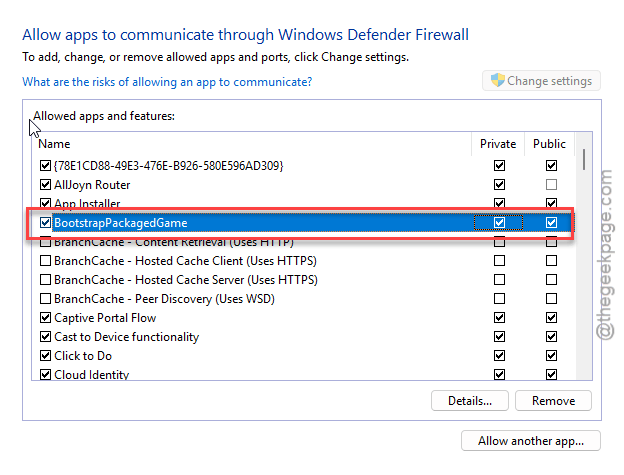
Have a friend try again while the server is running.
How to Prevent This
- Update the server right after every game patch. Don’t wait for someone to complain.
- Keep everyone on the same branch. No betas unless the whole group switches together.
- Leave Set time automatically on. Always.
People Also Ask
What can I do to fix the “Abiotic Factor host failed” error?
Start by getting everyone on the same version. Restart Steam so the game updates, and have the host do the same. If you’re hosting a dedicated server, update it with SteamCMD. Still failing?
What can I do if Abiotic Factor says it can’t connect to the server?
Check versions first, because a mismatch is the usual reason. Update the server with SteamCMD and restart Steam on your PC. Then make sure your Windows clock is set automatically and synced. You can also add the server’s IP and port to Steam’s Game Servers favorites and join from there.