Is the Date and Time settings greyed out on your iPhone? Changing the date and time settings doesn’t take much effort on the iPhone. But, this otherwise simple operation can become troublesome if the date and time settings seems greyed out on the iPhone Settings page.
Why date and time settings are greyed out on iPhone?
Date and time settings are often controlled by your iPhone. Your iPhone manages the date and time settings on its own. But, the iPhone does this by using your device location, as the date and time both can vary according to your original location. Now, this otherwise a very simple operation can give you trouble in some cases.
Your iPhone may block your date and time change request if you have left the location services turned on. A location can’t have two date or time at the same time. So, you must turn off the location services first and then retry.
Fix 1 – Turn off the Location Services
Location Services is an important factor is determining the date and time settings on your iPhone.
Step 1 – At first, you need to open up the Settings window.
Step 2 – When the Settings page loads up, tap to open the “Privacy & Security” section.
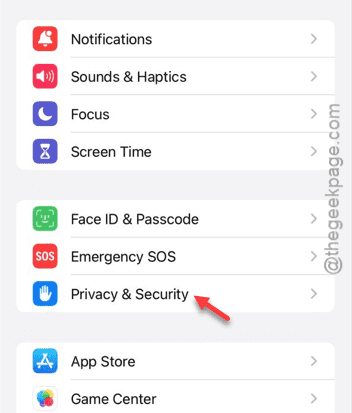
This section comprises all the device security related features.
Step 3 – Now, you have to open up the “Location Services” menu.
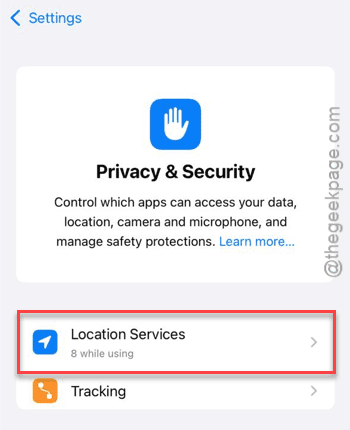
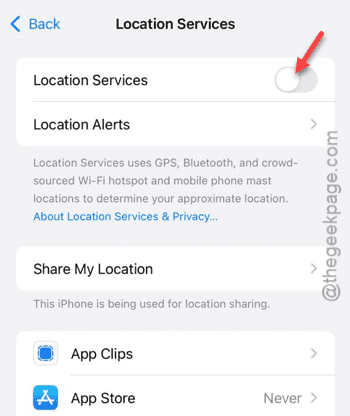
Step 4 – After opening the Location Services page, turn off the “Location Services” toggle.
Step 5 – You will get standard warning prompt. Just tap the “Turn off” option.
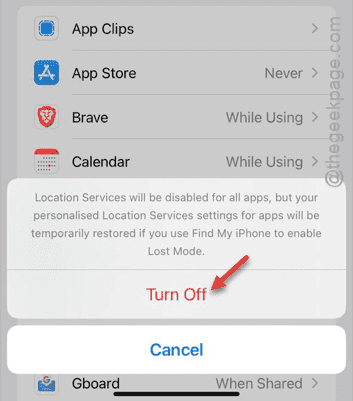
After turning off the location services, return to change the date and time settings. This time, you won’t face the same problem again.
Fix 2 – Disable the Content Restrictions
Turn off the Content Restrictions imposed on your iPhone. Disabling it should lift the restriction from the date and time modification as well.
Step 1 – In the iPhone Settings page, load up the “Screen Time” settings.
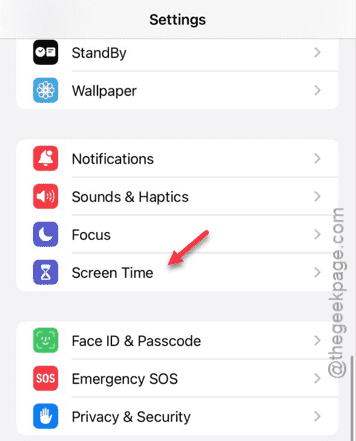
Step 2 – After opening the Screen Time settings, open the “Content & Privacy Restrictions” option there.
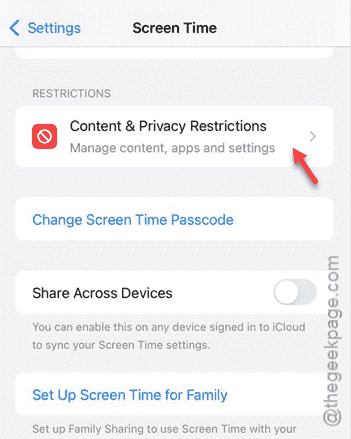
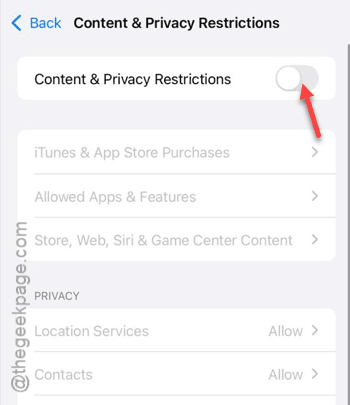
Step 3 – You have to just disable it in there.
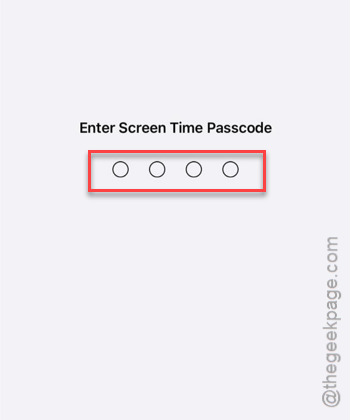
Step 4 – On the subsequent step, you must input the 4-digit passcode to verify your authority.
After disabling the policy, it won’t be hard for you to change the date and time settings on your device.