Seeing a greyed out, non-functional app icon with the ‘Waiting’ tag on your Home Screen? Normally, you don’t have to break a sweat to delete such an app. But, in this case, you can’t directly uninstall that from the iPhone or iPad. Now, you are indeed facing some problems while uninstalling these greyed out apps from your iPhone or iPad, then here are some fixes.
Why I can’t remove these greyed out apps from my iPhone
Sometimes, the offloaded apps can show as greyed out apps on your main Home Screen feed or App Library page. If that is the case, you can fix it just by directly deleting the app from your device. But, in some cases, if the app is synced with iCloud on your device, it can show up as a greyed out, non-functional app icon.
If your devices are managed through an integrated management portal (like Jamf), the app icons are you seeing on your iPad or iPhone are pushed through the App Policy. We have included a solution for that case.
Fix 1 – Delete the App from Settings
Besides the standard way of deleting apps from the Home Screen, you can delete the app from the iPhone Settings.
Step 1 – You need to open up the Settings window, first.
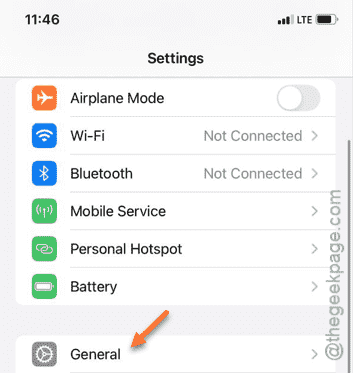
Step 2 – Later, move to the “General” category.
Step 3 – In that page, open up the “iPhone Storage” option.
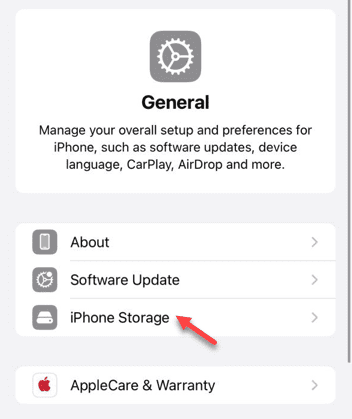
All the apps installed on your iPhone must be listed in this page.
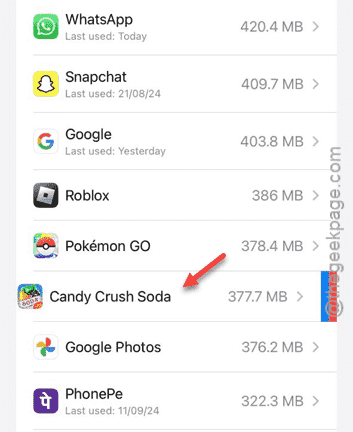
Step 4 – Your task is to scroll down and open up the app that you are seeing on your screen.
Step 5 – Once you have opened up the app, tap “Delete App” to delete the app.
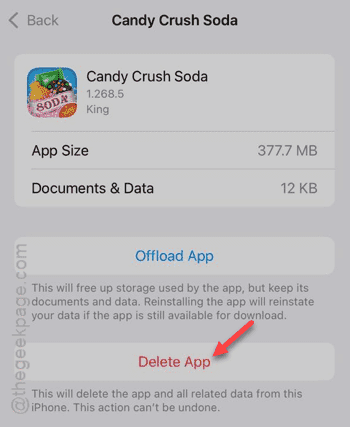
Once you do this, you won’t see the greyed out app logo again on your screen. If you can’t find the app from there, jump to the next solution.
Fix 2 – Let the app download
It is possible that the app is still in the process of getting downloaded. So, you can do these steps –
Step 1 – Go to the App Store.
Step 2 – Next, tap your profile image there to open up the list of apps.
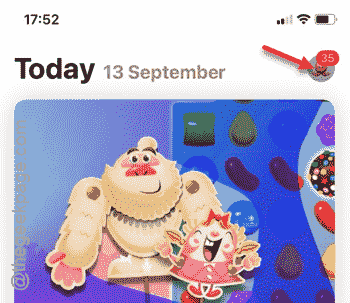
Step 3 – Check the Updates section. See whether the app in question has a small icon before it.
Step 4 – Tap the same app to start downloading the app once again.
Step 5 – Later, tap the same cloud icon to finally put a stop to the app downloading process
When you return to the Home Screen, you won’t see the greyed out app icon again.
Fix 3 – Exclude the device from App Policy
If your iPad or iPhone is controlled or managed by a device management software (DMS), ask the administrator to keep the affected iPad out of the Apple Install Policy.
Step 1 – You have to go to the App Install Policy module.
Step 2 – Now, exclude the iPad where you were facing this problem.
Once you do this, the iPad will automatically uninstall the greyed out app.
Step 3 – When the app is uninstalled, return to the same App Install Policy module page and revoke that exclusion.
When you do this, the iPad shall download and install the app automatically.
Hope these fixes have helped you out!
https://discussions.apple.com/thread/8037437