A Windows update and a stray kernel driver are rebooting your PC. Marvel Tōkon just happens to push hard enough to trip this and your GPU. Here’s the shape of it. The KB5121003 update changed something low in the kernel, and under load the whole system resets with no blue screen. And then there’s a driver called npoutx64 that some other program left behind. It runs at kernel level (the deepest layer of Windows), and it fights with the game’s anti-tamper code. Add an overlay or two, and you get hangs on top of reboots. Lovely combination.
Six fixes. The first three cover almost everyone.
Fix 1 – Uninstall KB5121003 and Pause Updates
Start with the update. It’s the reboot cause more often than not.
1 – Press Windows + I to open Settings.
2 – Click Windows Update at the bottom of the left sidebar.
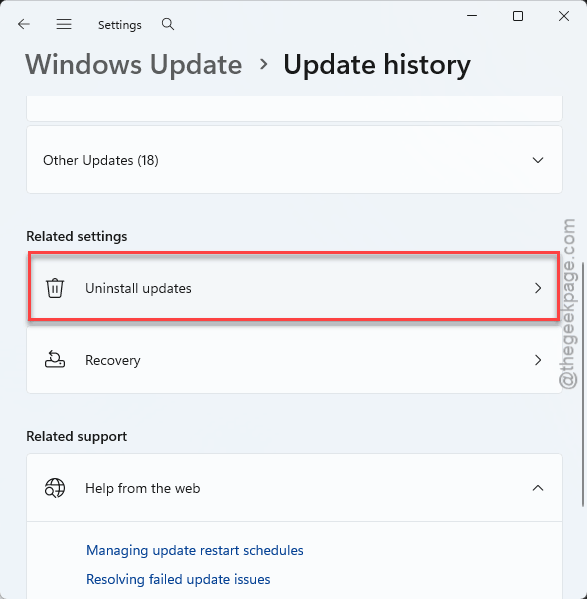
3 – Click Update history, scroll to the bottom, and click Uninstall updates.
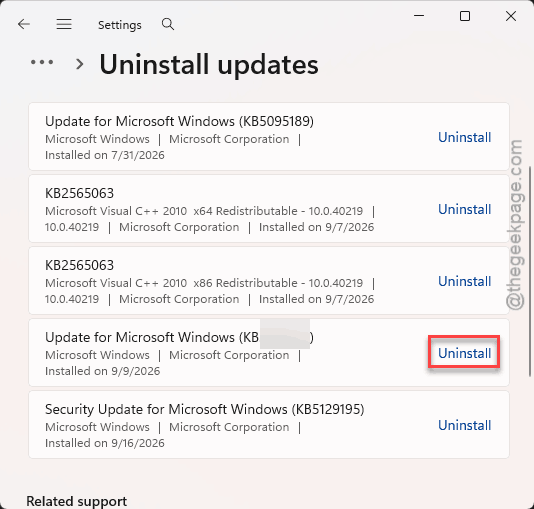
4 – Find KB5121003 and click Uninstall next to it. Confirm, then restart.
5 – Back in Windows Update, click Pause updates and pick a few weeks.
But skip step 5 and Windows reinstalls it overnight. Ask anyone.
Fix 2 – Let the Shader Warm-Up Finish
Quick one, and it’s on you, not Microsoft.
1 – The first time you boot the game, a shader warm-up bar runs on the title screen.
2 – Let it hit 100%. Don’t press a button, don’t join a lobby, don’t Alt-Tab.
3 – But jump into multiplayer early and the game compiles shaders mid-match (usually right as the round starts), which is exactly when it hangs.
Takes a few minutes. Grab a drink.
Fix 3 – Disable the npoutx64 Driver
This is the one from the video everyone links. A kernel driver named npoutx64 keeps running in the background even after whatever installed it is gone. And it does not get along with this game.
1 – Right-click the Start button and pick Terminal (Admin). Click Yes when asked.
2 – Type sc.exe query npoutx64 and press Enter.
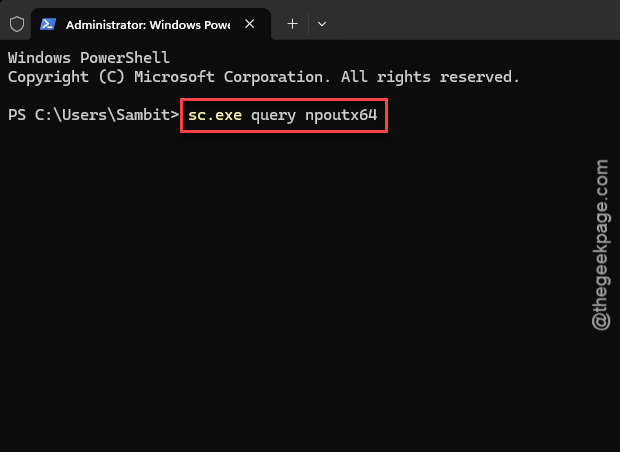
3 – Read the STATE line. If it says RUNNING, continue. If Windows says the service does not exist, this fix isn’t yours. Skip to Fix 4.
4 – Type sc.exe stop npoutx64 and press Enter.
5 – Type sc.exe config npoutx64 start= disabled and press Enter. Note the space after the equals sign. It matters.
6 – Restart your PC.
Fix 4 – Turn Off Every Overlay
Overlays hook into the game’s rendering. And Unreal Engine games hang when they do. Not sometimes. Regularly.
Steam first:
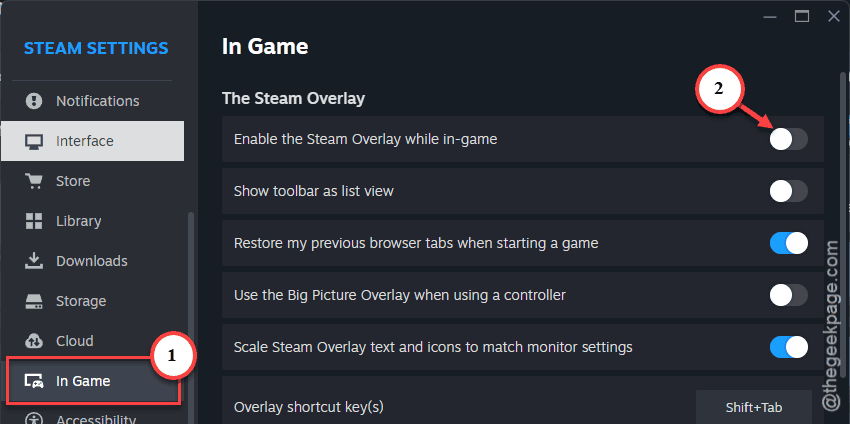
1 – Open Steam, click Settings,
2 – Then In Game, and switch off Enable the Steam Overlay while in-game.
Then Discord:
1 – Go to the Settings, then Game Overlay,
2 – Toggle it off. On an AMD card,
open AMD Software and turn off its in-game overlay too.
And if you installed the PlayStation PC app, disable its overlay features for this game. Every one of them. Leaving a single overlay on is the same as leaving them all on.
Fix 5 – Verify the Game Files
1 – Open Steam and click Library.
2 – Right-click Marvel Tōkon and pick Properties.
3 – Click Installed Files in the left sidebar.
4 – Click Verify integrity of game files and wait for the bar to finish.
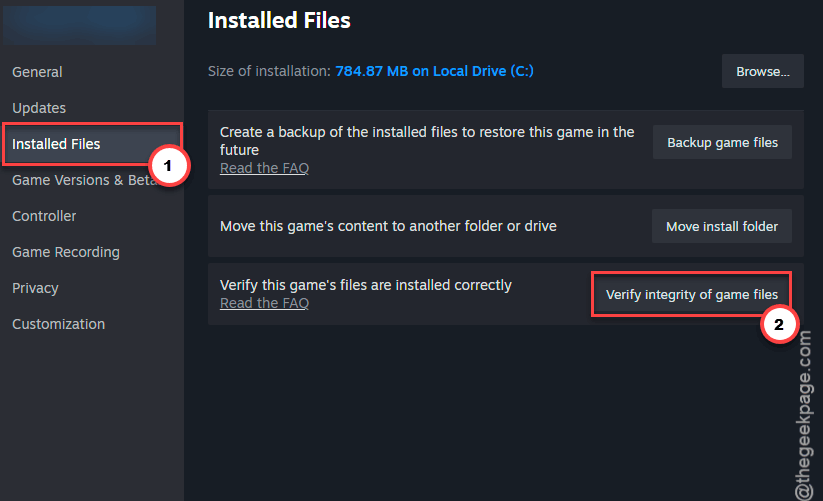
A hard reboot mid-match can corrupt files on the way down (the game never gets to close them properly). So run this once even if the other fixes already helped.
Fix 6 – Run as Administrator and Kill Fullscreen Optimizations
Last one. Two compatibility boxes on the game’s exe. Neither should matter in 2026, but here we are.
1 – In the same Steam Properties window from Fix 5, stay on Installed Files and click Browse. The game folder opens.
2 – Open MTFS, then Binaries, then Win64.
3 – Right-click the game’s exe and pick Properties.
4 – Click the Compatibility tab.
5 – Tick Run this program as an administrator.
6 – Tick Disable fullscreen optimizations.
7 – Click Apply, then OK.
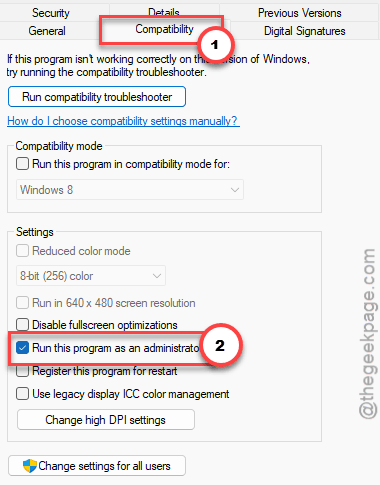
So launch through Steam as usual. Steam picks up the exe settings on its own (no special shortcut needed).
Keep It From Coming Back
- Skip optional preview updates on a gaming PC. Wait for the Patch Tuesday version. Every time.
- Let the warm-up finish after every game patch, not just the first install. New patch, new shaders.
- Leave overlays off for this game. Ping your friends in Discord on your phone if you must.
- Uninstalled a monitoring or RGB tool lately? Check for leftover drivers with the same sc.exe query trick. They linger.
People Also Ask
What are the technical issues with Marvel Tōkon on PC?
The big ones are PC reboots and hard hangs. Reboots trace to the KB5121003 update and a leftover kernel driver called npoutx64. Hangs usually come from overlays or from joining a match before the shader warm-up finishes. Uninstalling the update and disabling that driver clears most reports.
Why does my PC reboot when I play Marvel Tōkon?
A reboot with no blue screen means something at the kernel level failed. Check for Windows update KB5121003 and remove it, then run sc.exe query npoutx64 in an admin terminal. If that driver is running, stop and disable it. Verify your game files afterward.