Getting this “Restricted mode has hidden comments for this video” message on YouTube? Restricted mode limits several features of the video, along with the comment section. Don’t worry! Simply, disable the Restricted Mode on the YouTube app, and you will get to view the comment section in there.
What is Restricted Mode?
Restricted Mode is one of the features on YouTube that limits particular items. When the Restricted Mode is active, you can’t stream age-restricted contents, harmful or reported videos on YouTube. This works as a safeguard for the users from viewing or engaging in explicit videos. It is also helpful in controlling the exposure to certain adult contents on YouTube.
Part of the Restricted Mode also includes the impairment of the Comments section. You can’t read or make one while you are in the Restricted Mode.
Why am I getting this Restricted Mode message?
You may have mistakenly turned on the Restricted Mode for the YouTube app. But, fixing this won’t take much time at all. So, instead of wasting any more time, follow these steps to exit the Restricted Mode.
Fix – 1 Disable the Restricted Mode
You can turn off the Restricted Mode directly from the YouTube app.
Step 1 – Start by opening the YouTube app.
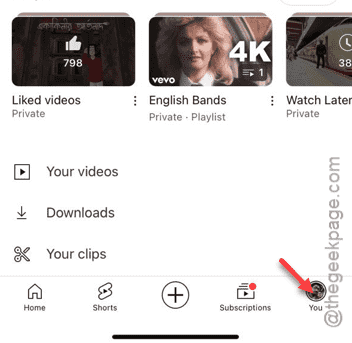
Step 2 – Next, tap the small profile picture on the bottom dock to load your YouTube profile page.
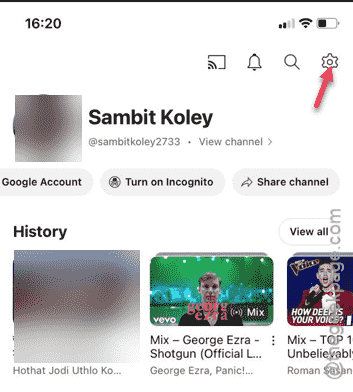
Step 3 – There, hit the small gear-button at the top to open YouTube settings.
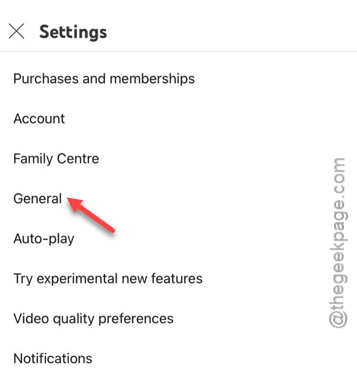
Step 4 – In the YouTube settings page, open up the “General” settings.
Step 5 – You can disable the “Restricted mode” directly from this page.
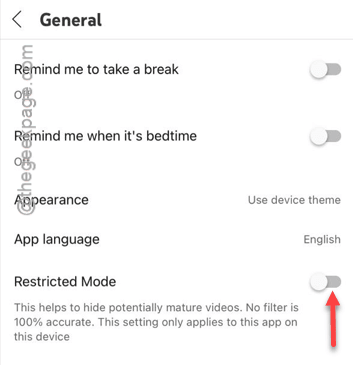
After disabling the restricted mode, you can use the YouTube normally once again.
Open a random video and check whether you can read the comments in there.
Fix 2 – Use YouTube on browser
If still you can’t see the comments on the YouTube app, you can use YouTube from a browser.
Step 1 – Go to a browser of your choice.
Step 2 – Go to YouTube website.
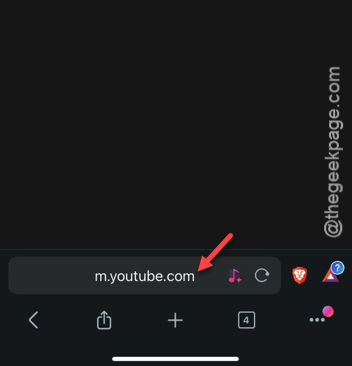
Step 3 – Next, open the profile page.
Step 3 – Tap the “Sign in” button and sign in using your account credentials.
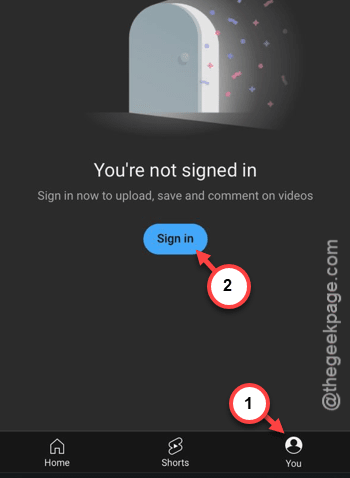
Once you have signed in to YouTube, open up the same video in there.
This time, you can view the comments under the video feed.
NOTE – If your kids are using YouTube, no need to get into the hassle of enabling or disabling the Restricted Mode again and again. In that case, YouTube Kids can be a good alternative. The app restricts the comment section and doesn’t show up any age-restricted contents. You can get the YouTube Kids app from App Store.