Having some problem disabling the notifications on the Shortcut app on your iPhone? Unlike the other applications that you use on the iPhone, Shortcuts is a native application that you can’t control from the dedicated settings page. So, you may be wondering how to get rid of that annoying notification message on the lock screen? These fixes will help you resolve the issue.
Why can’t I disable notifications from shortcuts app?
The Shortcuts app is an excellent tool for automating linear tasks on your iPhone. Whether you are trying to start a Pomodoro for better productivity or animate your text inputs into GIFs, the possibilities are endless with the Shortcut tool. Shortcuts app doesn’t pop up notifications on its own, but if you have set up some time-specific shortcuts, it shows up on your lock screen or on the notification shade. This should not bother you that much, unless you have set up too many shortcut automations.
Shortcuts app doesn’t come with the native ‘Turn notification’ on or off toggle. The Shortcut settings page doesn’t even that option. We have to take a different approach in this case, to disable the notifications option for the Shortcut app.
Fix 1 – Disable the notification from Screen Time
there is a way to disable the notifications for all the shortcuts in the shortcut app from the screen time settings.
Step 1 – Tap the gear shaped icon (⚙) on your iPhone screen to load up the settings page.
Step 2 – Then, go to the Screen Time settings.
Step 3 – Now, click the see All App & Website Activity option to load up the entire list of applications that you have used recently.
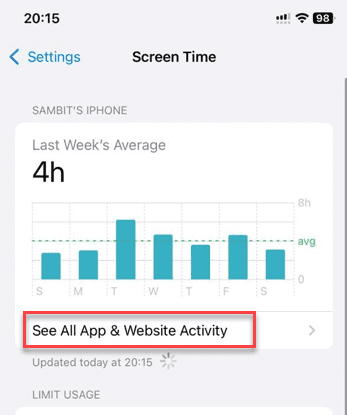
Step 4 – This will load up this week’s application usage on your phone. Go to the notifications category and look for the Shortcuts app.
Step 5 – Use the Show more option if you can’t find it in the default list.
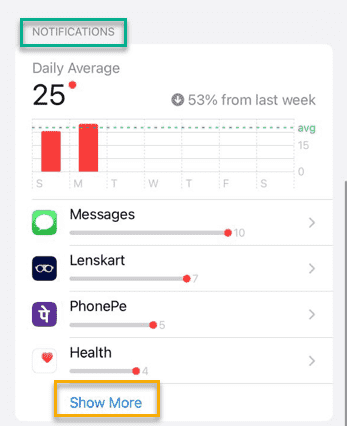
Step 6 – There should be a considerable amount of notifications from the Shortcuts app, otherwise this method will not work.
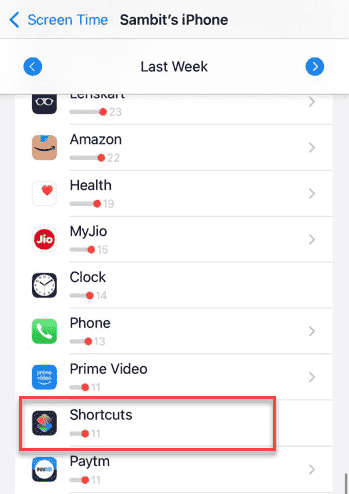
If you don’t see a large number of notifications from the Shortcuts app in This week category, go to the Last week option.
Step 7 – Now, finally tap the Shortcuts app in the chart to open it up.
Step 8 – Then, just turn off the Allow notifications option from there.
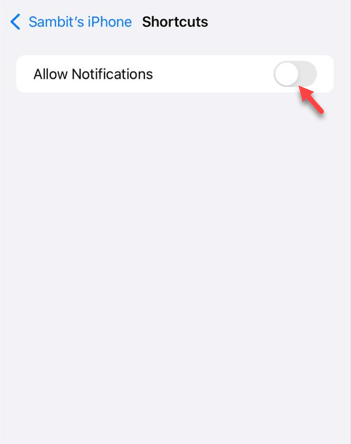
This is the standard way of disabling the notifications on the shortcuts app on your iPhone.
Fix 2 – Disable the Notify on run
notifications from automation tasks can be disabled just by turning off to notify and run option while you are setting up an automation.
Step 1 – Load up the Shortcuts app and go to the Automation section.
Step 2 – Tap the automation that you want to edit.
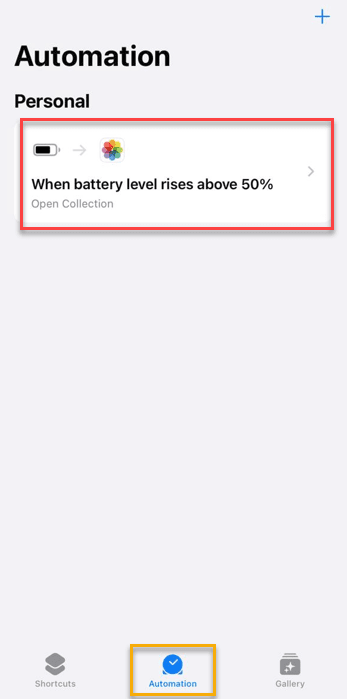
Step 3 – Set the Automation to Run immediately. You’ll see an option Notify when run just below it. Make sure it is turned off.
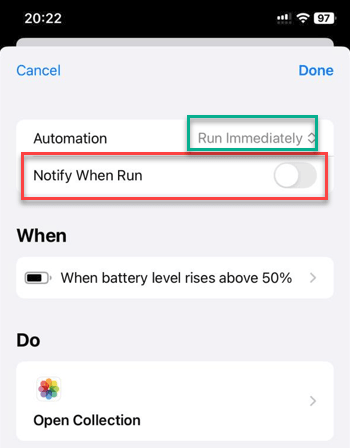
Step 4 – Repeat the same steps for all the automations you have set up on your iPhone.
Automation tasks won’t send you notifications from now on. But, keep in mind that you can’t disable the notifications for regular shortcuts following this method.
Fix 3 – Can’t disable location-based notifications
Apple doesn’t allow users to disable notifications if the shortcut or automation has a location based trigger. Location based automations like arrive, leave, includes a location trigger where the shortcut needs your location access function efficiently and automate the task. Due to the privacy and sensitivity of using the location telemetry, these notifications need to appear on the users’ notification shade. You cannot disable such notifications. Hope these fixes have helped you solve the problem on your own!