What is the use of having a WhatsApp app on your iPhone/Android if it crashes just by opening a specific group chat? The main purpose of having WhatsApp is to receive and respond to chat messages. The group chats are also a major attraction of using WhatsApp as the main messaging service. But, some group chats seem to be crashing the WhatsApp application out of nowhere. The same reports have poured in from both the Android and iPhone users guild. These fixes will help you resolve the issue.
Fix 1 – Set a new notification tone for the chat
The problem is occurring due to the custom ringtone that you have set for the specific group chat notification. This is causing the crash on your device.
Step 1 – Open up the WhatsApp on your iPhone/Android device.
Step 2 – Then, find the group chat that is crashing the WhatsApp and, tap to open it.
Step 3 – Now, tap the profile banner while you are in that group chat to load the profile settings.
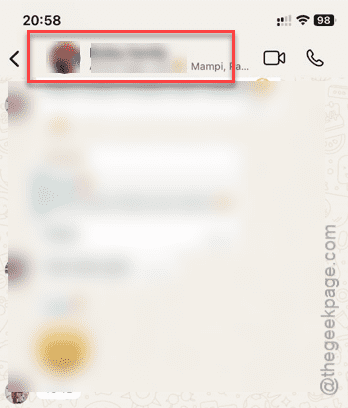
Step 4 – Next, go to the Notifications panel in that particular group chat.
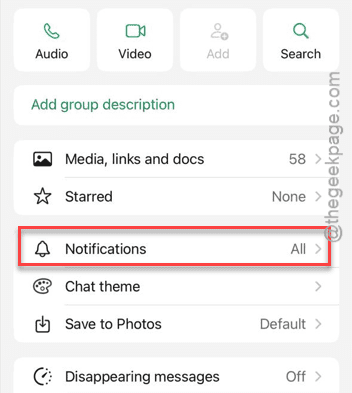
You see that a custom ringtone has been assigned to that particular picture. Therefore, you must revert it to the default notification sound.
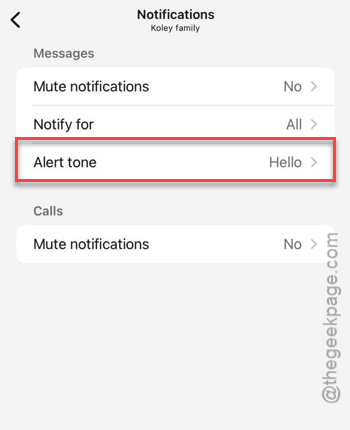
Step 5 – Tap the Alert tone button there.
Step 6 – Choose the Default alert sound for that group chat and tap Save.
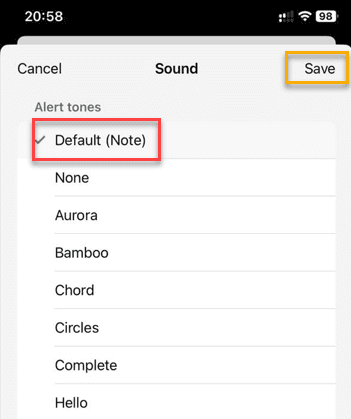
This will eventually stop the WhatsApp crash that you were experiencing before.
Fix 2 – Update the device
A bug in the iOS or the Android version that you are using can trigger this certain WhatsApp crash. Just update the device software to get rid of this problem.
iPhone users –
Step 1 – tap the gear shift icon on your iPhone app list to load up the settings page.
Step 2 – Then, tap the General settings. Go to the Software Update section to load it up.
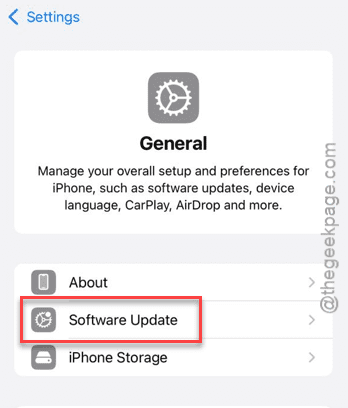
Open updates pending there, install it on your iPhone. The device will require a restart once the updates are installed.
See whether this fixes the WhatsApp crash issue.
Android users –
Step 1 – Android users can open up the Settings window on their device.
Step 2 – Then, open the About section and load up the Software update part of the settings.
Step 3 – If an update is pending there, tap the download button to download and install the update on the device.
Later, restart the device to finish updating the phone.
Fix 3 – Log out and log in to your WhatsApp
some users have fixed this particular crash issue simply by logging out and logging back to the WhatsApp client.
NOTE – There’s no definitive way to log out of the WhatsApp client on both the iOS and Android platforms. So, you must delete the WhatsApp client from your device and reinstall the same.
Step 1 – Find the WhatsApp icon in the app list. Then, hold the WhatsApp icon there, and tap the Delete app option.
Step 2 – Tap the Delete option once more to confirm your decision.
Step 3 – Now open up the App Store and search for WhatsApp client and install it from there.
Step 4 – Once you have installed it, open the WhatsApp client and login to your original account.
Step 5 – During this process, you will get the option to retrieve the saved chats from the local storage. This way, you won’t lose any of the past messages from the chat.
Once you have logged in, the issue with the group chat will be gone.
Fix 4 – Link the chat to Windows, Mac or other devices
Linking the WhatsApp account to other devices has fixed this problem for many users.
Step 1 – Open a browser page, load up the WhatsApp on web. Or, you can install and use the WhatsApp if you have any other device at your disposal.
Step 2 – You will see a QR code in there.
Step 3 – Now, open the WhatsApp client on your iPhone. Next, go to the ⚙ Settings.
Step 4 – Go to the Linked Devices tab.
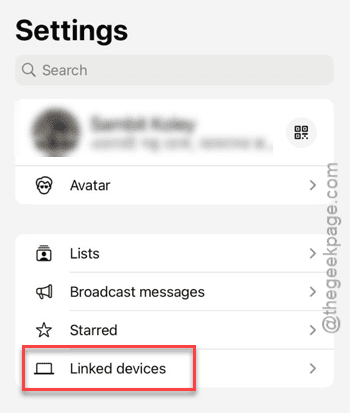
Step 5 – Tap the Link Device to load up the sign-in console.
Step 6 – Now use your iPhone’s camera to scan the QR code on the other device to log in to WhatsApp.
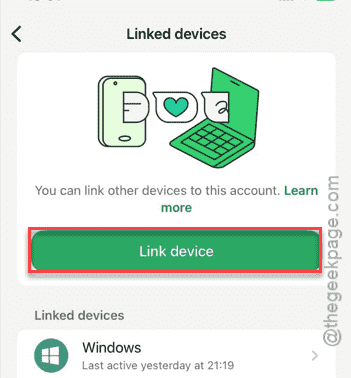
This simple operation seems to have fixed the crashing issue for many users.
Check if this helps!