Getting a floating mic icon on your iPhone? This problem has been in many Apple support threads, where the users have seen a floating microphone (speech) icon on their screen that just don’t go away. According to the user reports, this icon floats over all the app windows they open up. Actually, active Live Captions session on your iPhone is creating this problem, and hence you are seeing the floating microphone icon. Here is a more detailed guide to fix this issue.
Quick Fix table –
| Issue Cause | Quick Fix |
|---|---|
| Live Captions turned on | Settings → Accessibility → Live Captions → Turn off Live Captions |
| Voice Control or Vocal Shortcut active | Settings → Accessibility → Speech → Vocal Shortcuts → (off) Settings → Accessibility → Voice Control → (off) |
Fix 1 – Turn Off the Live Captions Accessibility Feature
The floating microphone icon on your iPhone denotes that the Live Captions feature is active on your device.
Step 1 – To do disable it, load up the Settings console on your iPhone.
Step 2 – Next, go to the Accessibility settings.
Step 3 – Go to the Live Captions feature and turn it off.
After turning it off, the floating microphone icon will go away. This is the primary fix and should fix the issue for most of the affected users.
Fix 2 – Disable the Vocal Shortcuts or Voice Control
Some users have found the Vocal Shortcuts or Voice Control for this debacle.
Step 1 – On your iPhone Settings console, open the Accessibility section. Proceed to the Speech settings, later.
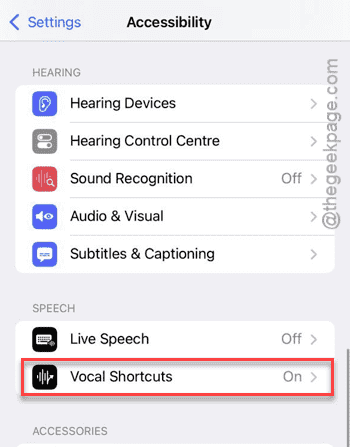
Step 2 – Then, open the Vocal Shortcuts feature and disable that.
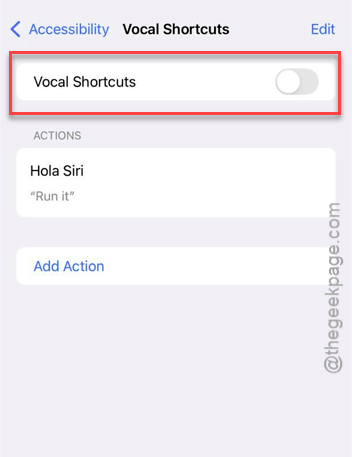
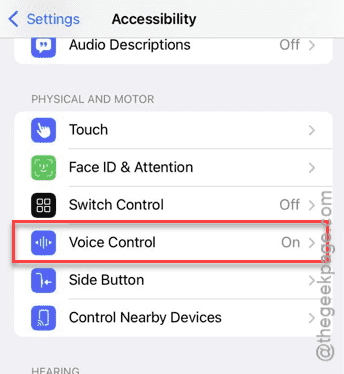
Step 3 – If you are using the Voice Control feature, go this way –
Accessibility → Voice Control
Step 4 – Turn off the Voice Control feature in there.
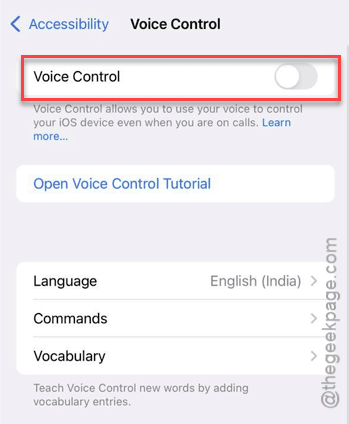
Disabling the Voice Control/Vocal Shortcuts should get rid of the floating mic icon issue.
Fix 3 – Force Close all the apps on iPhone
If you are still seeing the floating mic button, that means any of the application may be using the Live Captions feature. Force closing the apps on the background should take care of that issue.
Step 1 – Scroll upwards to view the list of apps that are running on your iPhone.
Step 2 – Then, proceed to close all the current apps one-by-one.
Step 3 – After closing all the apps, the floating mic icon will be gone.
This way, you can fix the issue.
Fix 4 – Restart your iPhone and Update the iOS
A fresh restart might help, if you are still stuck with the floating microphone icon.
Step 1 – Scroll down to locate the Control Center. Next, tap the power button there.
Step 2 – Next, tap the Slide to power off to power off the iPhone.
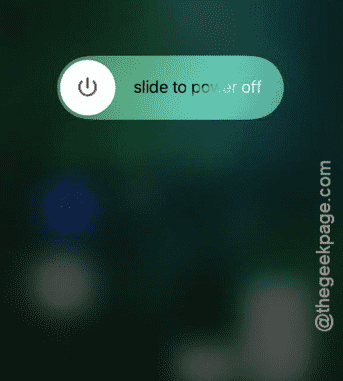
Step 3 – Once the iPhone is switched off, press-hold the Power button to reboot the iPhone.
After rebooting the device, the floating mic icon will be gone.
Step 4 – Make sure you are using the latest version of the iOS. You can follow this path ~
General > Software Update
Step 5 – Tap the Update Now to update the iPhone’s software to the latest version.

This will stop the repeated occurrences of the floating mic issue from your device.
FAQs –
1. Why the Floating Mic is not going away on my iPhone?
The floating microphone icon usually hovers on the iPhone’s screen when the Live Captions are turned on. It shows the current status of the Live Captions accessibility feature. However, the Voice Control or Vocal Shortcuts can also show up as a floating microphone sign on the iPhone.
2. How to remove the floating mic icon from iPhone?
The floating Microphone on an iPhone screen suggests that the Live Captions feature is active. You can turn off the Live Captions from the Settings → Accessibility → Live Captions. Turning it off should make it away. Otherwise, disable the Vocal Shortcut following this path – Settings → Accessibility → Speech → Vocal Shortcuts.