Facing call drop problems on your Apple Watch? Watch users use their wearables to directly call or respond to an incoming call. So, if you fail to take up an incoming call from your Watch, you can ignore it. But, if the calls to fail on your Apple Watch again and again, there might be something wrong with the device and, you can solve it following these solutions.
Fix 1 – Must be in the Bluetooth range
If you have an GPS-only version of Apple Watch, you must stay within the Bluetooth range of your iPhone. This Bluetooth range is influenced by so many external factors, but to be on the safer side, you should stay within a few meters of your iPhone.
But, if you have a GPS+Cellular version of the Apple Watch, this should not be the case for you. You can answer your calls irrespective of the state and distance to your iPhone.
Fix 2 – Do a network refresh on your watch
If the calls are still failing, it is time to refresh the network settings of the watch.
Step 1 – To do this, we will simply put the Apple Watch on Airplane mode. So, just press the side button.
Step 2 – Next, turn on the Airplane mode.
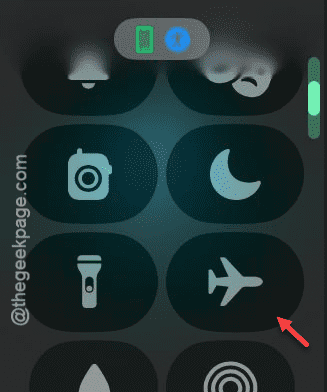
Step 3 – Give it a few seconds and later, turn the flight mode off.
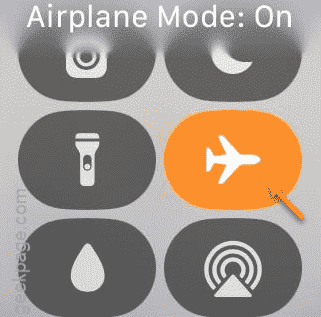
Doing this should refresh the Wi-Fi, Bluetooth and the cellular service.
Fix 3 – Reset iPhone’s network settings
Resetting the iPhone’s network settings can resolve the problem.
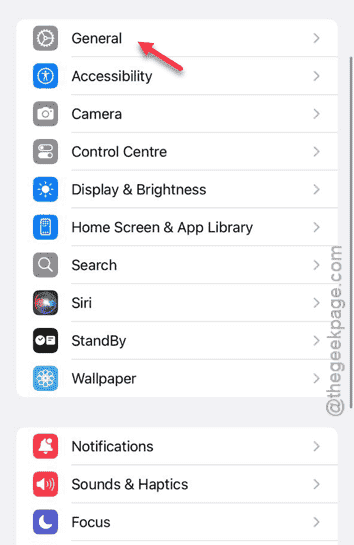
Step 1 – On the Settings page of your iPhone, go to the “General” tab.
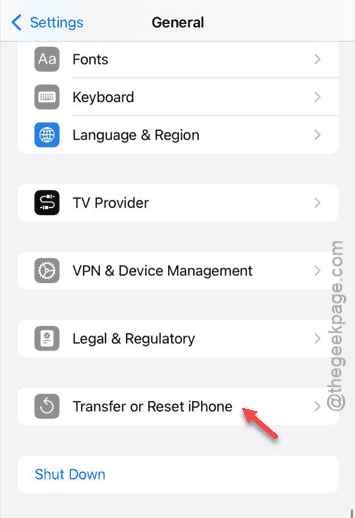
Step 2 – Later, reach the “Transfer or reset iPhone” option and open it up.
Step 3 – Tap the “Reset” option to load up the resetting option.
Step 4 – Touch the “Reset Network Settings” to reset the networking equipment.
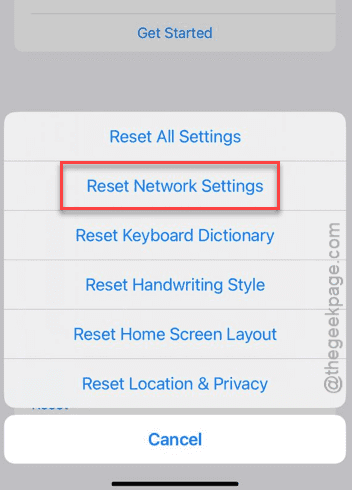
The rest of the process requires your verification to affirm this process. Keep in mind that you may have to reconnect the Apple Watch with your iPhone afresh.
Fix 4 – Force restart the Apple Watch
The final step in the process is to force restart the Apple Watch. See if this works.
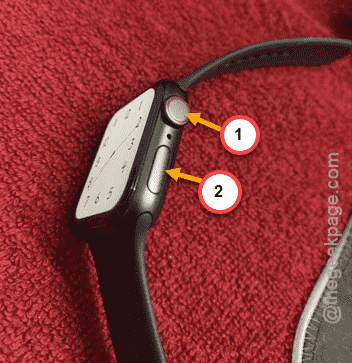
Step 1 – At first, hold down the crown and side button at the same time.
Step 2 – If you hold that down for enough time, the Apple Logo should show up on the watch.
See if this works out for you!