The update on your Apple Watch holds the equal importance as it does with your iPhone. Apple push regular update to their wearable units that provides new updates and patches bugs or glitches in the watchOS. If the watchOS update is paused on your watch, and you are having some difficulty resuming the update, you can follow these steps.
Why the update is paused on Apple Watch?
The watchOS update may get restricted due to storage issues on the watch. While the storage is very limited on the watch, the update process needs a couple or more GB of free space on the device. Sometimes the corruption in the existing update package may create this problem.
These resolutions will be helpful.
Fix 1 – Restart the Watch and your iPhone
You should restart both the devices once. This way, if a glitch is causing this problem, it will be resolved.
Steps to perform on the iPhone ~
These are the steps that you can follow to restart the iPhone.
Step 1 – Simply press and release the Volume Plus button.
Step 2 – Then, hit the Volume Minus button on your iPhone.
Step 3 – Finally, press and hold the Power button. Doing this should start the force restart procedure, when this show you the Apple logo on the screen, leave the power button.
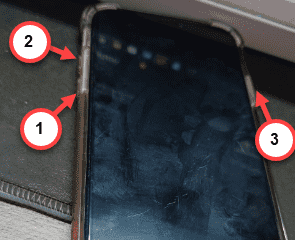
Once it is restarted, leave it be.
Steps to perform on your watch ~
You have to execute the following steps on your watch.
Step 1 – Just press and hold the side button on the Apple Watch briefly.
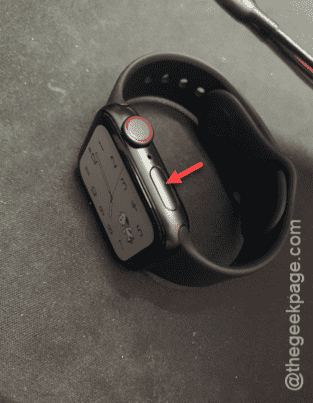
Step 2 – Use the Power switch there.
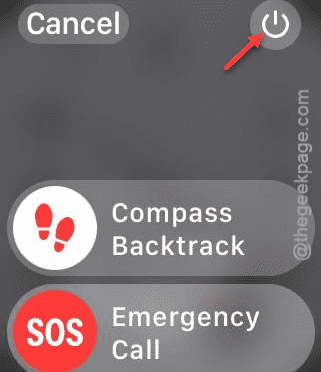
Step 3 – Drag the “Power off” slider to power off the watch completely.
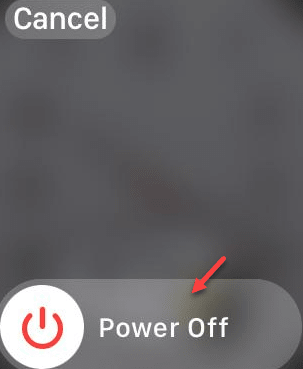
Restart the watch using the same side button once more. Connect with your iPhone and try to perform the update one more time.
Fix 2 – Delete previous watchOS update
Delete any previous watchOS update from your Apple Watch.
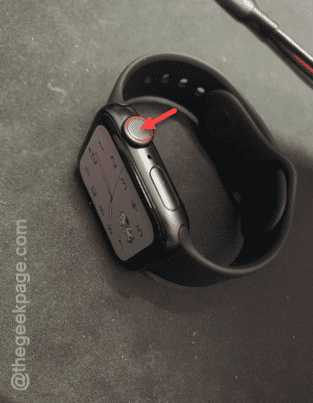
Step 1 – To do that, tap the crown of the watch once.
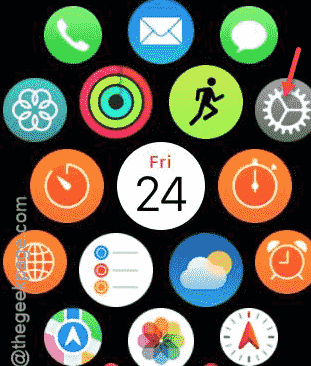
Step 2 – After this, open the “Settings” from the app list.
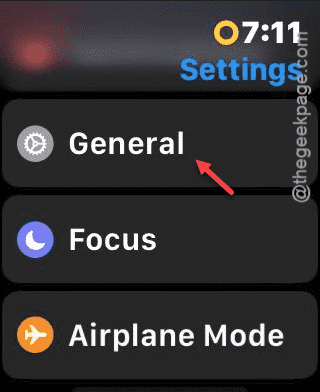
Step 3 – Go to the “General” tab.
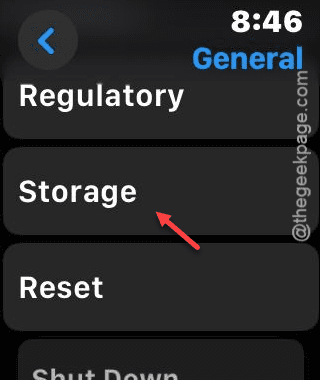
Step 3 – Then, load up the “Storage” information on the watch settings.
Step 4 – In the Storage page of the Apple Watch, go down through the watch storage information.
Step 5 – If you can find the ‘watchOS’ parameter there, that means the update package is downloaded on the device.
Step 6 – So, tap it once.
Step 7 – Later, touch the “Delete” function to delete the update.
Once you have deleted the watchOS update from your watch, reconnect it to the Wi-Fi. This time, it shall load up a fresh version of the update and install it on the device.
This time, the update won’t cause any problem.