Your Apple Watch is equipped with the temperature tracking system that can track your body temperature. But, if your Apple Watch is not tacking the temperature, this guide will be of help. Our guide contains only the prominent solutions that you will need to troubleshoot the temperature tracking issue.
Fix 1 – Sleep for 5 hours/day for 5 days
Your Apple Watch needs to be worn for at least 5 hours and 5 days for the temperature tracking to function properly. The watch needs 25–30 hours to record your sleep information and calibrate the sensors properly. Only after this initial data collection, the Apple Watch can track and provide valuable inputs on your temperature metrics.
So, just make sure to sleep at least for 5 hours a day, and for 5 days to use this temperature tracking utility of the watch.
Fix 2 – Turn on the Sleep Focus
You can turn on the Sleep Focus mode on the Apple Watch.
Step 1 – On your iPhone, open up the Settings page.
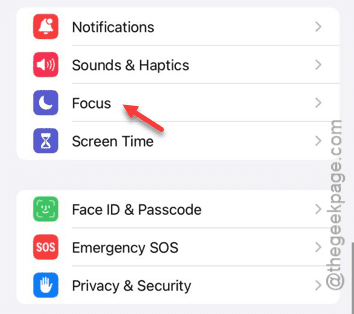
Step 2 – Then, load up the “Focus” tab.
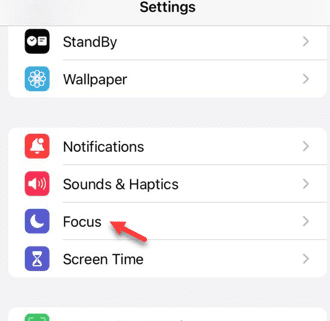
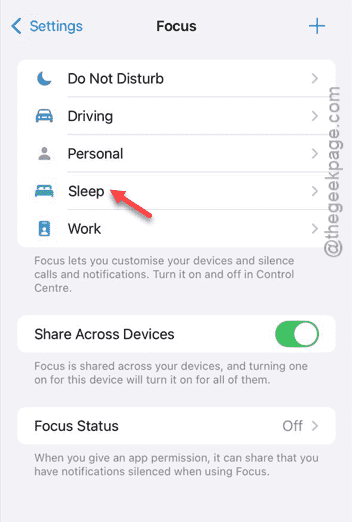
Step 3 – In the Focus tab, you have to open the “Sleep” menu. Look for it in there.
Step 4 – If you can’t find it, just tap the “+” button and tap “Sleep” to add the sleep focus mode.
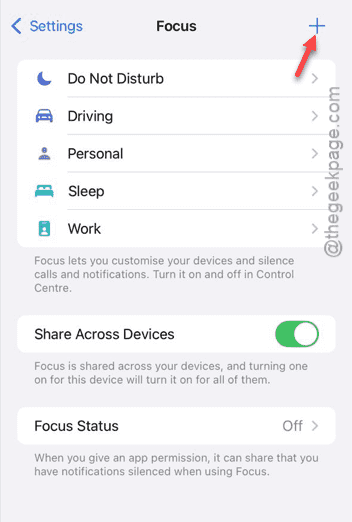
Step 5 – Follow the on-screen instructions. You can customize the sleep focus mode as well.
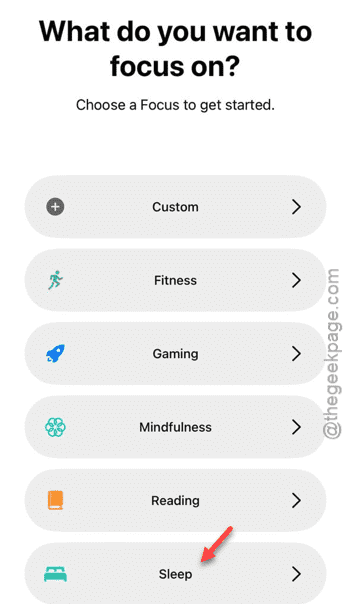
Step 6 – Next, search for the Watch app and open it up.
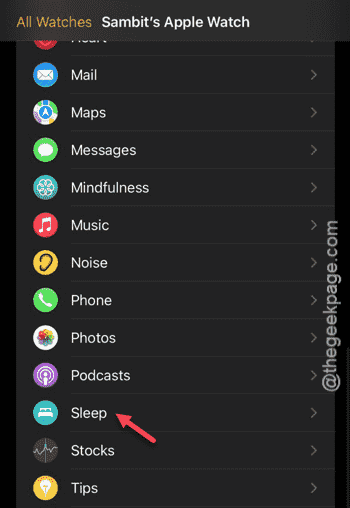
Step 7 – In the Watch app, open up the “Sleep” module.
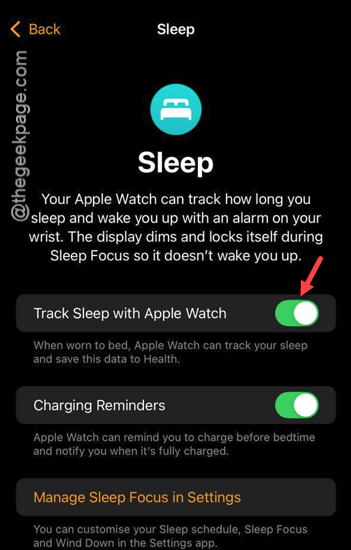
Step 8 – Turn on the “Track Sleep with Apple Watch” mode.
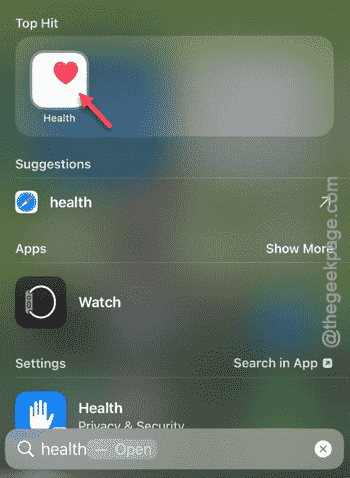
Step 9 – Now, open up the “Health” app.
Step 10 – Check whether you can see the Sleep focus mode in there or not.
Step 11 – If you can’t find that, tap the “Get Started” option. Follow that to set up the sleep tracking system.
See if this works.
Fix 3 – Enable the Wrist Detection mode
Wrist Detection is an important feature of your Apple Watch. Several sensors remain idle while
Step 1 – Open the Watch app once more.
Step 2 – Next, go to the Watch settings pane.
Step 3 – After this, load up the “Passcode” settings.
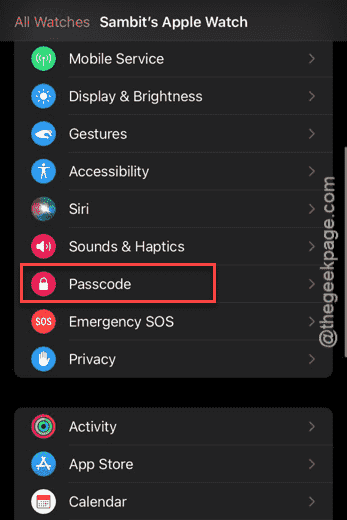
Step 4 – In the Passcode settings page, make sure to enable the “Wrist Detection” is enabled.
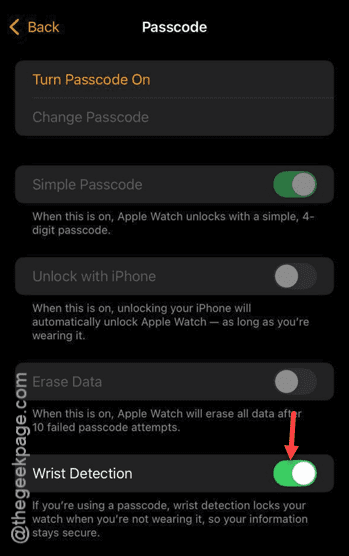
After enabling this, you can use the watch to track your temperature.
Fix 4 – Keep the Apple Watch charged
Your Apple Watch needs to have a sufficient charge for it to read your temperature during sleep. If the Watch is low on battery while you are sleeping, it can’t function properly while you are sleeping.
Fix 4 – Delete the Sleep focus
If there is any problem in the Sleep Focus, you can delete it and rework the Sleep focus mode.
Step 1 – On your iPhone Settings, tap to open the “Focus” system.
Step 2 – Thereafter, load up the “Sleep” module.
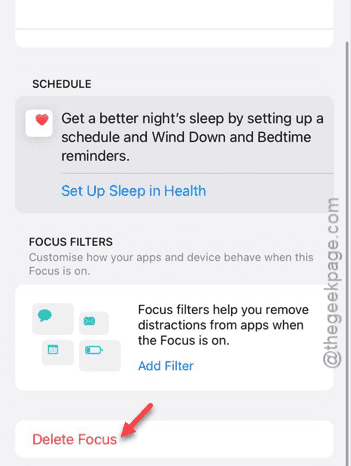
Step 3 – Scroll all the way down and tap the “Delete Focus” to delete that.
Exit the Focus mode and reconnect the watch to the iPhone. See if the watch is recording temperature or not. Check if this works!