Can’t connect your Apple Watch to the Wi-Fi? It can be a frustrating experience for a user if you can’t connect your Apple Watch to the Wi-Fi. The main functionality of the Wi-Fi is not limited to provide a smoother online experience to the user, but it holds so much importance. Starting from loading new apps from the App Store to stream your favorite tracks, Wi-Fi is a go-to preference for every watch users.
Fix 1 – Refresh the watch’s network system
You can refresh your watch’s network system, just by invoking the Airplane mode and later, by disabling the same.
Step 1 – Tap the side button on your Watch to open the Control Center.
Step 2 – Enable the Airplane mode from there.
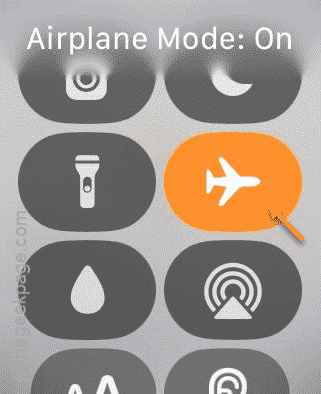
Step 3 – Just wait for 15–20 seconds.
Step 4 – Later, disable the Airplane mode.
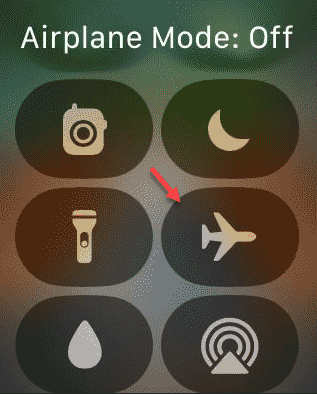
Your watch should get connected to the Wi-Fi automatically. See if this works.
Fix 2 – Disable and re-enable the Wi-Fi system
You may disable the Wi-Fi on your Watch and, later, reconnect to the same.
Step 1 – Press the crown on your Apple Watch once.
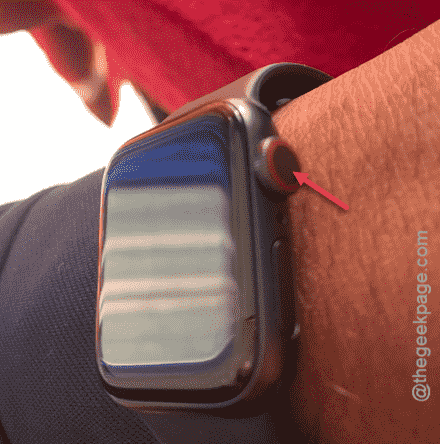
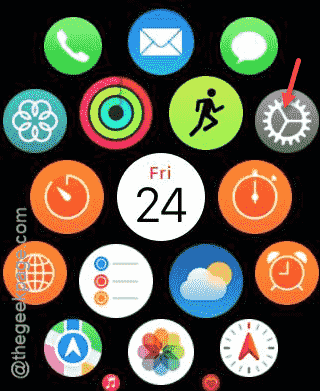
Step 2 – This should load up the list of apps on the watch.
Step 3 – Tap the Settings button to open watch settings.
Step 4 – Scroll down and open up the “Wi-Fi” settings.
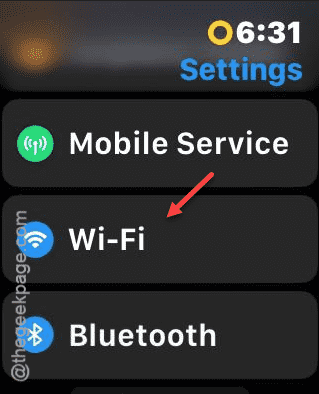
Step 5 – Turn off the Wi-Fi from there.
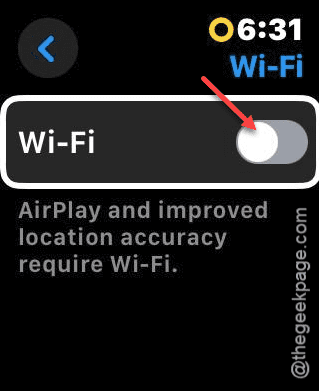
Step 6 – Wait for 5 seconds or so, and then, re-enable the Wi-Fi.
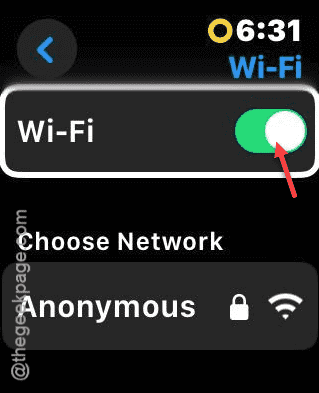
After re-enabling the same, the Wi-Fi should automatically connect. Check if this works.
Fix 3 – Restart the watch
If the other fixes are not working, you should consider restarting your watch.
Step 1 – You have to just long press the side button on your Apple Watch.

Step 2 – Doing this should open up the power off console on the watch.
Step 3 – Tap the power button in there.
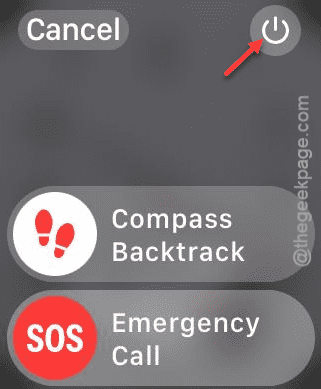
Step 4 – Tap the “Power off” to power off the watch.
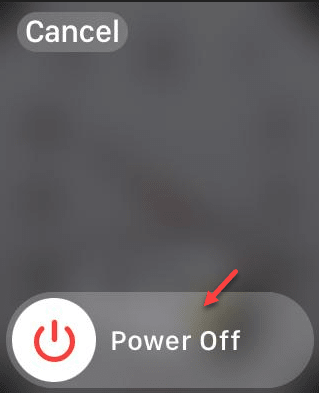
Step 5 – After switching it off, press and hold the same side button again. Do this until the Apple Logo illuminates the screen.
This should switch on the watch. Check if this works out for you.
Fix 4 – Clear the Website data
Try by clearing the website data on the Apple Watch.
Step 1 – Press the crown on the watch gently to reach the list of apps page.
Step 2 – Next, tap the Settings menu.
Step 3 – Touch the “General” settings in there.
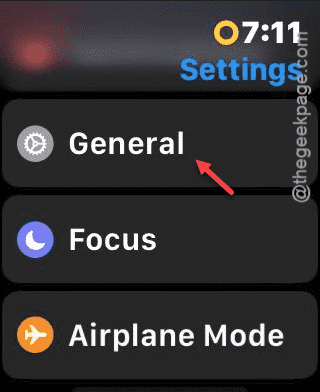
Step 4 – Later, open up the “Website Data” option.
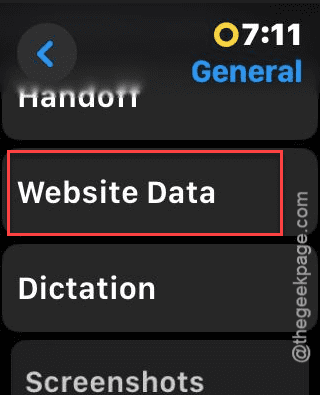
Step 5 – Finally, tap “Clear Website Data” option.
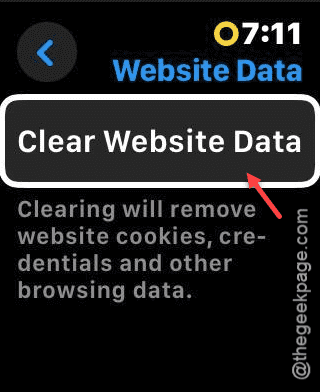
Step 6 – You will see a warning message. Tap “Clear data” to clear it up.
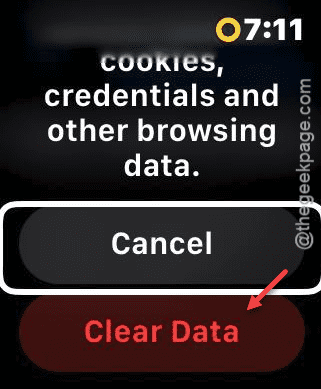
After clearing it up, watch should reconnect to the Wi-Fi once again. Jump to the next one if this one doesn’t work.
Fix 5 – Connect the iPhone to the same Wi-Fi
This may sound silly, but some of the users have got out of this crisis simply by connecting the iPhone to the same Wi-Fi as the watch.