GeForce Experience is the supporting app for your NVIDIA graphics card. So, if you are getting “A supported game is required to use this feature” prompt while applying a particular feature on a game. These are some resolutions that you may enact on your system to get out of this problem.
NOTE – NVIDIA has already rebranded their GeForce Experience app as NVIDIA App. So, we have focused the steps for the NVIDIA App.
Fix 1 – Enable the NVIDIA Overlay feature
You can NVIDIA Overlay feature on the NVIDIA App.
Step 1 – Open up the NVIDIA App.
Step 2 – Next, go to the “⚙Settings” tab.
Step 3 – On the right-hand tab, enable the “NVIDIA Overlay” option.
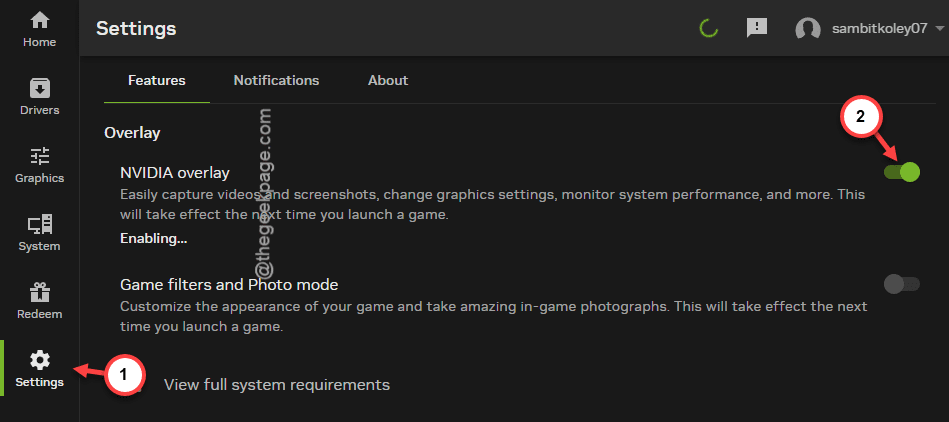
You may have to restart the game afresh. You won’t see the same error message again.
Fix 2 – Restart the PC after reinstalling drivers
After updating the graphics driver, you must restart the PC. Some of the NVIDIA Freestyle users have reported the same error case. So, just restarting the device should fix the problem for you.
Fix 3 – Automate particular NVIDIA services
There are some NVIDIA services that you need to automate and, then, restart your device.
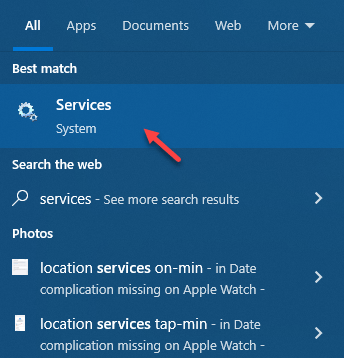
Step 1 – Type “services” in the search box.
Step 2 – Next, open up the Service utility from there.
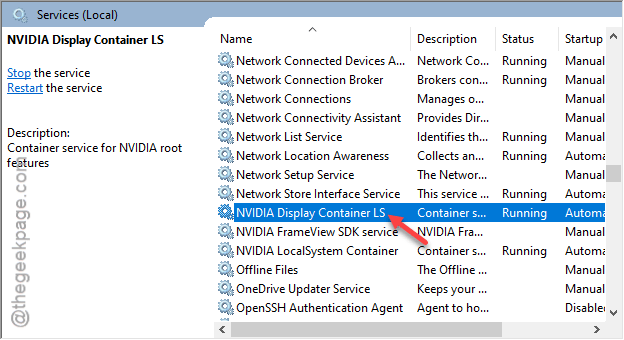
Step 3 – Look for these two services –
NVIDIA Display Container LS
NVIDIA LocalSystem Container
Step 4 – Open up the “NVIDIA Display Container LS” service by double-clicking it.
Step 5 – You have to set the ‘Startup Type:’ to “Automatic“.
Step 6 – Tap “Start” button once.
Step 7 – Tap “OK” to save it.
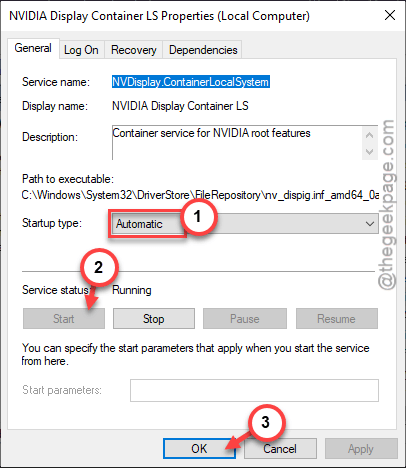
Step 8 – You have to do the same thing with the “NVIDIA LocalSystem Container” service as well.
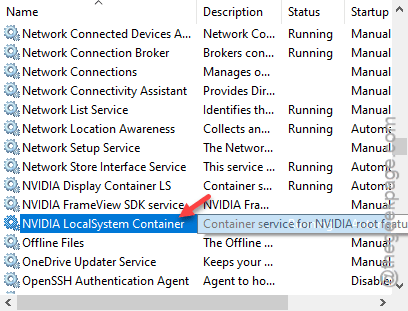
Step 9 – Once you have automated these two services, close everything and reboot the machine.
Check if this works.
Fix 4 – Update the NVIDIA driver
If an update is pending on your machine, install the update there.
Step 1 – Open up the NVIDIA App.
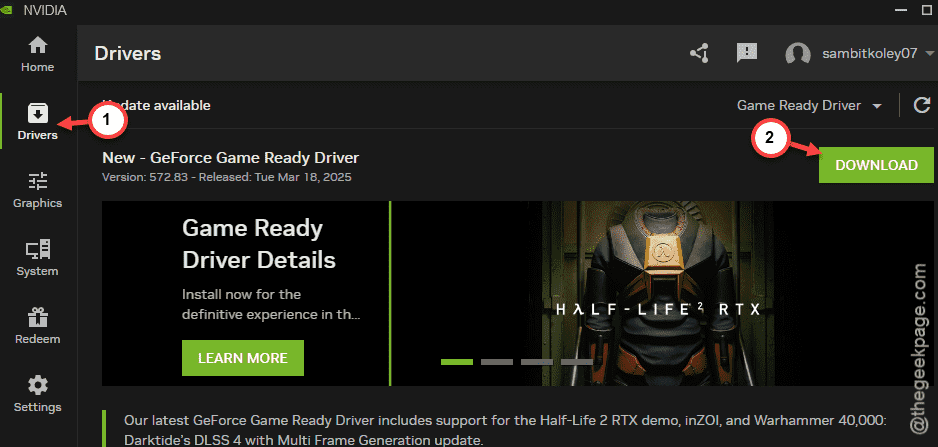
Step 2 – Next, visit the “Drivers” section.
Step 3 – You will find the driver update in there. Tap to “Download” to download the latest driver package file.
Step 4 – Once you have downloaded it, tap “Install” to install the driver package.
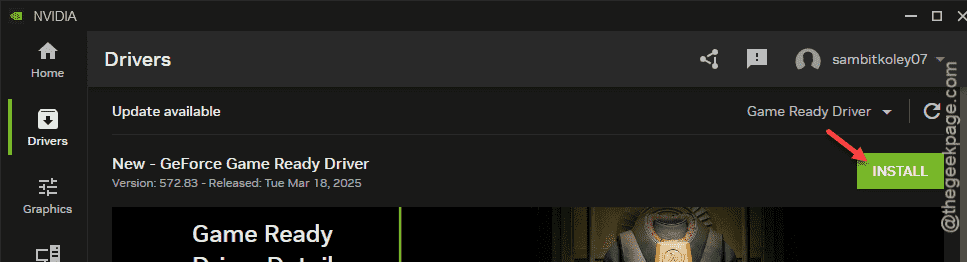
The last step in the process is to reboot your computer. Once the device restarts, the ‘A supported game is required to use this feature‘ message won’t show up on your screen again.
Check if this helps!
Fix 4 – Play the game in full screen mode
Some of the NVIDIA features work properly only when you are playing the game in full screen mode. Like, the function of NVIDIA overlay works only when you are playing the game in full screen mode. Sometimes, when you have multiple applications opened up in your screen, the particular feature of the NVIDIA App requires exclusive access to work properly. So, only when you are playing the game in full screen mode, the feature will work.
Fix 5 – The game is out of scope
If you are trying to impose a newer NVIDIA feature on an old indie game, the gaming application may not support the feature completely. This parameter holds true even in the case of some experimental features on the NVIDIA App.
Hope these tips have helped you out!