Does your After Effects shows up with error on your system? It almost never does so due to the GPU’s fault. After Effects 26.2 fills up your video memory (VRAM, the memory on the graphics card itself) and then forgets to empty it. You get the “GPU is out of memory” warning. The render may die at 80 percent and takes your evening with it. The card is fine. So here’s how to work around it.
The Short Version
After Effects 26 redraws its whole interface through the GPU now. Every panel. Every preview frame. And every bit of that lands in VRAM.
Normally the app clears old frames out as it goes. In 26.2 it does not. Not reliably, anyway. The used memory just climbs until there’s nothing left, and then things go black.
Why doesn’t it clean up? Nobody outside Adobe really knows. The newest NVIDIA Studio drivers make it worse, for some reason. So does Mercury Transmit, the feature that sends your preview to a second monitor.
Short version: VRAM fills, AE panics. The fixes below either empty it or stop it filling so fast.
Fix 1 – Open a Blank Project, Then Reopen Yours
Fastest trick there is. Don’t quit After Effects. Just swap projects.
1 – Click File at the top left, then Save, so you don’t lose anything.
2 – Click File again, then New, then New Project.
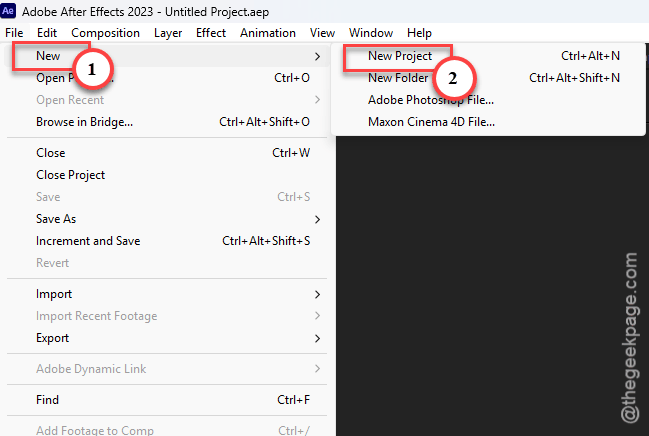
3 – Wait for the blank project to appear. Takes a second or two.
4 – Later, tap the File menu, and tap Open Recent, and pick your project.
5 – Wait for it to load. Your dedicated GPU memory should drop right back down. Check it in Task Manager under Performance if you’re curious.
Not permanent. But it buys you another hour of work.
Fix 2 – Purge Everything Before You Render
Quick one.
1 – Just right before you hit render, click Edit in the menu bar,
2 – Then, go to Purge, and pick All Memory & Disk Cache.
3 – Click OK on the warning.
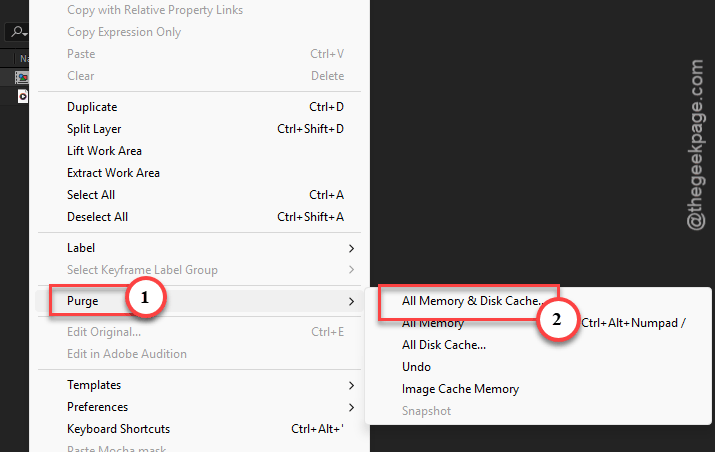
Takes about ten seconds.
That drops the GPU memory to almost nothing. So the render starts with a clean slate.
Fix 3 – Empty the Disk Cache and Give It More Room
Try emptying the disk cache in the system settings to fix the issue.
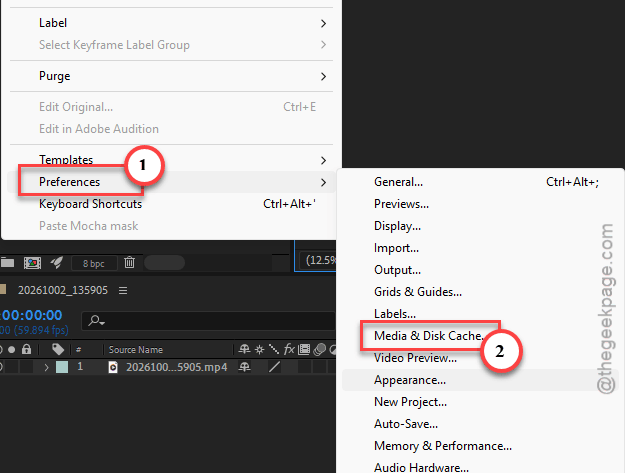
1 – Go to the Edit button. Then choose the Preferences button.
2 – Then Media & Disk Cache. On a Mac, Preferences sits under the After Effects menu instead.
2 – Click Empty Disk Cache. Confirm it.
3 – Look at the Maximum Disk Cache Size box. Raise it to 70 GB or more if your drive has the space.
4 – Click OK.
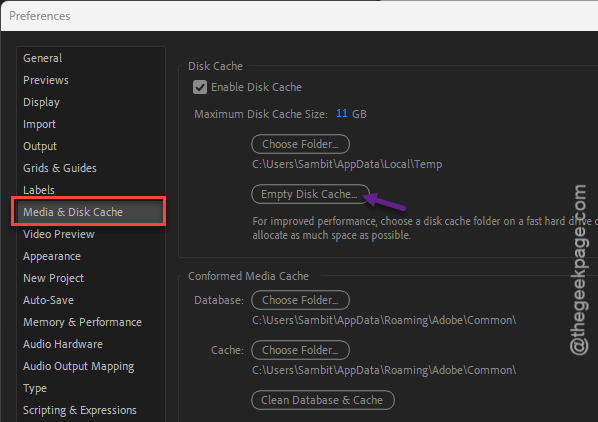
Pick a fast SSD for the cache folder if you can. A slow drive makes this worse, not better.
Fix 4 – Change the RAM Reserved for Other Apps
This one’s odd. Two opposite settings have both fixed it for people.
Start here:
1 – Open Preferences like in Fix 3 and click Memory & Performance in the left list.
2 – Find RAM reserved for other applications.
3 – Set it to the lowest value the box allows (usually 3 GB).
4 – Click OK and restart After Effects.
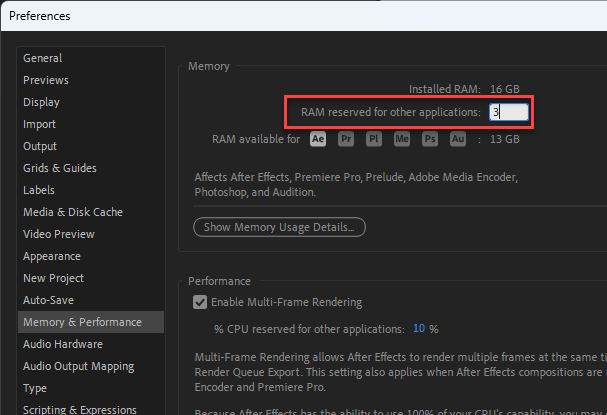
That gives AE as much system RAM as possible, so it isn’t forced to spill over into GPU memory.
IMPORTANT –
Still running out? Go back and do the opposite.
Raise the reserved amount by a few gigabytes. Some users on the Adobe forums say that stopped the out-of-memory errors for them. Weird, but true.
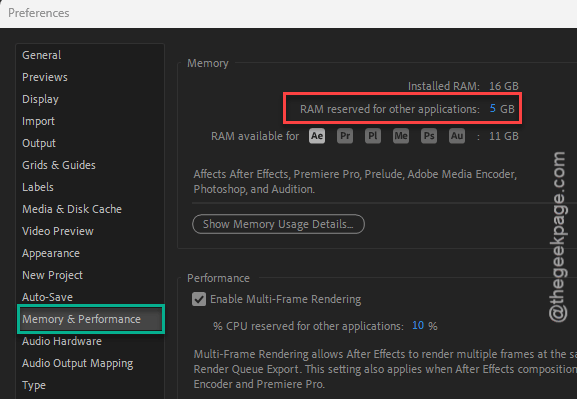
Check if this works.
Fix 5 – Drop the Preview Quality
Full-resolution previews chew through VRAM fast. Lower them while you edit. But you can always preview at full size right before export.
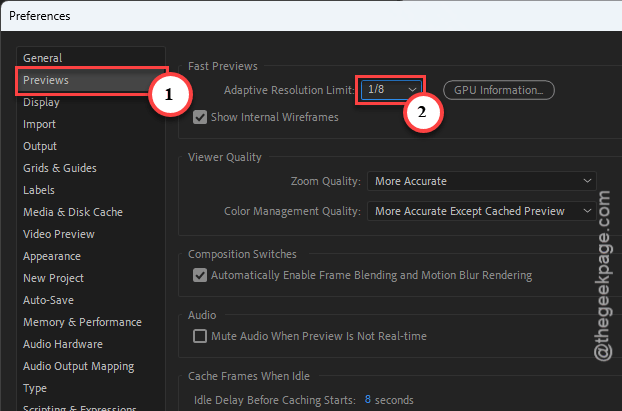
1 – In Preferences, click Previews in the left list.
2 – Set Adaptive Resolution Limit to 1/8.
3 – Click OK.
4 – Back in the Composition panel, click the resolution dropdown at the bottom (it usually says Full).
5 – Pick Half, Third, or Quarter.
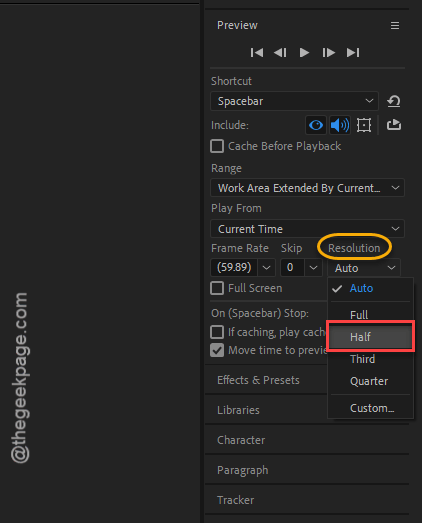
The preview looks rougher. That’s the point. It also won’t freeze nearly as much.
Fix 6 – Turn Off Mercury Transmit
If you preview on a second monitor, this is probably your culprit. Mercury Transmit pushes every frame out to that display, and it holds a chunk of VRAM to do it.
1 – Open Preferences and click Video Preview.
2 – Uncheck Enable Mercury Transmit.
3 – Click OK.
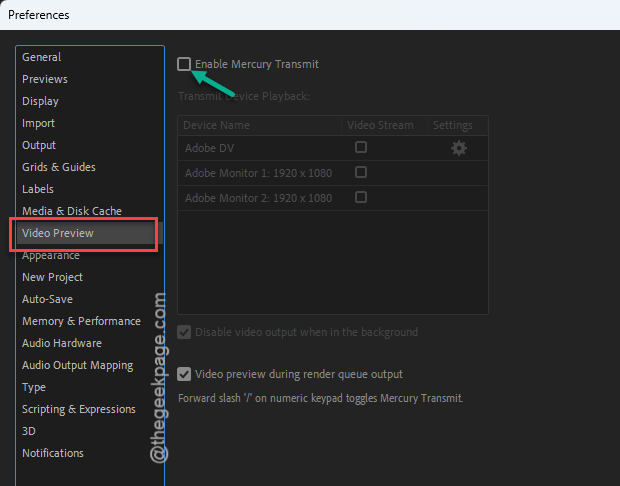
You lose the second-screen preview. Not ideal. But the black screens usually stop with it.
Fix 7 – Render a PNG Sequence Through Media Encoder
Long render that keeps dying at 80 percent? Stop rendering to a single video file. Render frames instead.
A PNG sequence saves every frame as its own image. But if the render crashes, you restart from the exact frame it failed on. Nothing lost.
1 – In After Effects, click Composition, then Add to Adobe Media Encoder Queue.
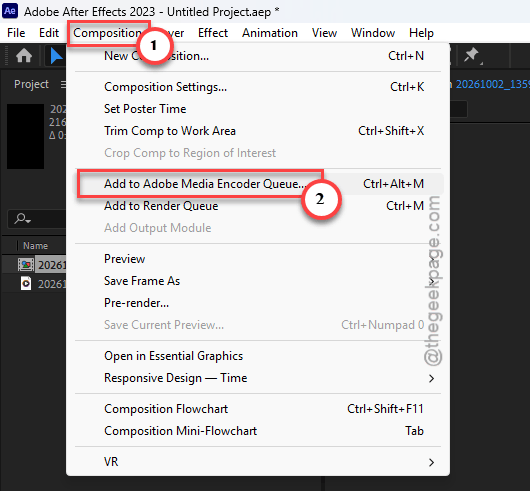
2 – In Media Encoder, click the format dropdown for your item and choose PNG.
3 – In the export settings, make sure Export As Sequence is checked, so it writes one file per frame.
4 – Click the green Start Queue button at the top right.
If it dies partway, restart After Effects to clear the VRAM, then queue it again starting one frame after the last PNG in the output folder. The frame number is right there in the filename. One user on the Adobe forums works this way full time (restart, pick up where it stopped). Clunky. Works.
Stitch the frames into a video afterward in Media Encoder or Premiere.
Fix 8 – Roll Back the NVIDIA Studio Driver
Last one. The newest Studio drivers don’t play nicely with the way version 26 redraws its interface.
1 – At first, open the NVIDIA app. Go to the Drivers tab.
2 – Proceed to the NVIDIA’s driver download page in your browser and look for the older drivers list.
3 – Download version 591.44 (Studio, not Game Ready).
4 – Run the installer, choose Custom, and check Perform a clean installation.
5 – Restart your PC when it finishes.
Takes about five minutes. The screen flickers black once or twice during the install, which is normal. And turn off automatic driver updates in the NVIDIA app for a while, or it’ll put the new one right back.
So It Doesn’t Happen Again
- Purge before every render. Every single one.
- Edit at Half or Quarter resolution. Full is for the final check, not the whole day.
- Hold off on Studio driver updates until someone on the forums confirms 26.2 likes them.
- And save often. VRAM crashes will not ask first.
Quick Answers
How can I fix the “GPU is out of memory” error in After Effects?
Empty the VRAM first. Open a blank new project, then reopen yours, which forces After Effects to dump its GPU memory. Then purge all memory and disk cache from the Edit menu before rendering. If it keeps coming back, lower the preview resolution and turn off Mercury Transmit in Preferences.
How do I fix the “Keylight out of memory” error in After Effects?
Same root problem, different plugin. Keylight does its keying on the GPU, so it hits the wall once VRAM fills up. Purge all memory and disk cache, drop your preview to Half or Quarter, and restart After Effects if the error sticks around. A clean restart always clears the card.