Is your Windows computer stuck in Automatic Repair loop while installing the KB5127648 security update? You may face startup failure while installing this October 2026 cumulative update. Majority of the reports are coming from Intel-based system users. But your files are certainly fine, and you can get back in without wiping anything. Here are some fixes you can try before you consider a system restore or do a system refresh.
Current Resolution Status – KB5127648 Boot Loop
The KB5127648 security update, released on October 13, 2026, has been associated with startup failures and Automatic Repair loops on certain Windows 11 systems.
Temporarily disabling Intel Trusted Execution Technology (TXT) has helped some affected users. However, as of November 20, 2026, an official resolution from Microsoft remains unconfirmed.
What’s Actually Going On
Several users and system administrators have reported startup failures since installing the KB5127648 cumulative update on their systems. According to these affected users, the devices enter the Automatic Repair loop, while some users have also reported 0xc000000d start up error.
Several community reports suggests that the Intel Trusted Execution Technlogy (TXT)may be associated with these boot failures. However, we are yet to pinpoint the exact underlying reason.
Before You Start: Find Your BitLocker Key
Several of these fixes can trigger the BitLocker prompt. So grab the key first. On another device, sign in at Recovery Key with the Microsoft account you use on the stuck PC. The key is a 48-digit number. Write it down or keep that page open.
Work PC? Then your IT team has the key (not you).
Fix 1 – Uninstall the Update From the Recovery Screen
You should uninstall the update from the Recovery Screen.
1 – On the Automatic Repair screen, click Advanced options.
2 – Click Troubleshoot.
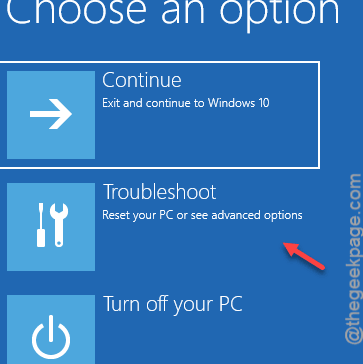
3 – Click Advanced options again (yes, there are two of them).
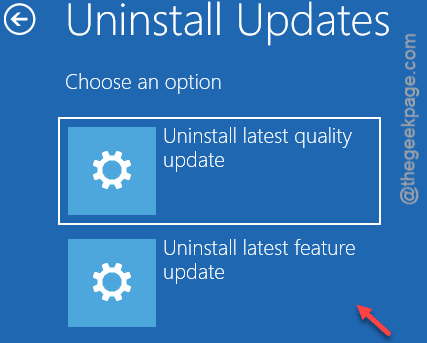
4 – Click Uninstall Updates.
5 – Choose Uninstall latest quality update. That’s the one that removes KB5127648.
6 – Pick your administrator account and type its password.
7 – Click Uninstall quality update. This takes a few minutes, and the screen may sit still for a while. Let it finish.
8 – Click Done, then click Continue.
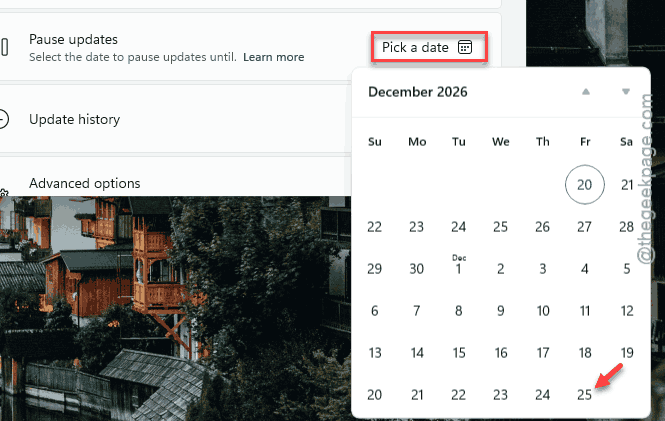
Once you are back in the Windows console, pause update for a while –
1 – Go to the Windows Update settings in Windows Settings console.
2 – Then, tap the Pause updates and choose the maximum permitted date.
Windows should boot normally now.
Fix 2 – Temporarily disable Intel Trusted Execution Technology
Still looping? On Intel PCs, this BIOS switch is often the real culprit. The BIOS is the setup screen that loads before Windows.
1 – Turn the PC fully off.
2 – Turn it on and tap F2 over and over until the BIOS opens. Some brands use Del or F10 instead. The key usually flashes on screen for a second at startup.
3 – Go to Virtualization Support.
4 – Open Intel Trusted Execution Technology and set it to Off.
5 – Save and exit. On most BIOS screens, that’s F10.
6 – Let Windows boot all the way to your desktop.
7 – Restart, go back into the BIOS, and turn Intel Trusted Execution Technology back on.
Why turn it back on? Because TXT is a security feature, and you only needed it off for that one boot.
Fix 3 – Check for New Updates
You should look for any recent Windows Update.
1 – Open Windows Settings. Go to the Windows Update section.
2 – Later, tap Check for updates.

3 – Then, if you see any pending update patch, install it.
Microsoft released the KB5127936 optional preview update in last week of October, followed by the KB5132061 security update in November. However, there is still no official patch has been released to patch the boot failure issues associated with the KB5127648.
Avoiding This Next Time
- Save your BitLocker recovery key somewhere outside the PC. A photo on your phone works. It is the one thing you can’t get back if you lose it during a boot loop.
- Don’t install updates in the first few days. Pause them for a week in Settings > Windows Update. Bad patches usually get caught by then.
- And make a recovery USB drive. Search for Recovery Drive in the Start menu. Takes about 20 minutes, and it’s a lifesaver when the built-in recovery screen won’t load.
- Turn a PC off only from the Start menu while it updates. Never hold the power button mid-install. That’s how updates end up half-finished.
Quick Answers
Will uninstalling the update delete my files?
No. Uninstalling a quality update will just remove the update files and components, without touching your files and personal data. However, you should back up important files beforehand.
Why is my PC asking for a BitLocker recovery key after an update?
The TPM chip checks your boot files every time you start. KB5127648 changed them, so the check fails and BitLocker locks the drive to be safe. Find your 48-digit key at aka.ms/myrecoverykey on another device. You can ask for the key from IT.
Has Microsoft fixed the KB5127648 boot loop?
No. Microsoft has releseased ensuing cumulative updates, but an official resolution addressing the boot failure reports is yet to come.