Does your Adobe Premiere 26 fail to load up the Export Panel when you press the Ctrl+M keys? Some users have reported that clicking the export tab or accessing Export function manually has not worked as well. Adobe has previously taken care of several UXP-based panel issues, bugs on their own. However, sometimes the corrupted workspace layouts and application preferences may have caused similar issues. Follow these fixes to get back the Export panel working in no time at all.
Known Issue – Premiere 26 Export Panel
Adobe has previously acknowledged an issue causing UXP-based panels in Premiere 25.6.1, including the Export and Import panels becoming unresponsive at certain times. Followed by another fix in version 26.0.2 relating to the Adobe Stock panel.
However, users have continued to report similar Export panel problems in subsequent versions of Premiere 26 and newer version, which indicates the problem may have resurfaced.
Update Premiere through the Creative Cloud desktop app before attempting the following solutions.
Emergency workaround – Export using Media Encoder
Temporary workaround: This can be useful in case if you need to export immediately.
1 – Select your sequence that you want to export.
2 – Then, go to File > Export > Send to Media Encoder (or just directly press the Alt + Shift + M).
Media Encoder is a separate app, so it renders your video even while the Export panel inside Premiere refuses to open.
Fix 1 – Delete Your Saved Layout Files
Try deleting your saved layout files to resolve this issue.
NOTE – This procedure may reset any customizations you have done in Adobe Premiere Pro.
1 – At first, save your project and close Premiere Pro.
2 – Open File Explorer and go to Documents > Adobe > Premiere Pro.
3 – Open the folder with your version number, like 26.0.
4 – Open the folder that starts with Profile- followed by your username.
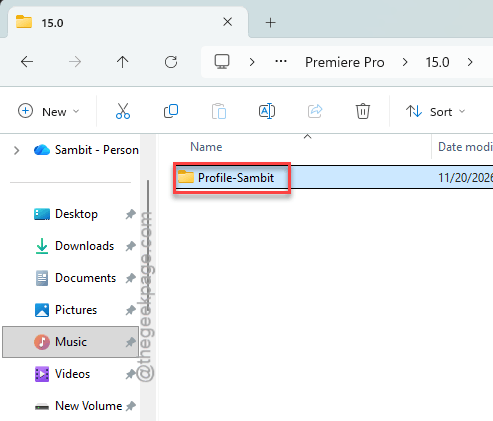
5 – Open Layouts and delete everything inside.
6 – Go back, open Archived Layouts, and delete everything in there too.
[NOTE – Instead of deleting all these files, you can just create a backup of the files and then, remove them.]
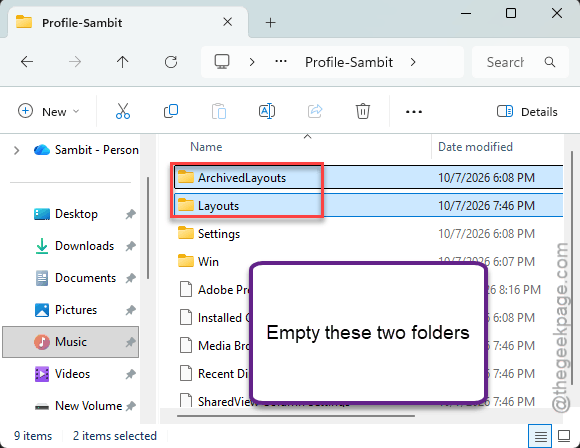
7 – Start Premiere Pro again.
You’ll lose any custom workspaces you built. Your projects and footage are not touched, though.
Fix 2 – Reset Your Workspace
A messed-up workspace layout (the arrangement of your panels) can stop Premiere from switching to the Export screen.
1 – Click Window in the menu bar at the top.
2 – Hover over Workspaces.
3 – Click Reset to Saved Layout. The shortcut is Alt + Shift + 0.
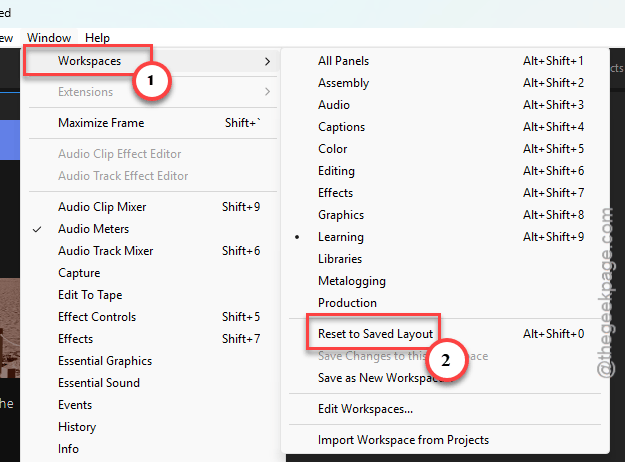
Your panels jump back to where the workspace had them. And then you can try the Export tab again.
Fix 3 – Reset Premiere’s Preferences
Bigger reset (and more annoying). This puts every Premiere setting back to default.
1 – You must save the current progress in Adobe Premier Pro, before you close it.
2 – Hold down Alt key, while launching the Adobe Premiere Pro.
3 – Tap the Reset app preferences when a dialog box shows up.
4 – Let go when the reset message appears, and click OK.

You’ll need to redo things like keyboard shortcuts and autosave settings afterward. So screenshot anything you customized first.
Fix 4 – Click the Export Tab Instead
Sometimes it’s only the keyboard shortcut that broke. Weird, but it happens. Look at the top left of Premiere, where you see Home, Import, Edit and Export. Click the word Export with your mouse.
If it opens, switch back to Edit and try Ctrl + M again. It’s often working again after that one click. Check the shortcut assignment from Edit> Keyboard Shortcuts, if the Export mode is opening up properly.
Fix 5 – Clear the Media Cache
The media cache holds preview files Premiere makes for your footage. When some of them are corrupted, the Export panel can hang while it reads them.
1 – Click Edit > Preferences > Media Cache.
2 – Click Delete next to Remove Media Cache Files.
3 – Choose to delete all media cache files, then click OK.
4 – Restart Premiere Pro.
Your timeline may feel slow for a few minutes while Premiere rebuilds the previews. Totally normal.
Keep It From Coming Back
- You should not do a new major Adobe Premiere upgrade while you are in the middle of a big project.
- Don’t force-quit Premiere during an export unless you really have to.
- Keep installing the stable maintenance updates where Adobe squashes bugs, glitches, or other known application issues.
- Save your custom workspace and back up them regularly.
People Also Ask
Why is Ctrl + M not working in Premiere Pro?
Look whether your keyboard shortcuts are assigned properly, if the Ctrl+M shortcut is not working. But manually export is working. You should check Edit > Keyboard Shortcuts or tap the Export tab instead.
Why does Premiere Pro keep crashing when I export?
Usually it’s corrupted media cache files, a bad graphics driver or damaged preferences. Clear the media cache in Preferences first. Then update your GPU driver, or roll back a recent one. Still crashing? Hold Alt + Shift while launching Premiere to reset preferences, or export through Media Encoder.