Are you getting the 0xC000000D error on your Windows 11 while connecting to a remote desktop? You will be slightly relieved to know that you are not the only one facing this issue. You may also come across a message where it says ‘Authentication token is invalid’, even when you know you have the correct login credentials.
Microsoft has identified a Windows 11 regression affecting the Remote Desktop Connections (RDC) to computers with Administration protection enabled. If you are still having the issue, we recommend you enact the solutions following the order exactly we have mentioned here.
Knowledge Panel – Current Status
You will be glad to know that Microsoft acknowledged a Remote Desktop authentication issue affecting non-administrator users connecting to computers with Administrator protection enabled after installing KB5124010 or subsequent updates.
The issue was resolved in KB5127936 at October end for Windows 11 25H2 and 26H2 users. Simply install the latest cumulative security update should resolve this particular problem.
Fix 1 – Install the latest Windows Update
Microsoft has officially patched this RDC-related issue through cumulative updates. Install the latest secuirty update, (KB5127936 or newer) to resolve this issue.
1 – At first, hit the Win+I buttons together.
2 – Now, go to the Windows Updates section.
3 – Tap Check for Updates option.
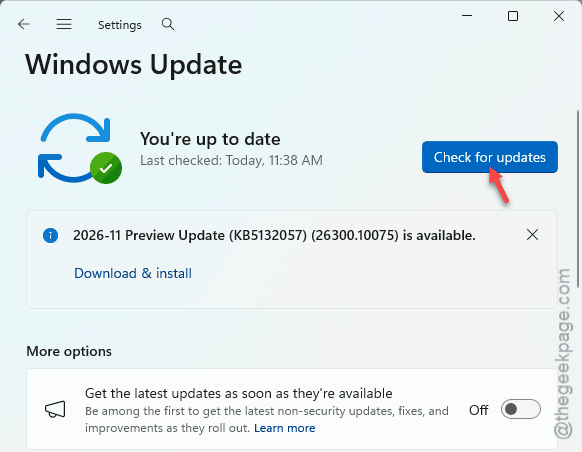
4 – Now, you can download and install the latest cumulative security update avaialble for your OS.
5 – Restart the host machine when asked.
Try connecting to the remote desktop again.
Fix 2 – Switch UAC Back to Legacy Mode
No patch yet, or it didn’t help? Turn off the new Administrator protection layer. Both Microsoft Learn and r/sysadmin point to this one.
Warning – This workaround is only intended for the affected machines that have not yet recieved the patch yet. Contact your IT administrator before modifying security policies on work computer.
1 – On the host PC, press Windows + R.
2 – Type secpol.msc and press Enter. The Local Security Policy window opens.
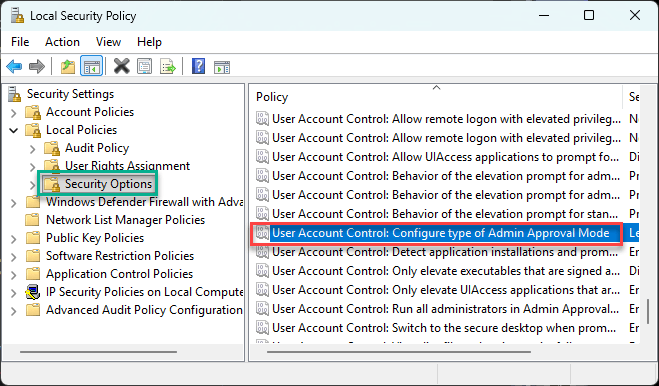
3 – In the left pane, open Local Policies, then click Security Options.
4 – In the right pane, double-click User Account Control: Configure type of Admin Approval Mode. The list is alphabetical, so it’s near the bottom.
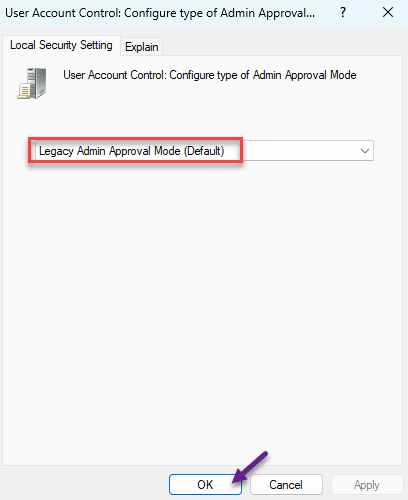
5 – Change it from Admin Approval Mode with Administrator protection to Legacy Admin Approval Mode (Default).
6 – Click OK.
7 – Restart the host PC.
Don’t forget to restore the previous administrator protection policy after the affected machine has recieved the security patch.
Additional Fixes – Still Getting Error 0xC000000D?
If you are stil facing this problem, you should try the following checks –
- Verify whether the Administrator protection is actually enabled
- Check if the affected the users has permission to connect through RDC.
- Contact the IT administrator if the computer is managed by them i.e. you are experiencing this on your work computer.
How to Prevent This
- Pause feature updates on any PC you reach over Remote Desktop. A week, at least. Remote machines are the worst ones to have break.
- Keep a second way in, like a local admin account or a remote tool that isn’t RDP. And it saves you a drive to the office.
- Read the release notes before a big version jump. Microsoft flagged the UAC change. Hardly anyone read it.
- Undo workarounds after the real patch lands. Always.
People Also Ask
What does error 0xC000000D mean in Remote Desktop?
It means the remote PC dropped your login partway through. On Windows 11 26H2, the new UAC Administrator protection layer breaks how login tokens are passed to Remote Desktop. Local and non-admin accounts are hit most. Installing KB5127936 or switching UAC to Legacy mode fixes it.
Is it safe to disable the Legacy Admin Approval Mode?
Microsoft documented switching to Legacy Admin Approval Mode as a temporary workaround. Though it reduces the security safeguard and you should restore policy once your issue is fixed.
Do I need to restart after changing the Administrator protection policy?
Yes. Administrator protection policy changes require restarting the affected system before the change takes effect.