Once you connect your iPhone to the Wi-Fi, it recalls the SSID information and reconnects to it whenever you are in the proximity of that Wi-Fi. But, in some odd cases, there are some iPhones that seem not to be connecting to the Wi-Fi after a reboot. To get out of this situation, we have presented this extensive set of solution. Go through them, and follow the step-by-step instructions to resolve this problem.
Fix 1 – Manually configure the Wi-Fi
You have to manually configure the Wi-Fi, instead of the regular auto-connection setup.
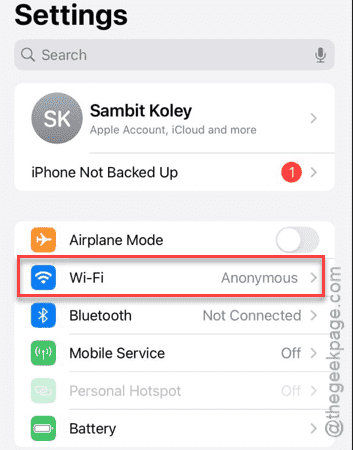
Step 1 – At first, we need to go to the Settings page.
Step 2 – Open the “Wi-Fi” settings in there.
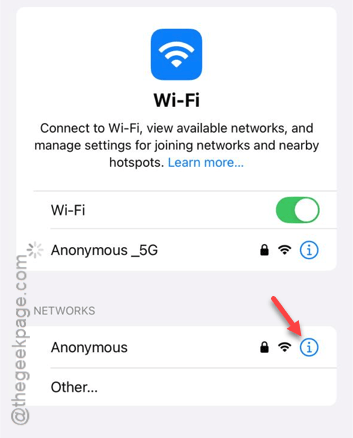
Step 3 – Detect which Wi-Fi that you are currently using and tap that small “i” button.

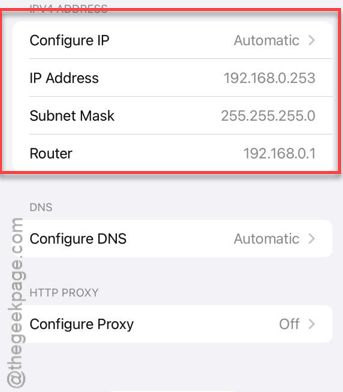
Step 4 – Next page contains all the Wi-Fi settings. So, go down and jot down these few things –
IP Address
Subnet Mask
Router
Step 5 – Get back to the Wi-Fi information page.
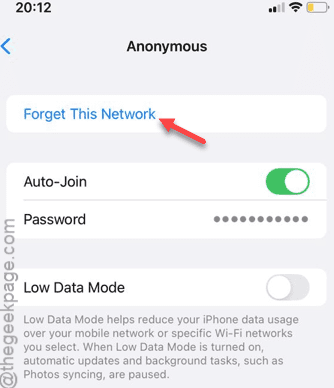
Step 6 – Now, tap the “Forget This Network” to delete the Wi-Fi credentials from your device.
Step 7 – This will take you back to the Wi-Fi page.
Step 8 – Open that same Wi-Fi settings page once more. Open its settings.
Step 9 – This time, go down and tap the “Configure IP” option in ‘IPV4 address’ option.
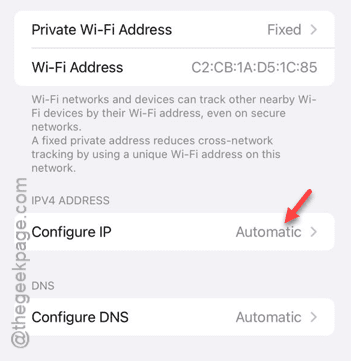
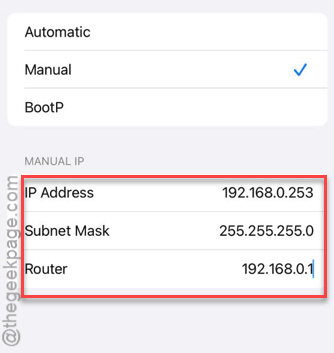
Step 9 – Later, set this to “Manual” mode.
Step 10 – Now, you have to input the network credentials exactly as the same as you have noted before. Pay extra attention while doing this, cause a mistake of a single digit can cost you the successful Wi-Fi connection.
Step 11 – Tap “Save” once you are done.
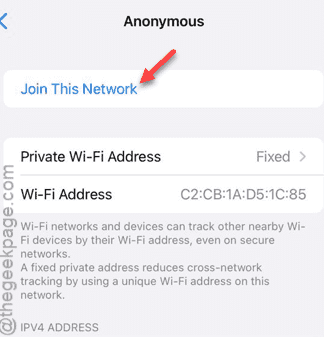
Step 12 – Coming back to the previous page, tap “Join This Network” option.
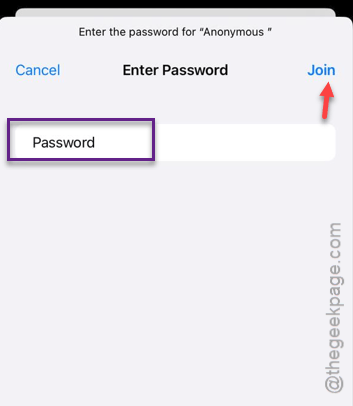
Step 13 – In this step, you have to provide the password and join the network.
You will get reconnected to the Wi-Fi connection. You must restart your iPhone to test this out.
Once the device restarts, see if the device is connecting to the Wi-Fi automatically or not.
Fix 2 – Update the iPhone
This problem is a well-known bug in the iOS 17. So, you should update the iPhone to fix it.
Step 1 – Get to the iPhone Settings.
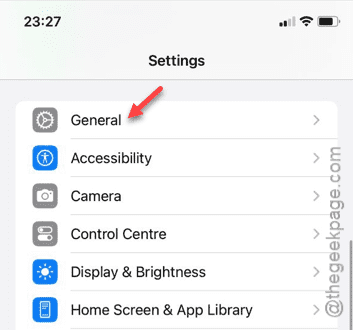
Step 2 – Go straight to the “General” section.
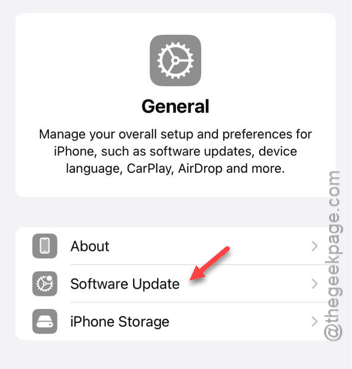
Step 3 – There you will find the “Software Update” menu. Go there.
Step 4 – See whether an update is listed there. Tap the “Install Now” button to start the update process.
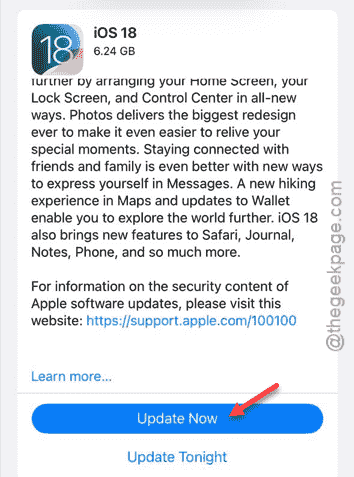
Your iPhone will now verify the update and install that right way. While the update package is installing, the device will get rebooted automatically.
When you get back to it, just use your password to log in to your Wi-Fi. This time, iPhone won’t forget the Wi-Fi.
Fix 3 – Replace the router
While the problem is a reported bug in the iOS 17, if you are using iOS 18 or later and still facing this issue, your router can be found at fault. So, if you are using an older router, you replace the router with a new one and test.
In case if you don’t have a router lying around, you can create a mobile hotspot, connect the iPhone to do it and check it out. This use case scenario should be helpful pointing out whether the issue is causing by the router or not.