Does the ‘In-App Purchases not allowed’ message is appearing while you are trying to buy some items from the iPhone? You can’t get an app or perform a successful in-app purchase, when this message pops up. But, you will be glad to know that it is very easy to fix this.
Why the ‘In-App Purchase not allowed’ message is showing up?
In-App purchases means the procurement of the apps or services in exchange for money. Now, there are some cases where this In-App purchase options can be abused. So, iPhone has this design where the Content Restrictions can be put to disable the In-App Purchases temporarily. This usually works as a safeguard to protect from kids making unnecessary purchases from the App Store.
Revoking the Content Restrictions or modifying the In-App Purchase settings should revoke your ability to make successful In-App Purchases.
Fix – Change the In-App Purchases settings
The entire process is very simple and should not take more than a minute to do this.
Step 1 – At first, open the gear-shaped button. This should take you to the Settings page.
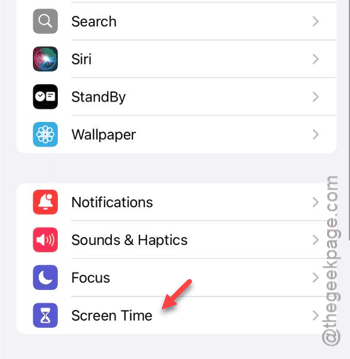
Step 2 – In the Settings page, you must open up the “Screen Time” settings.
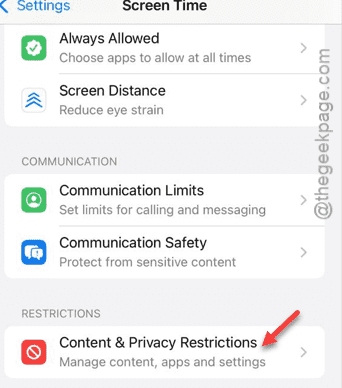
Step 3 – In the Screen Time settings panel, go down and open up the “Content & Privacy Restrictions” option.
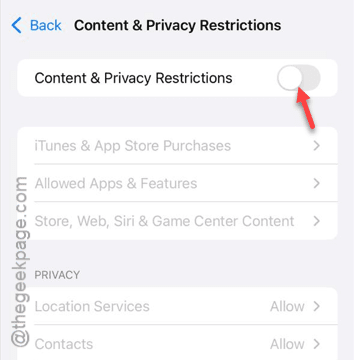
Step 4 – Now, you can just turn this feature off. If you do that, there is no need to follow any further steps.
You can make successful in-app purchases once again.
But, what if you don’t want to disable the entirety of the Content & Privacy Restrictions?
Step 5 – In that case, you must open up the “iTunes & App Store Purchases” option.
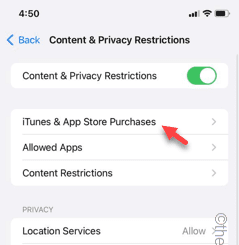
If a passcode is required, provide that passcode to enter the main iTunes & App Store Purchases page.
Step 6 – In there, tap the “In-App Purchases” option.
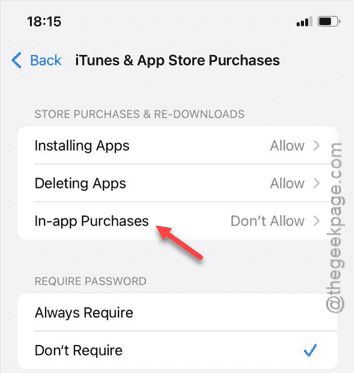
Step 7 – Later, tap the “Allow” option to allow the In-App purchases in the future.
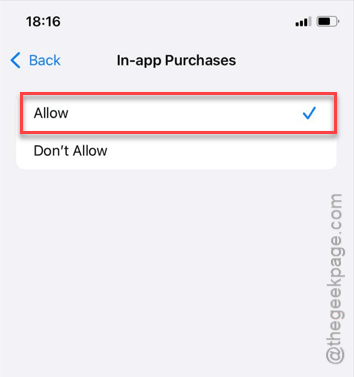
That’s it! You can now make in-app purchases without getting any of the messages.