Having some problem previewing the PDF files on your iPhone? Some users have shared their experiences in community forums where the PDF previewing system is not working on their device. The reports of PDF preview failures have only increased in number since the iOS 26 update rolled out. If you are also affected by this problem, here are some steps to resolve this issue.
Quick Fix Guide~
| Issue Cause | Quick Fix | Fix Location |
|---|---|---|
| AI Scanning | Disable Apple Intelligence for Files | Settings > Apps > Files |
| iCloud Sync Hang | Toggle the iCloud Drive | Settings > Apple ID Banner > iCloud |
| View Interface | Toggle List/Grid View | Files app > Three-dot button |
Fix 1 – Disable Apple Intelligence for Files
On the iOS 26 variant and later iterations, Apple Intelligence may fail to apprehend a complex, encrypted PDF file and won’t be able to show the preview of the PDF file.
Step 1 – Open the iPhone Settings. Then, go to the Apps tab.
Step 2 – Find the Files app in the list and open it up from there.
Step 3 – Then, locate the Apple Intelligence & Siri settings. Tap it once.
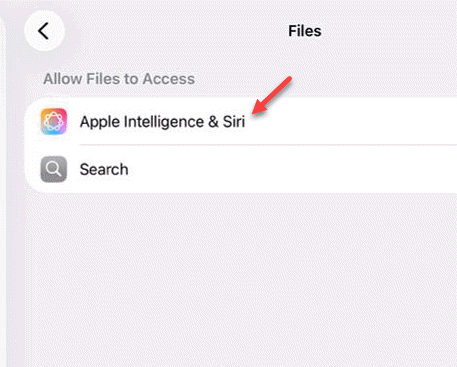
Step 4 – Disable the Learn from this App toggle from there.
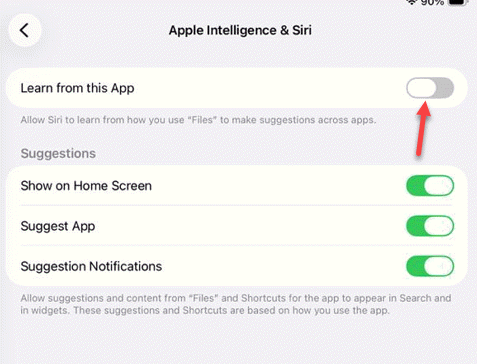
Then, retry the entire process again and test.
Fix 2 – Force-restart the iPhone
The background service responsible for the PDF previewing experience on iOS can run into some issues. You can fix that simply by force-restarting the device.
Step 1 – Quickly press the Volume Up button and release it.
Step 2 – Then, press the Volume Down button and release it.
Step 3 – Press and hold the Side Power button until the Apple logo appears on the iPhone screen.
After you have successfully rebooted the device, it should re-index your documents properly. Do check whether this works.
Fix 3 – Refresh the iCloud Drive Sync Settings
If the PDF file is stored in the iCloud, the iOS 26 may get stuck trying to preview that file due to a synchronization issue.
Step 1 – Go to the iPhone Settings home page. Click the Apple ID banner once.
Step 2 – Next, load up the iCloud settings from there.
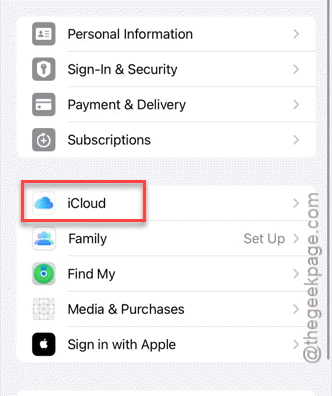
Step 3 – Go to the iCloud Drive.
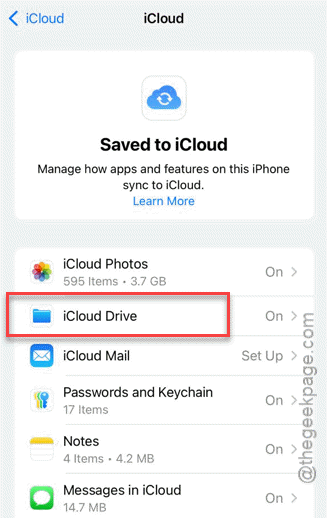
Step 4 – Toggle the Apps syncing to iCloud Drive to OFF mode. Then, turn it back ON.
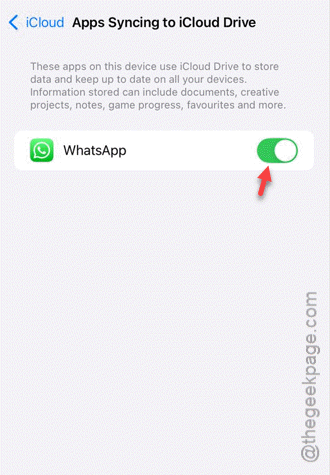
Now, just give it a few seconds. Then, reopen the Files app and try to preview the PDFs again.
Fix 4 – Switch View Modes in the Files App
Some users have fixed this issue by changing the view mode in the Files app on the iPhone.
Step 1 – Go to the folder where you have the PDF file.
Step 2 – Tap the three-dot icon in the top-right corner. Switch it from List to Grid mode, or vice-versa.
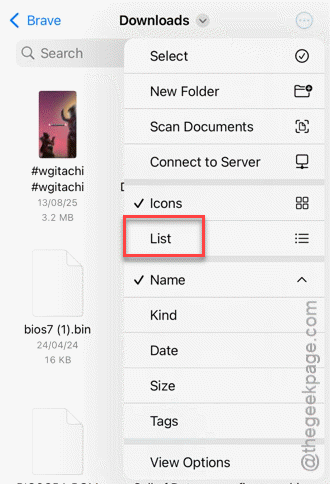
Check if the preview is working properly.
Fix 5 – Offload and Reinstall the Files App
If you are still having issues with the previewing the PDFs on your iPhone, you should just offload the Files app and reinstall the same to fix the issue.
Step 1 – In the iPhone Settings, go to the General tab.
Step 2 – Then, open the iPhone Storage settings.
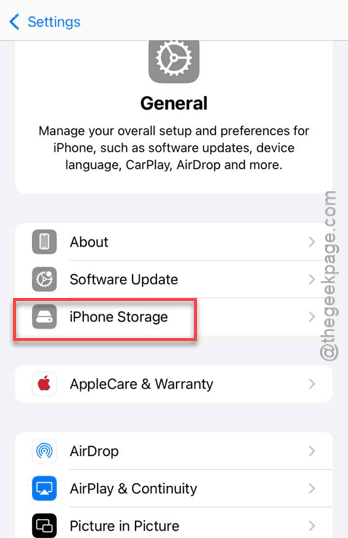
Step 3 – Find the Files app in there and open it up.
Step 4 – Tap the Offload App button and confirm it.
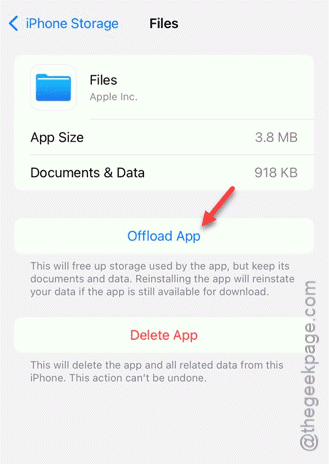
Wait for a few seconds till the app is offloaded.
Step 5 – Now, tap the Reinstall App option on the same page to reinstall the app.
Try to use the preview system in the Files app once again.