After updating the iPhones to iOS 18.4 or 18.5 version, some users have complained about iPhone’s Wi-Fi. Their complaints include significantly lower Wi-Fi bandwidth (speed), inferior Wi-Fi strength in familiar locations, etc. The number of complaints across various forums is quite high and if you are also any such issues, don’t worry. After a deep dive, we have understood the issue and got the perfect countermeasures that will work for sure!
Why the Wi-Fi issue is rampant in iOS 18.3, 18.4 or 18.5?
The issue with the iPhone’s Wi-Fi is nothing new in the forum. But, since the rollout of the iOS 18, mainly the iOS 18.3, 18.4 and the latest one iOS 18.6, the user complaints have stacked up heavily. While the bugs in the updates can cause this problem, there are other possible reasons that can impact the Wi-Fi module of your iPhone as well.
The potential solutions for this Wi-Fi prices on the affected iPhones ranges from a simple solution like restarting the device to a more complicated one, such as changing the private Wi-Fi address. These fixes will definitely you out.
Fix 1 – Change the Private Wi-Fi Address settings
You must change the private Wi-Fi address settings from text to rotating settings.
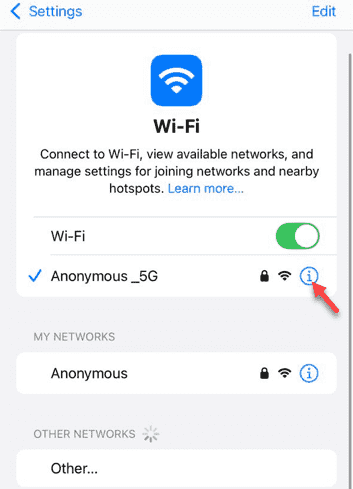
Step 1 – On your iPhone’s main Settings page, go to the Wi-Fi module.
Step 2 – Look for the small i button next to the Wi-Fi that you are connected or trying to connect.
This will take you to the Wi-Fi module’s information page.
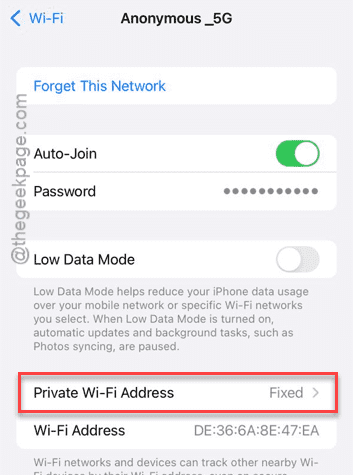
Step 3 – Next, tap the Private Wi-Fi Address box there.
Step 4 – Set this option to Rotating.
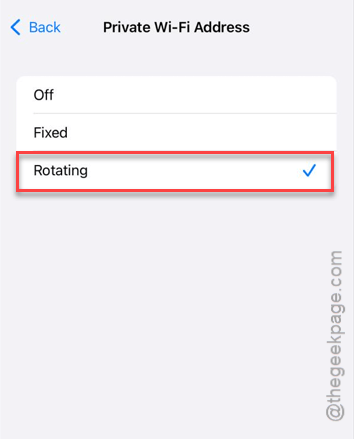
After enacting this change, reconnect to the Wi-Fi and check whether it improves or not.
Fix 2 – Reset the Network Settings
Resetting the device’s network connection gives the device a fresh start. So, do reset iPhone’s network settings and reconnect to the Wi-Fi.
NOTE – Do note that resetting the iPhone’s network means that it will remove all the saved network credentials such as saved Wi-Fi passwords, Bluetooth pairings, etc.
Step 1 – Go to the iPhone Settings and follow this path ~
General > Transfer or reset iPhone
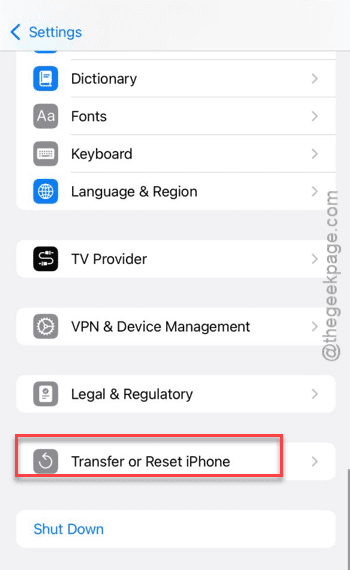
Step 2 – Then, tap the Reset option there to option there.
Step 3 – Next, use the Reset Network Settings toggle there.
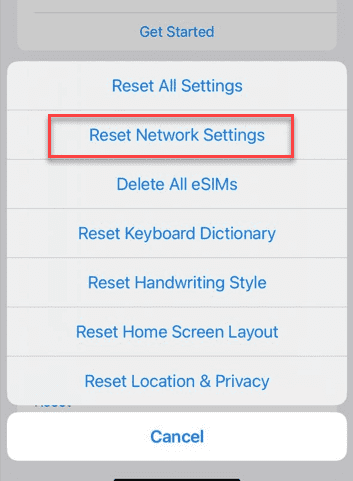
It will require your passcode once. Your iPhone will reset all of your networking features.
Once it is done, connect to the Wi-Fi network.
Fix 3 – Restart the iPhone
It can be weird to see the device restart as the solution for this issue, but affected users have claimed that the Wi-Fi has got better for at least a few weeks after restarting their device.
Step 1 – Simply, pull down to see the Control Centre of your iPhone.
Step 2 – Tap the Power button there.
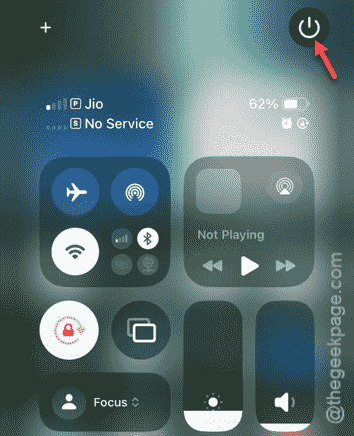
Step 3 – Use the Slide to Power off there to shut down the iPhone.
After this, restart the iPhone normally using the power button.
Fix 4 – Update your iPhone
Updating the device can actually solve the issue.
Step 1 – At first, go to the General tab on your iPhone’s Settings page. Then, open the Software Update.
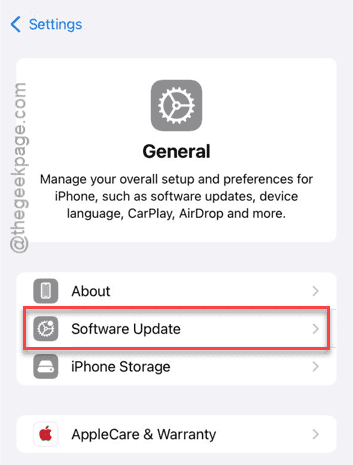
Step 2 – If an update is pending there, tap to download and install it.
Step 3 – Tap the Install Now button to install the update.
Once the update is installed, you can check the Wi-Fi performance. See whether it improves or not.