Does all of your Snapchat calls are appearing in the Spotlight search results? While Spotlight is widely used on all Apple devices as a universal search tool, you may not want to view your past calls in the same search result. Some users have faced this issue problem where the Snapchat calls are appearing directly in the Spotlight search results when they are querying about something.
Fix 1 – Disable Show Content in Search feature in Snapchat
The reason you are seeing the Snapchat calls in the Spotlight is because the Show Content function is enabled in the Snapchat settings.
Step 1 – Close or minimize the Snapchat app on your iPhone. Next, load up the Settings console on the device.
Step 2 – Go to the Apps tab.
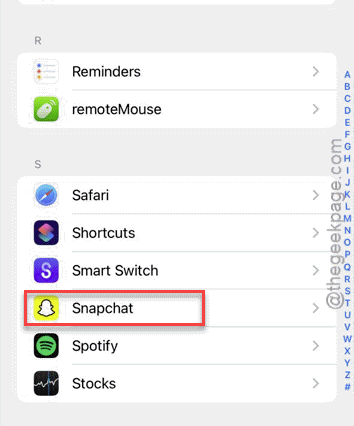
Step 3 – Open up the Snapchat app from the list to load it up.
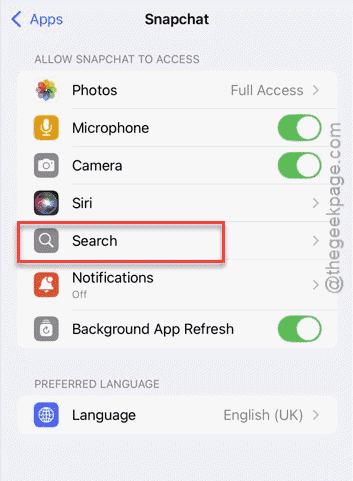
Step 4 – Tap to open the Search settings.
Step 5 – Now, disable the Show Content in Search settings in the Snapchat app.
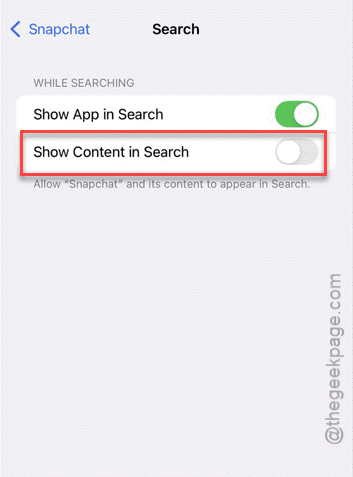
After turning off the show content feature, you won’t see any items from the Snapchat in the search results page.
Fix 2 – Reinstall Snapchat and disable the show content feature
If the items are still appearing from Snapchat on the Spotlight, you should reinstall the app, and turn off the show content toggle.
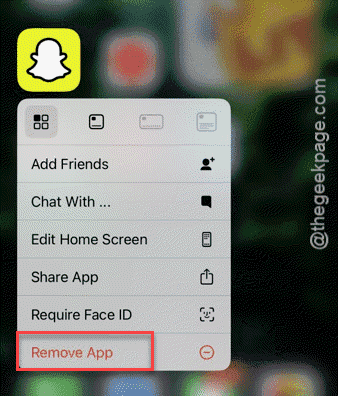
Step 1 – Find the Snapchat app. Hold the Snapchat app, and tap Remove App.
Step 2 – Once you have removed the Snapchat app, go to the App Store.
Step 3 – In the App Store panel, reinstall the Snapchat app.
Step 4 – Now, open the Snapchat app, and log in with your account details.
Step 5 – After you have logged in to it, close it and reach the Settings page.
Step 6 – Follow the same path we have mentioned before –
Settings > Apps > Snapchat
Step 7 – In the Snapchat app, open the Search settings and disable the Show Content in Search settings.
This should put a stop to the search items from Snapchat appearing in the search results.
Fix 3 – Reset all Settings on your iPhone
If you are still seeing Snapchat calls or other in-app items on the Spotlight search, you should reset the iPhone’s Settings to the default setting.
Step 1 – At first, go to the iPhone’s Settings console.
Step 2 – Tap the General settings page. Next, load up the Transfer or reset iPhone option.
Step 3 – Next, tap the Reset option and tap the Reset All Settings option.
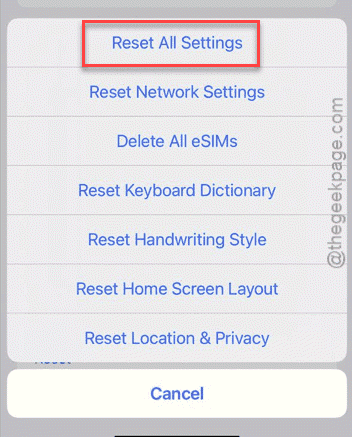
Follow the on-screen steps to assert the step and complete the main resetting process. Once you have reset the iPhone settings, it will restart once. After the device restarts, check if this works.
FAQs on why Snapchat calls are showing up in the Spotlight search results?
1. Why the Snapchat calls are appearing on the Spotlight search?
Apple’s Spotlight indexes everything on your device, including contents from the Snapchat like calls, messages on your device. The contents of the Snapchat gets indexed in the Spotlight directory. So, when you search something, the results from the Snapchat also shows up in the search results.
2. How to stop Snapchat calls from appearing on the Spotlight search?
You can stop the Snapchat calls or any other Snapchat-related materials from appearing in the search results by turning off the Show Content in Search feature in Snapchat. After turning off the Show Content feature, you will not see any Snapchat-related items, including the call logs in the search results.