Guided Access not working on your iPhone? Guided Access, the useful accessibility feature of the iPhone, works flawlessly on the device. But, if the Guided Access is not working properly on your device, this article will be helpful for you. Just like the other features on the iPhone, Guided Access is dependent on several other important services of the device.
Why Guided Access is not working on my iPhone?
Guided Access feature can be handy when your objective is to restrict a user to a certain app. So, Guided Access is a kind of digital prison that limits user access to a particular app. But, this Guided Access needs certain privileges to work properly. You must enable the FaceID to set up and use the Guided Access mode properly. The lack of this setup may cause the Guided Access to fail.
Fix 1 – Turn on Guided Access and Face ID
Enable the Guided Access mode and make sure to enable the Face ID on your iPhone.
Step 1 – At first, you have to turn on the Guided Access mode. Open up the Settings.
Step 2 – Then, go to the “Accessibility” page.
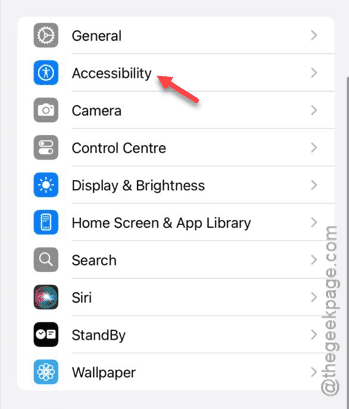
Step 3 – Open up the “Guided Access” mode page.
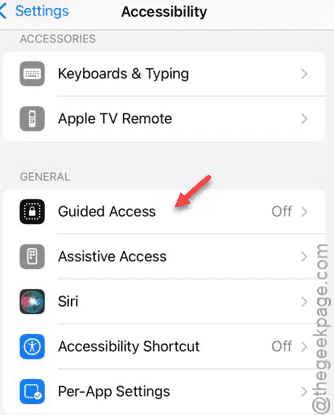
Step 4 – On the subsequent step, make sure the “Guided Access” module is turned on.
Step 5 – Tap the “Passcode Settings” to open it up.
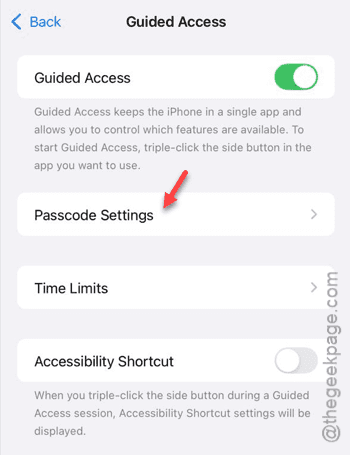
Step 6 – Turn on the “Face ID” option.
Step 7 – You can set up the Guided Access Passcode as well. To do that, tap the “Set Guided Access Passcode” option. Go through the steps to input and re-input a passcode of your choice.
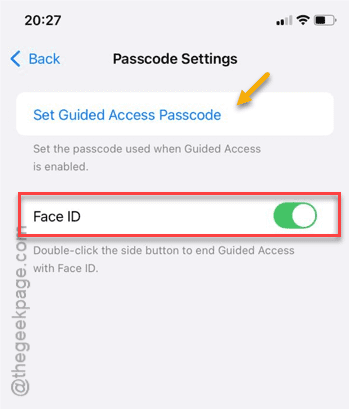
Once you have set up the passcode security for the Guided Access mode, you can use it to start or end the Guided Access mode on the device.
Fix 2 – Refresh the Guided Access mode
Even after setting up the security for the Guided Access mode, if you still can’t activate or use it, disable the Guided Access mode once and re-enable the same to fix it.
Step 1 – In the iPhone Settings page, open up the “Accessibility” module.
Step 2 – Open the “Guided Access” module.
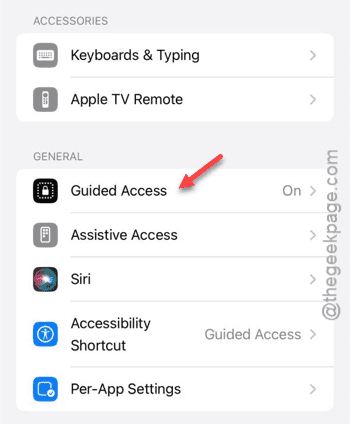
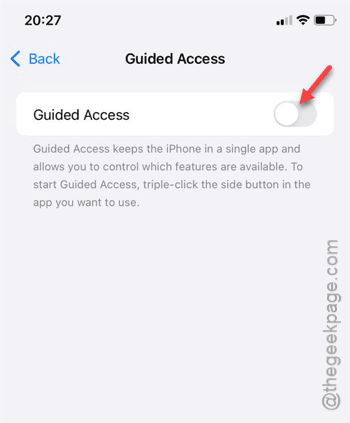
Step 3 – Disable the “Guided Access” mode from there.
Step 4 – Now, hit the Volume Plus button once.
Step 5 – Next, pinch the Volume Minus button, again.
Step 6 – Hold on to the Power button to force-reboot the iPhone.
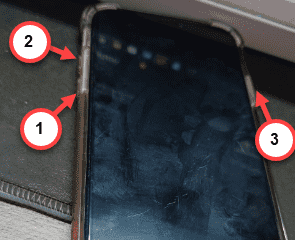
Wait until the iPhone restarts.
Step 7 – Go to this point –
Settings > Accessibility > Guided Access
Step 8 – Re-enable the “Guided Access” mode.
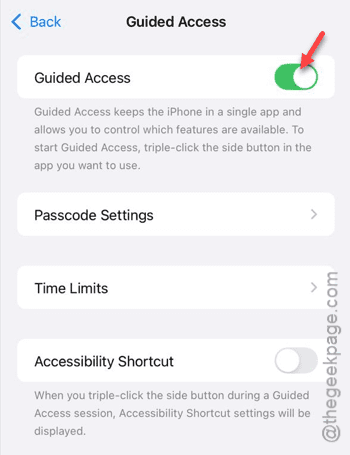
Check whether the Guided Access mode is functional or not.
Fix 3 – Turn on the Accessibility Shortcut
If it is still not working, enable the Accessibility shortcut option for Guided Access.
Step 1 – Open the Settings and tap the “Accessibility” mode.
Step 2 – After this, load up the “Accessibility Shortcut” module.
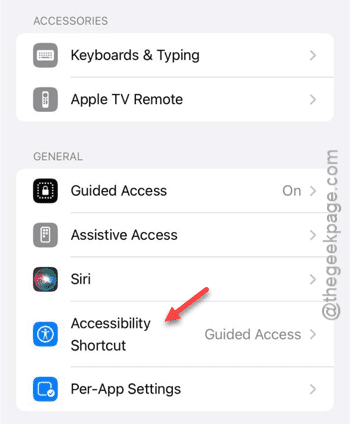
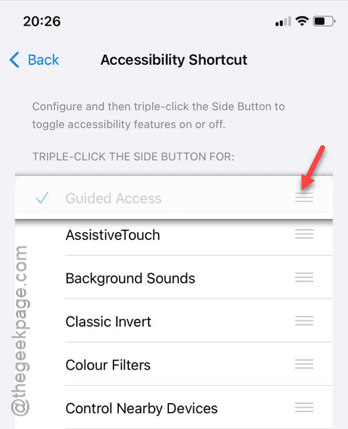
Step 3 – Make sure the “Guided Access” option is checked, there.
Step 4 – Now, drag that selected “Guided Access” feature from the below to the top of the list.
This should solve the issue for sure.