Is the microphone not working with the FaceTime app on your iPhone? The need of microphone becomes evident when you try to call someone or joining a voice call party with your friends or colleagues. So, in this article, we are going to troubleshoot the microphone problem that you face on the Facebook app on iPhone.
Fix 1 – Close the FaceTime app and restart the device
The quickest fix that you try is to close the FaceTime app on your iPhone, and later, relaunch the same.
Step 1 – Draw the gesture (swipe the finger up) to see all the apps.
Step 2 – You can view all the opened apps in there. Close the FaceTime app.
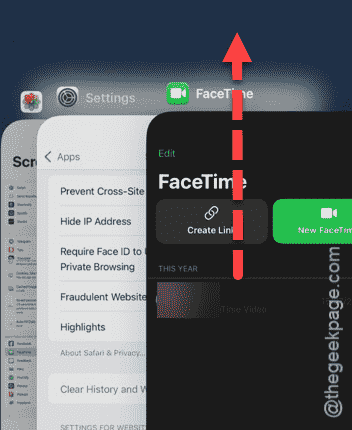
Step 3 – Now, give it a few minutes and re-open the FaceTime app.
Start a demo FaceTime call with one of your friends. Check whether you can use the microphone in the app or not.
Fix 2 – Enable the FaceTime app
FaceTime is also considered as a toggle, that needs to be enabled for the app to function properly.
Step 1 – We have to go to your iPhone’s Settings to do this.
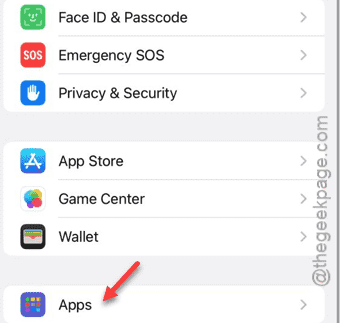
Step 2 – Next, open up the “Apps” area.
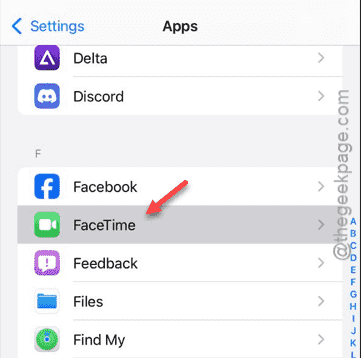
Step 3 – Thereafter, find the “FaceTime” app and open that up.
Step 4 – Look for the “FaceTime” feature and enable that.
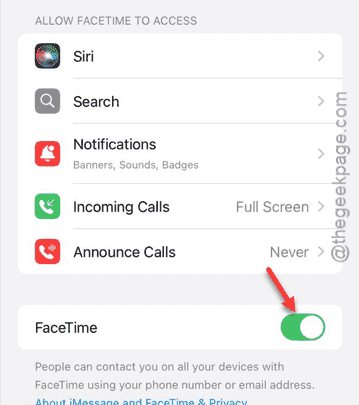
Once it is enabled, you can use the FaceTime app and test the microphone.
If the microphone is still not working, follow the next solution.
Fix 3 – Allow Microphone permission to FaceTime
You need to allow the microphone permission for the FaceTime app.
Step 1 – At first, load up the Settings page of the iPhone.
Step 2 – Load up the “Apps” tab.
Step 3 – Find the “FaceTime” app and open that.
Step 4 – Find the “Microphone” permission immediately in the FaceTime app.
Step 5 – Turn on the toggle beside that to turn on the Microphone feature.
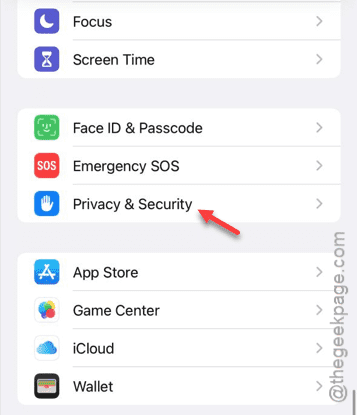
Step 6 – If you can’t find it there, come back to the Settings home page and open up the “Privacy & Security“.
Step 7 – Open the “Microphone“.
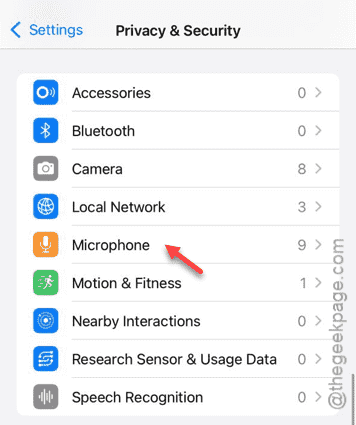
Step 8 – Allow the FaceTime app from there.
After enabling the microphone permission for the FaceTime app, the microphone will work for sure.
This time, there won’t be any issues in FaceTime.
Fix 4 – Offload the FaceTime app
If the microphone is still giving you trouble, offload the FaceTime and reinstall the same after a while.
Step 1 – On your iPhone Settings, go to “General“.
Step 2 – There, open up the “iPhone Storage” app in there.
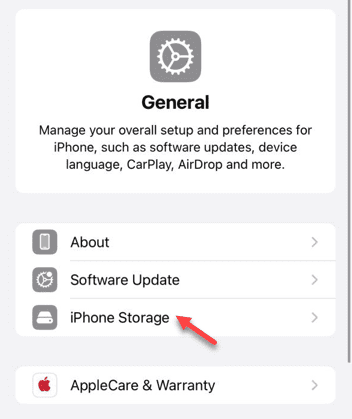
You will find a short list of apps in the iPhone Storage page.
Step 3 – You have to find the “FaceTime” app in there. If you can’t find it in the brief list, tap the “Show All” button.
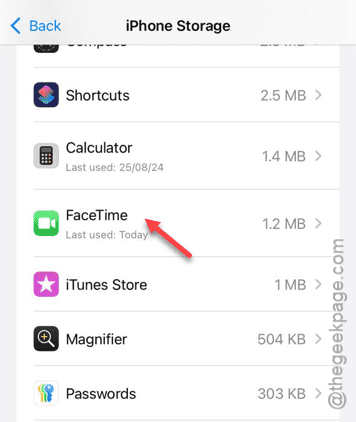
Step 4 – Now, tap the “Offload App” to offload the FaceTime app.
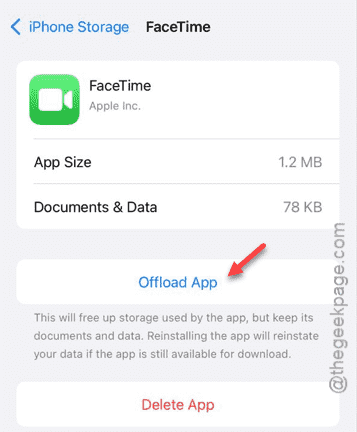
After offloading the app, wait for a few moments.
Step 5 – Then, reinstall the same app on your iPhone.
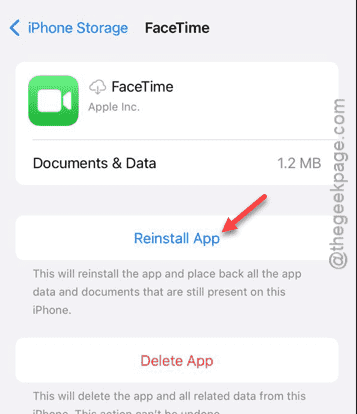
Give the FaceTime another try. Do check whether you can use the microphone or not.