Does all the phone calls on your iPhone going straight to the voicemail? If this problem has affected your device, it won’t even ring when someone is calling you! This is such a problem that needs an immediate resolution. So, without wasting time to find the reason of the issue, you should be fixing it already.
Fix 1 – Check the carrier signal strength
If there is a problem with the network signal on your device, the calls may go straight into the voicemail.
Step 1 – Check the status bar on your iPhone.
Step 2 – If there are no signal bars in there, there is minimal signal strength in that location. You can counter this only by shifting your position. Go to an open location to get the best signal on the device.
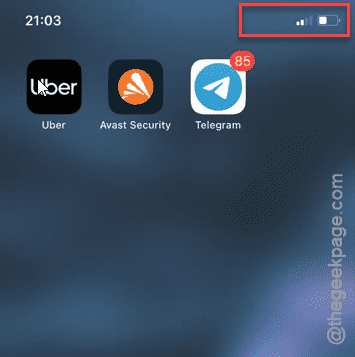
See if all the calls are still going to the voicemail, even when the signal strength is good.
Fix 2 – Detach and re-insert the SIM card
One of the easiest ways of reinstating the cellular network services, to pull out the SIM card from the device and re-inserting them later.
Step 1 – Detach the cover from the device.
Step 2 – Later, use the SIM pin to uncover the SIM tray from the device.
Step 3 – Once you have detached it, keep it that way for a minute.

Step 4 – After this, re-insert the SIM tray slot into the device.
You will see the network status has recovered within a few seconds. Your phone calls won’t go into voicemail anymore.
Fix 3 – Delete any Focus schedule
Faulty Focus Schedules can lead to this situation. So, make sure to delete any unnecessary focus schedules.
Step 1 – Open the Settings on the device.
Step 2 – Then, go to the “Focus” settings.
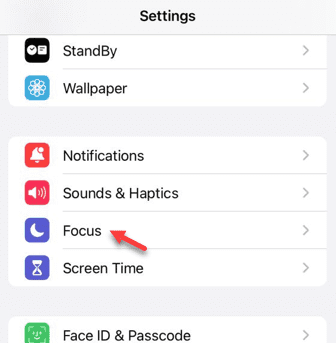
Step 3 – Open “Do Not Disturb” mode from there.
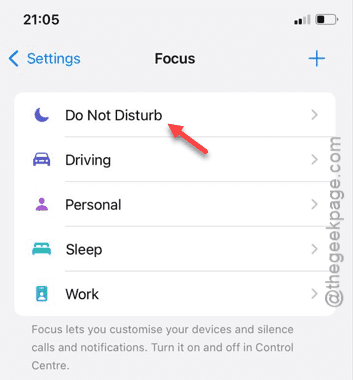
Step 4 – Look for any focus schedule in there. Open it up from there.
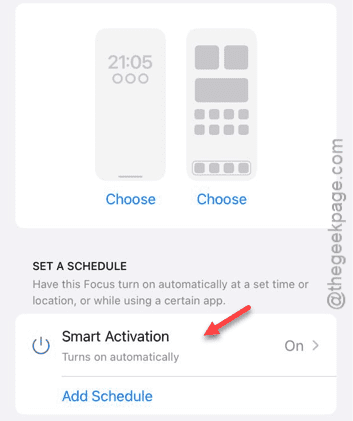
Step 5 – Delete any schedule from there.
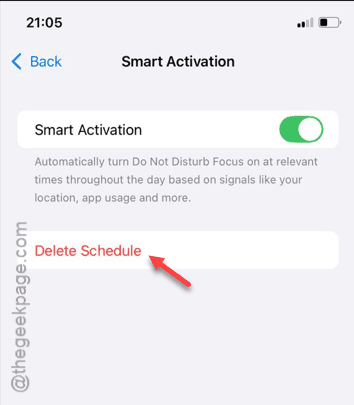
Step 6 – This way, you have to delete the focus mode schedule from other schedules as well.
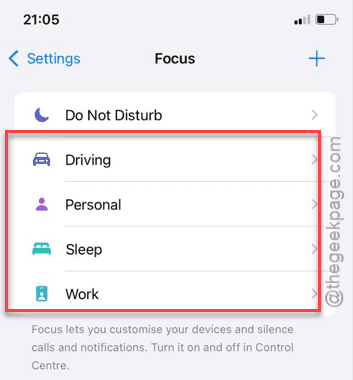
Check if this works.
Fix 4 – Unblock the contacts
If the call is coming from a blocked contact, this problem may arise.
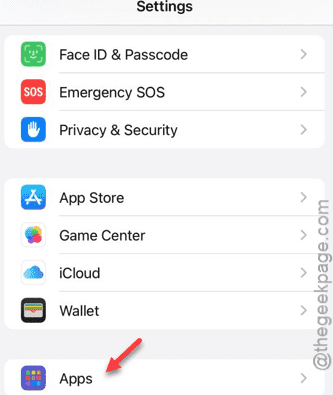
Step 1 – On your iPhone settings page, go to the “Apps” settings.
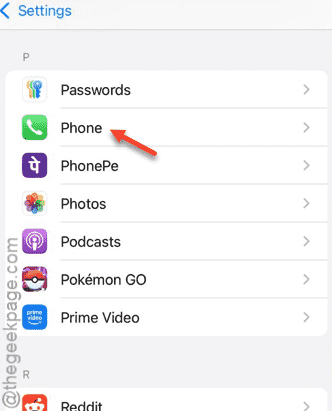
Step 2 – Next, go to the “Phone” app settings.
Step 3 – Open up the “Blocked Contacts” option.
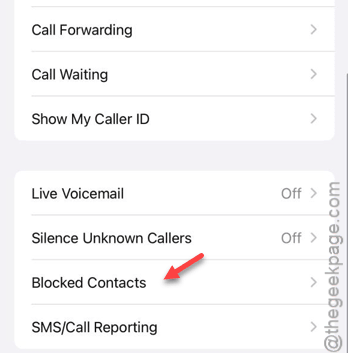
Step 4 – Check whether there are some numbers that you have blocked earlier.
Step 5 – Drag any such contact sideways and tap “Unblock” to unblock the contact.
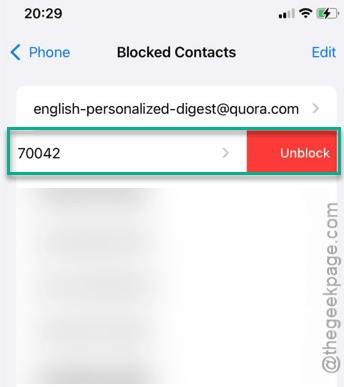
After revoking the block from the contacts, see whether all of your calls going to voicemail or not.
Fix 5 – Disable the Call Forwarding feature
If the Call Forwarding feature is enabled on your device, the calls will get forwarded to voicemail service when they are not answered.
Step 1 – Open the iPhone’s Settings page.
Step 2 – Later, go to the “Apps” module.
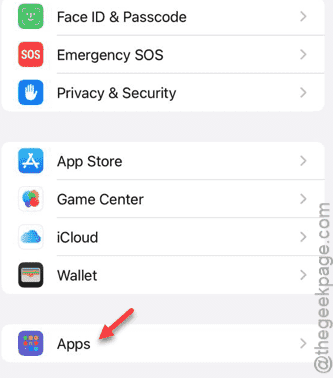
Step 3 – In the Apps module, open up the “Phone” app settings.
Step 4 – Then, open the “Call Forwarding” feature.
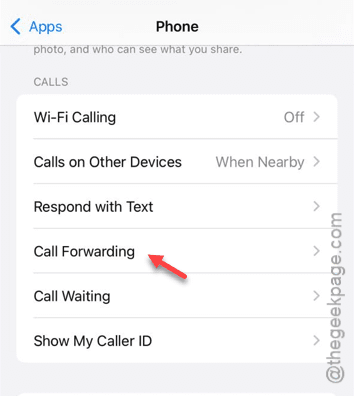
Step 5 – Disable the “Call Forwarding” option in there.
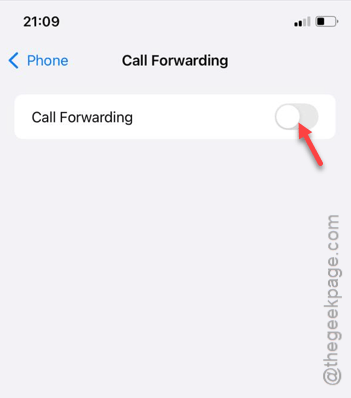
After disabling the Call Forwarding option, the calls won’t get sent to voicemail again.
See if this works!