Can’t send messages from the Messenger app on your iPhone? Some of the Facebook Messenger users have noticed this problem where they are unable to send any messages to their friends or family. If you are also facing similar problem in the Messenger app, follow these steps.
Fix 1 – Use a stable internet connection
You should use a stable internet connection to transmit the messages correctly.
Step 1 – To check for the viability of the internet, just open up a browser and open up a website of your choice.
Step 2 – You can open a service like YouTube or Twitter to know whether the Internet connection is working correctly or not.
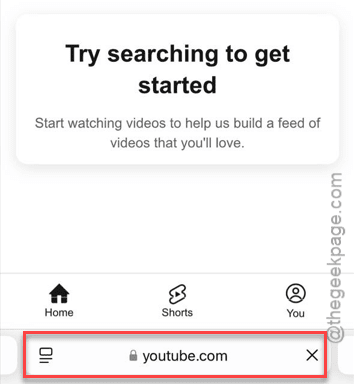
Retry sending those messages from the Messenger app. Go for the next solution, if this one fails.
Fix 2 – Disable the VPN
Sometimes, Messenger may stop functioning if you are using a VPN service. Though, Meta doesn’t have a regressive policy against the usage of their services through VPN, sometimes it can be a bit problematic for you. So, we recommend you disable the VPN and retry.
Fix 3 – Reset the network settings
Resetting the network configuration means the resetting of all the network-related components on the iPhone.
Step 1 – You have to reach the Settings home page, first.
Step 2 – Then, go to the “General” part of the Settings.
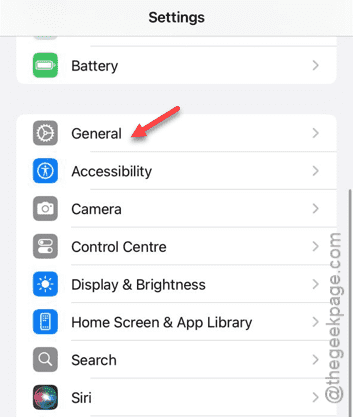
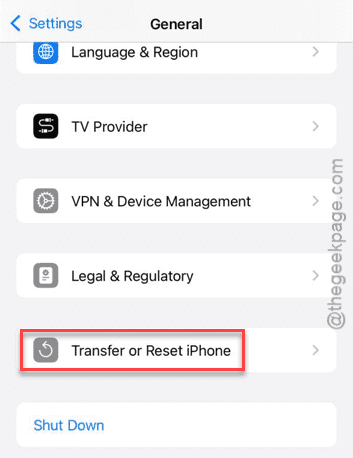
Step 3 – In the General page, you need to open up the “Transfer or reset iPhone” option.
Step 4 – Use the “Reset now” function there to open the resetting panel.
Step 5 – Later, tap the “Reset Network Settings” operation.
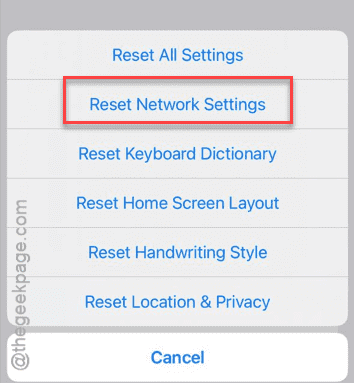
After the verification step, iPhone initiates the process that wipes out all the network-related information from the device.
When the device restarts at the completion of the network setting procedure, connect to the Wi-Fi. Then, check the Messenger app once more.
Fix 4 – Offload the Messenger App
Offloading the Messenger app can get you out of this situation.
Step 1 – Go to the Settings tab on the device.
Step 2 – Later, go straight to the “General” tab.
Step 3 – Now, you must open the “iPhone Storage” option.
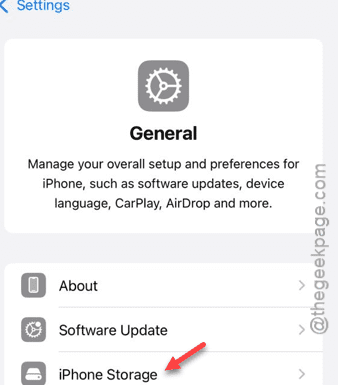
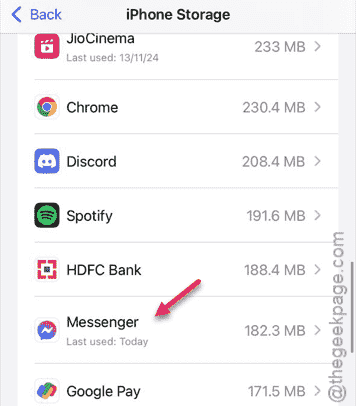
Step 4 – In the iPhone Storage page, open up the “Messenger” app.
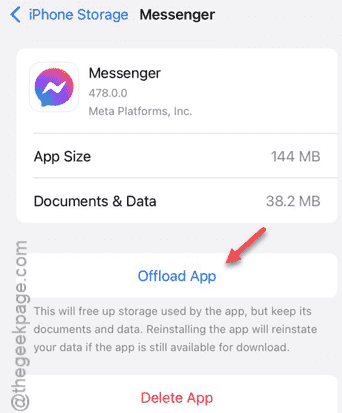
Step 5 – In the following page, touch the “Offload App” to offload the app.
Step 6 – Tap the “Offload App” option to offload it.
The app shall be offloaded within a few seconds.
Step 7 – Once Messenger is offloaded, tap “Reinstall App” to reinstall the same on the device.
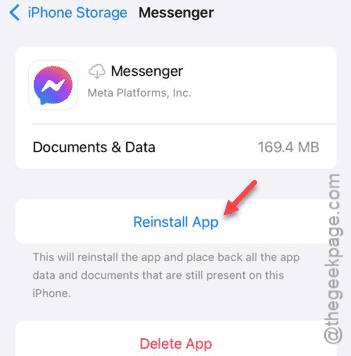
After the Messenger app gets reinstalled, you can send messages once again.
Fix 5 – Use the Wi-Fi
If you still can’t send messages from the Messenger app, a change of the network is required. If you are on mobile data while facing this issue, connect to a Wi-Fi and then, try to send those messages.
You won’t face this problem again.