Live activities not working on your iPhone? Live activities can be very useful, getting continuous updates on your iPhone. If the Live Activity feature is not working, you won’t get the real-time updates from any applications. You have to open the app and repeat a bunch of steps to get to know the current status. So, you can fix this problem going through these easy steps.
Fix 1 – Enable Live Activities
The Live Activity feature needs to be enabled for the apps to access the feature.
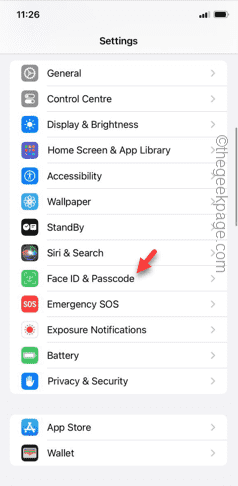
Step 1 – You can do this by going to the Settings page.
Step 2 – There, you must open the “FaceID & Passcode” settings.
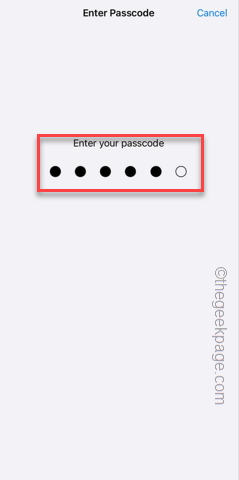
Step 3 – Input your Apple ID passcode, particularly to get access to the main page.
Step 4 – Now, scroll through the page, get to the ‘Allow Access When Locked‘ settings.
Step 5 – Find the “Live Activities” feature. You must enable it to let the app use the feature to show you the regular updates in the banner form or Dynamic Island.
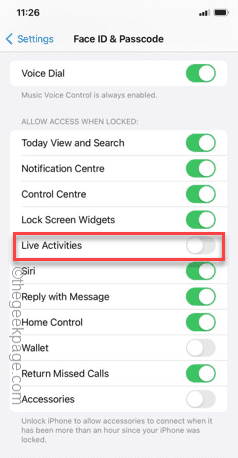
Step 6 – Even if the “Live Activities” feature is enabled, turn it off.
Step 7 – Wait for a few moments.
Step 8 – Later, toggle the “Live Activities” to On mode.
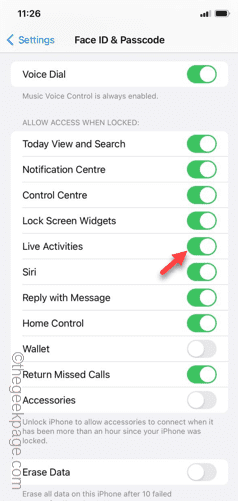
After re-enabling the Live Activities mode, try to use an app (like setting up a countdown timer or ordering food via delivery) and check whether the Live Activities are showing up in the banner or on the Dynamic Island.
Go for the second solution, if this doesn’t work out.
Fix 2 – Enable the Live Activity on the 3rd app
You enable the Live Activity feature for the application as well.
Step 1 – If you tap the ⚙icon, you can open the Settings.
Step 2 – Later, just scroll down and locate the app in which you want the Live Activity feature.
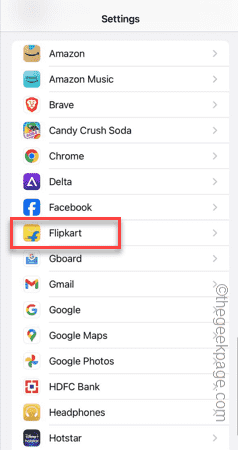
Step 3 – Find the “Live Activities” feature and make sure that is turned On.
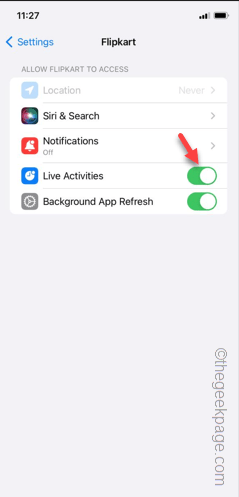
This will, reactivate the Live Activity feature in the particular app, and you will get the updates directly on the screen.
Fix 3 – Does the app support Live Activity
All the app on the App Store doesn’t need to support the Live Activity feature. So, you can just google this out to check whether the app actually has the access to the Live Activity feature.
If the app doesn’t support the feature, you can’t get live, regular updates from the banner or on the Dynamic Island in the iPhone.
Fix 4 – Enable-disable the Airplane mode
Live Activity feature needs the network activity to push the live notifications. You can restart this by enabling and disabling the Airplane mode on your phone.
Step 1 – Simply, swipe your finger down from the top of the iPhone screen.
Step 2 – When the Control Center shows up, just enable the “Airplane” mode.
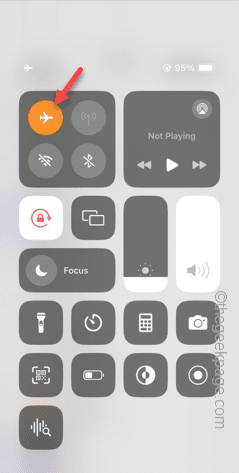
Step 3 – Leave the iPhone alone for a few moments.
Step 4 – Then, after a few seconds, deactivate the Airplane mode.
Within a few seconds, your cellular network or Wi-Fi connection will be restored.
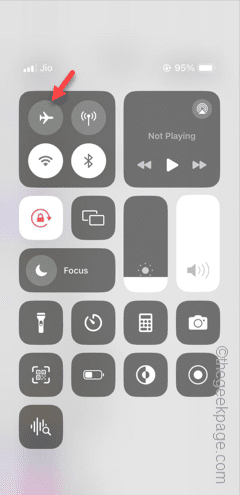
Test the Live Activity app one more time. As the network connection is restored, you can track the Live Activities directly from the phone screen.
Fix 5 – Live Activity may require Location services
Some Live Activity services (like delivery services) require constant location input from your iPhone. So, you must re-enable the Location Service and test.
Step 1 – In the iPhone Settings, tap the “Privacy & Security” tab.
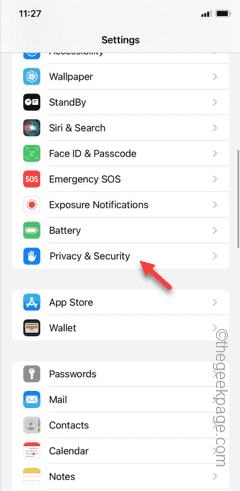
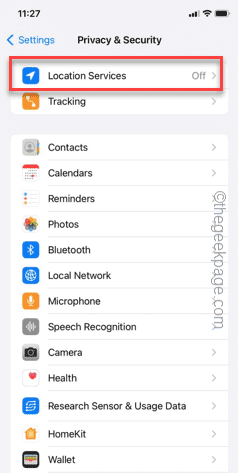
Step 2 – In there, open the “Location Services” option.
Step 3 – Switch it to “On” mode.
Step 4 – Now, locate the app that is supposed to use the Live Activity feature. See that list and try to find it there.
[If you can’t find the app there, just open the app once and come back to the Settings page.]
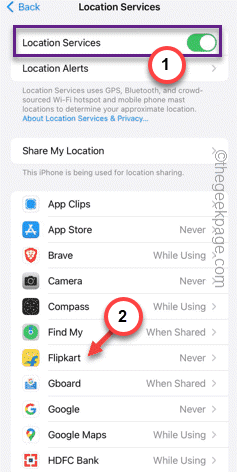
Step 5 – Switch the ‘Allow Location Access‘ to “While Using the App” mode.
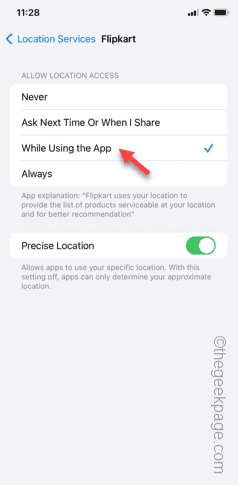
The app will now have the access to the location services on your iPhone. So, just check whether you can track the Live Activity from your iPhone.
Hope these fixes have helped you solve the issue.