Is the battery level on your iPhone not increasing while charging the device? There can’t be a more frustrating experience than waking up in the morning and seeing that the iPhone hasn’t charged a bit. There are so many possibilities involved in this issue. So, we should not waste any time identifying that problem behind this charging problem, but to find the cure for it.
Fix 1 – Restart the iPhone and charge it
Some users have found out that restarting the iPhone and charging it has helped. So, just turn off the iPhone and start charging the device.
Step 1 – At first, close all the running apps on your iPhone.
Step 2 – Next, toggle down the Control Center and look for the Power button.
Step 3 – Press and hold the Power button at the top corner.
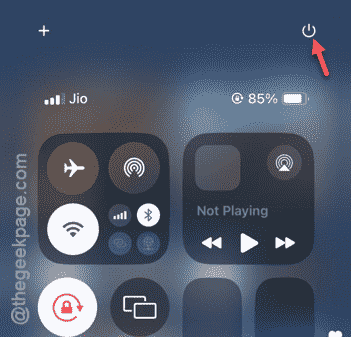
Step 4 – You will see the ‘Slide it to power off‘ message. Do that and your iPhone will be switched off.

Step 5 – Now, plug the iPhone to the charger and start the charging process.
Your iPhone will get restarted as soon as it starts to charge. But, if the iPhone doesn’t turn on (means that it is not charging), go to the next solution.
Fix 2 – Clear the charging port
One of the reasons why the iPhone is not charging is because the port is not clean. In that case, dusting the port of the iPhone should be helpful.
Step 1 – Unplug the mobile from the charger.
Step 2 – Remove the iPhone from the case or cover that you are using.
Step 3 – Later, take a soft, clean brush and use that to clear up the charging port on your iPhone.
Step 4 – Use the brush to gently clear up the charging port. If you see any foreign items there, brush it off to make the charging port clean.
Once you have cleared it, connect the iPhone to the charger and try charging it.
See whether the charging meter is going up or not.
Fix 3 – Try a different charger or other apparatus
If there is some fault in the existing charging apparatus that can cause this problem.
Step 1 – You have to inspect the charging cable and the charger.
Step 2 – If you can detect any physical damage in the charging cable (mainly at the junction points), you must use a different charging cable.
Step 3 – The users who are charging their iPhones wirelessly, you can remove the case and retry charging your iPhone.
Fix 4 – Disable the Optimize battery mode
Turning off the ‘Optimize battery’ option can fix the problem.
Step 1 – Start by going to the iPhone Settings.
Step 2 – Next, you must go to the “Battery” section.

Step 3 – Once you are in the Battery settings page, open up the “Battery Health & Charging” settings.

Step 4 – On the following page, look for the “Optimised Battery Charging” mode.
In some peculiar cases, this mode can disrupt the even normal charging process.
Step 5 – Turn that to Off mode.

Put the iPhone on charging and leave it to charge completely.
This should have fixed your problem.