One of the coolest features of using Apple Watch is to have all those important app notifications right on your wrist. But, sometimes this notification system can be overwhelming for you. Here are the following measures that you can implement on your watch to curb the number of notifications on your watch.
Why am I getting are too many notifications on my Apple Watch?
The app notification delivery system is turned on for all the apps by default. This is the primary reason why you are getting so many notifications whenever you start the watch or connect to the Wi-Fi.
Take the control in your hand and allow notifications only from the essential apps and that you should take care of the problem for you.
Fix 1 – Turn off the notification toggle
The control of the notification system on your Watch is completely in your hand.
Step 1 – Go to the Watch app on your iPhone or iPad.
Step 2 – Get to the “My Watch” tab.
Step 3 – Then, tap the “Notifications” menu.
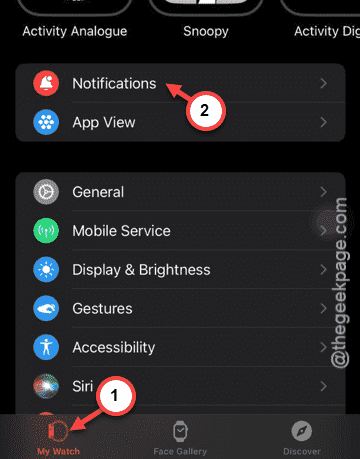
Step 3 – Now, scroll down until you have reached the list of app notification control portion of the settings.
Step 4 – Disable the notification toggle for the apps that you don’t want to show up on your watch.
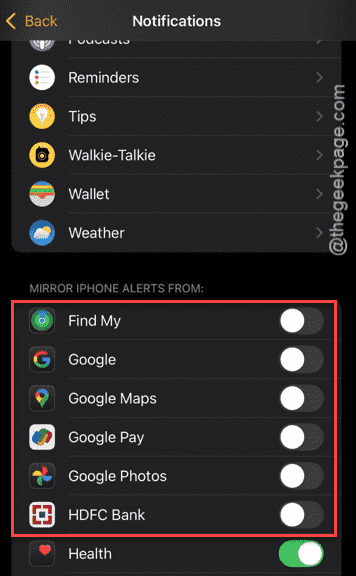
This way, you can limit the number of notifications that you get delivered on the watch.
Fix 2 – Use Tap to Show Full Notifications
You can use this workaround to reduce the cluttering of notifications on your watch screen.
Step 1 – On the Watch app, reach the “My Watch” tab.
Step 2 – Go to the “Notifications” panel one more time.
Step 3 – Turn on the “Tap to Show Full Notifications” option there.
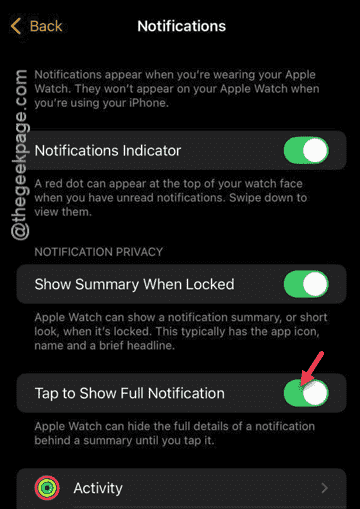
You will see only the app logo and a headline on your watch screen. If you want, you can just tap the notification to go through it.
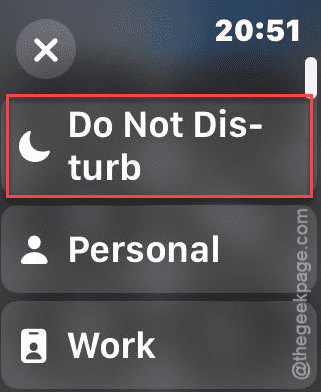
Fix 3 – Use the Focus Modes
If you don’t want to get into the hassle of controlling the individual app notifications, there is focus modes for you. You won’t get any notifications in some of the focus modes.
Step 1 – Tap the side button on your watch once.
Step 2 – Find the ‘Focus Mode‘ button there and tap to access it.
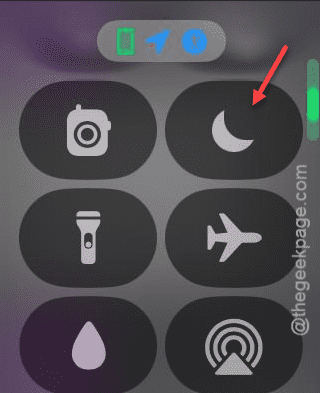
Step 3 – Simply select the “Work” or “Do Not Disturb” mode from the list to put a stop on the notifications.
Hope this fixes your problem!