The slight vibration that you feel whenever a notification chimes in on your Apple Watch works similar to your iPhone. With a slight variation in the watch vibration (haptic feedback) you can easily apprehend the type and significance of the alert. But, if the Apple Watch is not vibrating on notifications, don’t worry. There are these fixes that may help you fix this problem.
Fix 1 – Turn off Silent Mode
There is a separate silent mode system for the Apple Watch.
Process 1 ~
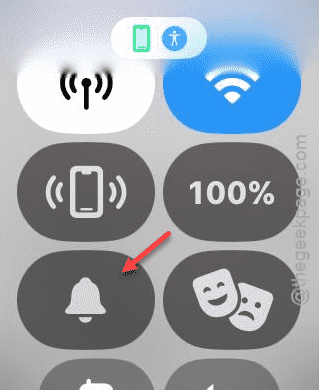
Step 1 – Simply, press the side button to load the Control Center console.
Step 2 – Scroll a little bit down and see whether the Silent Mode is enabled or not.
Step 3 – If it is, just tap the same bell icon to revoke it.
Process 2 ~
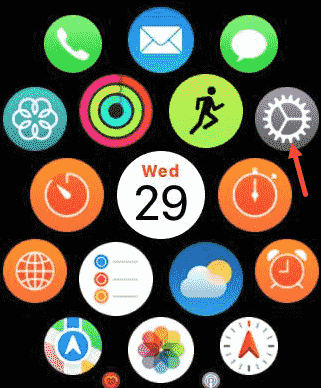
Step 1 – Tap the crown button on the Apple Watch.
Step 2 – Later, open up the “Settings” from there.
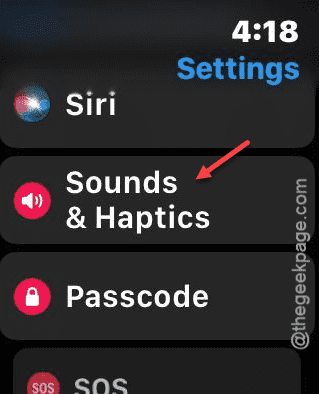
Step 3 – Tap to load up the “Sounds & Haptics” menu.
Step 4 – While you are in there, turn off the “Silent Mode” function.
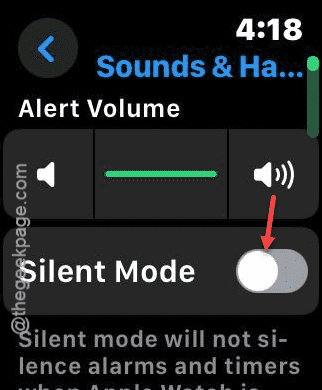
See if this works out for you or not.
Fix 2 – Enable the Haptic Alerts and modify it
There is a possibility that the Haptic Alert is disabled on the Apple Watch.
Step 1 – Open the Watch Settings page once again.
Step 2 – Once again, open up the “Sounds & Haptics” settings.
Step 3 – On the subsequent step, just scroll down and enable the “Haptics Alert” system.
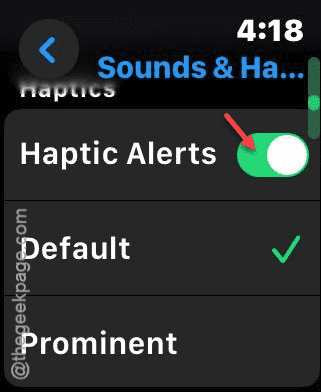
Step 4 – Choose the “Prominent” one to get a more impactful haptic feedback.
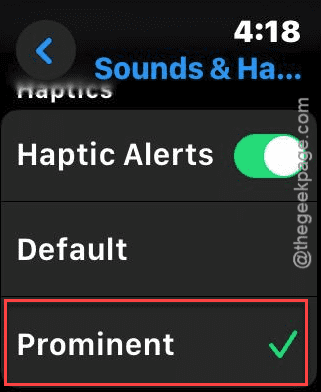
This will take care of the haptic feedback issue that you are getting on the watch.
Fix 3 – Disable the DND mode on watch
Your watch won’t vibrate if the DND mode is enabled on the watch.
Step 1 – Start by pressing the side button on the watch.
Step 2 – Next, scroll down and check whether the DND is enabled or not.
Step 3 – Tap it once to disable the Do Not Disturb on the device.
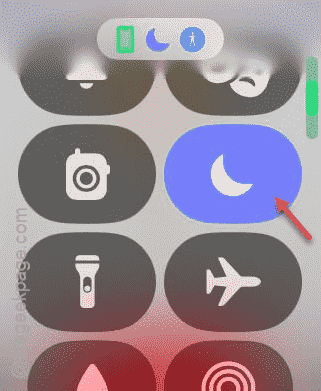
After disabling it, you shall start to get those haptic feedbacks on your Watch once again.
Fix 4 – Execute the force-restart procedure
You have to enforce a force-restart procedure on the Apple Watch. If a bug or glitch is causing this problem on your watch, this procedure may fix that.
Step 1 – At first, hold down the Power button and the Side button on your Apple Watch.

Step 2 – You have to do this for 5–10 seconds. You will see the Apple Logo has illuminated the screen. This completes the force-restart procedure.
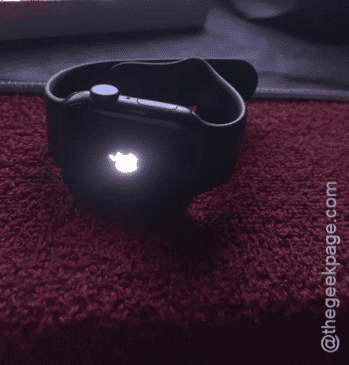
Your Apple Watch should be responsive to alerts again. Check