Are you getting too many notifications from the keyboard app on your Apple Watch? The function for writing messages directly on the watch screen provides an unsatisfying experience due to restriction of space. So, if you are getting too many prompts from your iPhone’s keyboard, it can constrict even that amount of keyboard space available on the device.
Why am I getting too many notifications on the Apple Watch?
The amount of space available on the Apple Watch’s display is too low to fit a full keyboard. This holds true even for the newer Ultra models of the watch with higher display size. While writing directly using the Apple Watch’s keyboard is a painful procedure, Apple use their ecosystem features to ease the process of inserting OTPs, passwords or other copied items that you have got on your iPhone/iPad.
But, the repeated prompts of registering those passwords or copied OTPs from the iPhone can get into your way of using the keyboard on the Apple Watch. If you are annoyed with too many of those prompts, this guide will help you disable the random keyboard notifications from popping up on your watch.
Fix – Turn off the Keyboard Notifications
Unlike the other settings of the watch that you can control from the Watch app, this particular feature is located in the iPhone Settings.
Step 1 – So, load up the Settings utility on your iPhone.
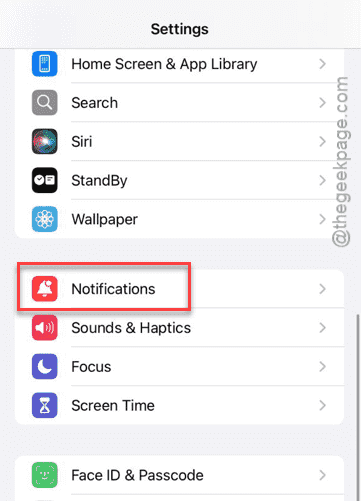
Step 2 – Next, go to the “Notifications” panel.
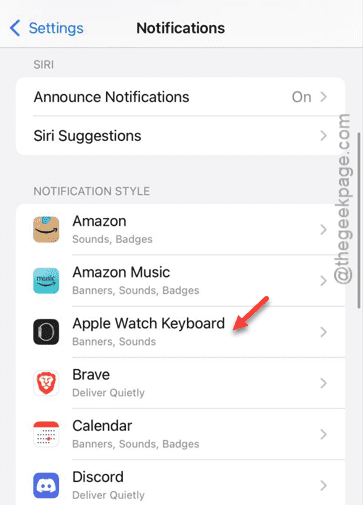
Step 3 – When you reach the Notifications panel, scroll upwards, and you shall find the “Apple Watch Keyboard” settings. Open that up.
Step 4 – Just disable the “Allow Notifications” option from there.
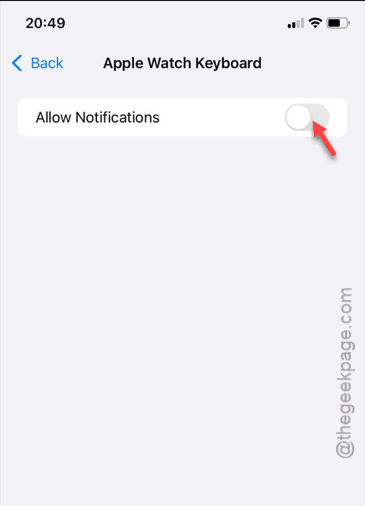
After disallowing the notifications, there won’t be any notifications on the keyboard of the Apple Watch.
NOTE – While this feature is turned off, you won’t see the automatic prompts on the keyboard on your Apple Watch. You may re-enable the feature following the similar steps that we have shown before.