Does your Instagram app is not showing new reels or posts on your feed? Using Instagram in this way can become boring very quickly. So, we have gone through this error and come up with this set of solutions. Without wasting any more time, apply these fixes, and you will be scrolling new reels and posts in no time.
Fix 1 – Unrestrict the account
Restricting one or multiple Instagram accounts can hinder their new posts from appearing on your feed. So, you must unrestrict such accounts.
Step 1 – To unrestrict any such account, you have to go to that Instagram profile.
Step 2 – After opening up the profile, tap the horizontal three-dot button there.

Step 3 – Later, tap the “Unrestrict” button to unrestrict the Instagram account.
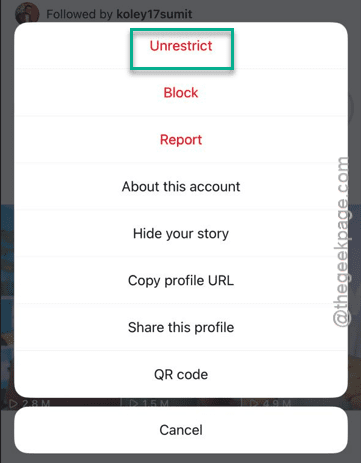
Step 4 – Repeat the same steps to unrestrict any such profiles following the similar set of steps.
Once you have unrestricted the followed profiles, refresh the Instagram feed on the home page. Do check whether you can view new reels or posts there or not.
Fix 2 – Force close the Instagram app
Force close the Instagram app and re-open the application to fix this, if a bug has caused this issue.
Step 1 – Simply do the gesture to view all the running apps on iPhone.
Step 2 – After you do that, force-close the Instagram app.
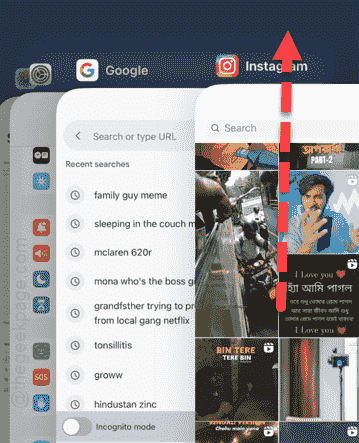
Next, you have to wait for a few seconds and then, relaunch the Instagram app.
Fresh, new videos, posts and reels should appear in the home page. Go for the next solution, if this one doesn’t work.
Fix 3 – Offload the Instagram app
The final option in our list is to offload the Instagram app and, later, reinstall the same app.
Step 1 – You can start the process by going to the Settings page.
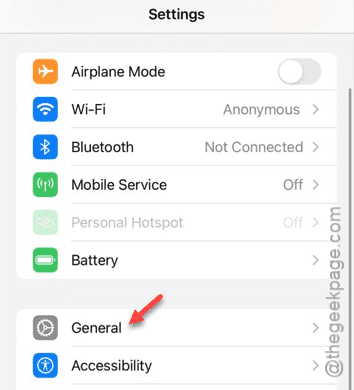
Step 2 – There, open the “General” section.
Step 3 – Thereafter, touch to open the “iPhone Storage” option.
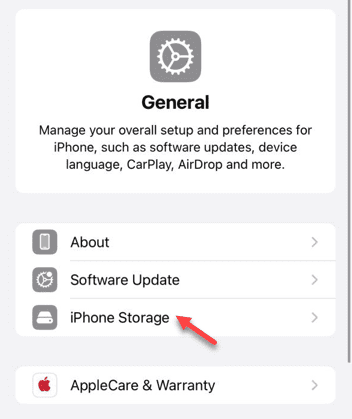
Step 4 – In that iPhone Storage page, find the “Instagram” app.
Step 5 – If you can’t find the app in the brief list of apps, tap the “Show All” option.
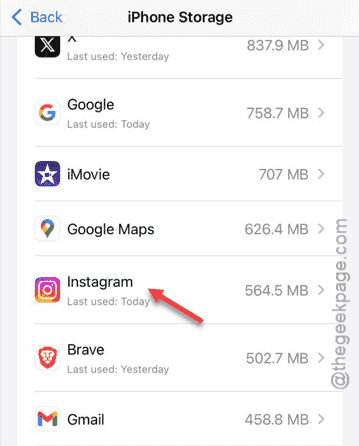
Step 6 – Once you have opened up the Instagram app settings, use the “Offload App” function in there.
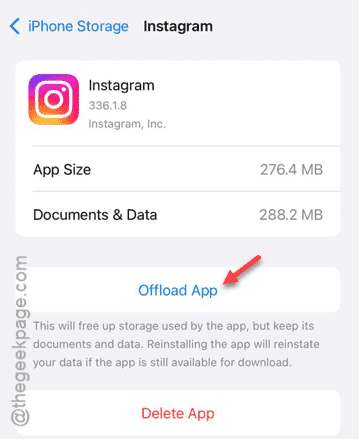
Once you have offloaded the app, the application will be offloaded. But, it keeps the app data stored on your iPhone.
Step 7 – Now, in the same Instagram app page, tap the “Reinstall App” function to reinstall the app.
If this reinstalling process is taking too much time, you can reinstall the Instagram app directly from the App Store.
See if this is working or not.