Is the Google Sheet you were working on yesterday have suddenly become ready only? If you have got a link to a Google Sheet that doesn’t let you modify it, and you are in the hunt for a quick resolution, you are at the correct place. This guide contains the reason why you can’t modify a certain Google Sheet along with the correct steps that you can resort to get out of this.
Why the Google Sheet is view only mode?
Google Sheet offers collaborative approach for the users where they can work on the spreadsheet together. All you have to do is to share the link of the sheet with the other user. They can get access to the sheet with that link. But, there is a catch to this shared link. There are two types of sheet link that you can share. One if the read-only mode, where the user has the liberty to view the sheet. They can’t make any change in the sheet. The other type of the shared link has the ability where the user can actually make their inputs in the sheet.
So, the ability to make the changes on the sheet solely depends upon sheet administrator or creator. The sheet is in ‘View Only‘ mode. This is the reason why you can’t change the data on the sheet. The resolution to this issue is very simple. All you have to do is to ask the sheet administrator to provide editing access to the sheet.
Fix 1 – Ask the sender for permission
Follow these steps to request access to the sheet.
Steps for requesting access –
Step 1 – Open the Google Sheet. You can use the existing link to get access to it.
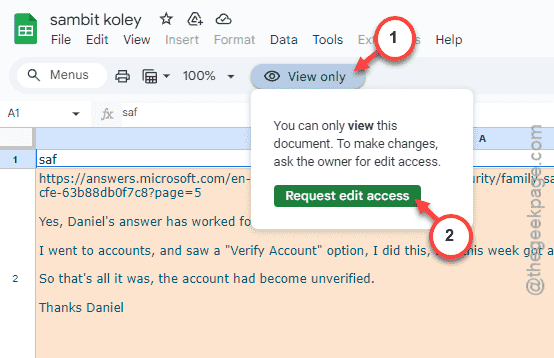
Step 2 – Tap the “View only” button there on the top of the sheet.
Step 3 – Then, click the “Request edit access” option there.
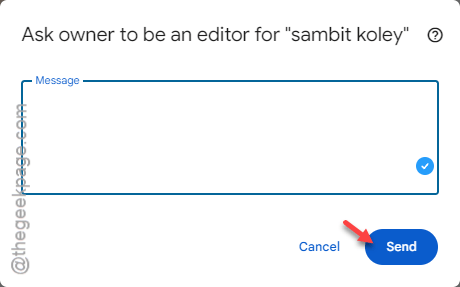
Step 4 – Now, you can just write the reason for you ask to change the access of the sheet and tap “Send“.
Steps to change the access level of the sheet –
You can follow these steps to change the access level while sharing the link.
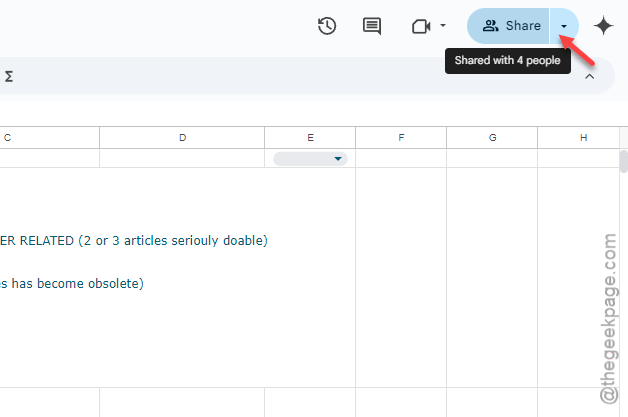
Step 1 – Tap the “Share” option on the sheet.
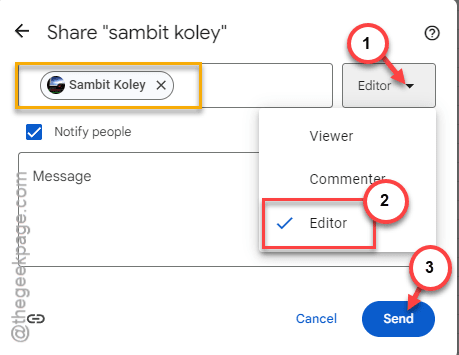
Step 2 – Then, type the Gmail ID in the box and hit Enter.
Step 3 – Now, tap the panel beside the Gmail ID box and set it to “Editor“.
Step 4 – Tap the “Send” button to send the shareable link to the desired user.
The user can get access to the sheet now and enjoy the editing privileges. He/She won’t see the ‘View Only’ mode there. Check if this works out for you!