Does the YouTube app not going full screen on your iPhone? The inability to stream YouTube videos in full screen can be a quite frustrating experience. The black bar on the videos can distract you, ultimately affecting your viewing experience. These solutions will be helpful in solving the issue.
Fix 1 – Tap the Square icon
Tapping the Square icon normally open the YouTube video in full screen mode.
Step 1 – This is a basic check. So, go to the YouTube app.
Step 2 – Next, open any video on the app.
Step 3 – Later, tap the square icon on the video to open it up in full screen mode.

Even if the video opens up in the full screen mode, you may notice the black bar in the video. This is due to the mismatch with aspect ratio of the video.
Step 4 – In order to fill up the whole screen, you have to swipe two fingers sideways across the video feed.
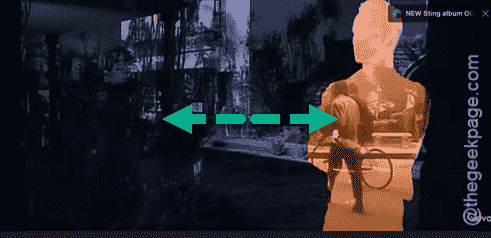
This way, you can zoom the video feed to fill up the entire iPhone screen.
Fix 2 – Use the gesture to go full screen
If you can’t use the square icon to put the game, you can use the screen gesture on the video player directly to put it in the full screen mode.
Step 1 – Open a random video of your choice.
Step 2 – While the video is playing in the normal mode, swipe your finger across the left-hand side of the video feed.

This simple gesture will rotate the entire video to landscape mode.
Step 3 – Use your fingers to draw a zoom out gesture to fill up the screen completely.
This can be a good alternative, as this one doesn’t even need the ‘Auto Rotate’ function.
Fix 3 – Turn on the rotation feature
The videos on your YouTube app won’t show up in full screen mode if the Auto Rotate function is blocked.
Step 1 – Simply, toggle down the Control Center once.
Step 2 – Next, make sure the Rotation function is not locked.
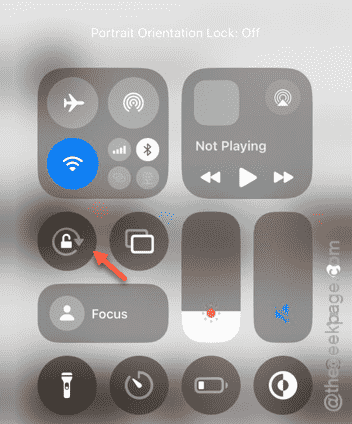
Step 3 – Open up the video.
Step 4 – Rotate the iPhone to landscape mode, and the video should follow suite as well.
This way, you can enjoy the YouTube video in full screen mode.
Fix 4 – Alter the Display Zoom level
Resetting the Display Zoom level to default mode can fix this issue that you are facing with the full screen mode on YouTube.
Step 1 – View the iPhone Settings window.
Step 2 – Next, go straight to the “Display & Brightness” menu.
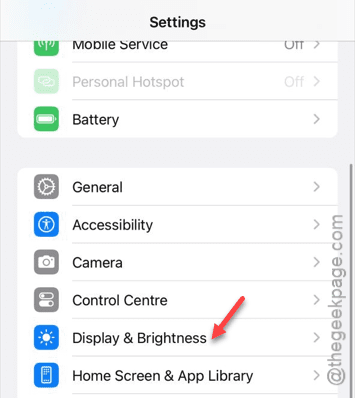
Step 3 – Now, scroll down to the bottom of the page and open up the “Display Zoom” settings.
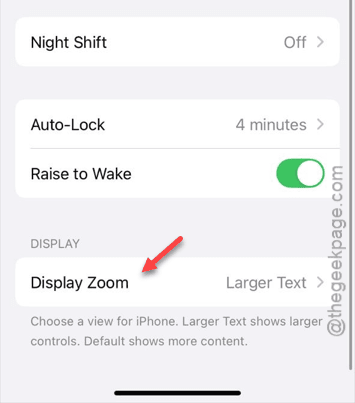
Step 4 – Next, set this to “Default” mode.
Step 5 – Tap the “Done” button there.
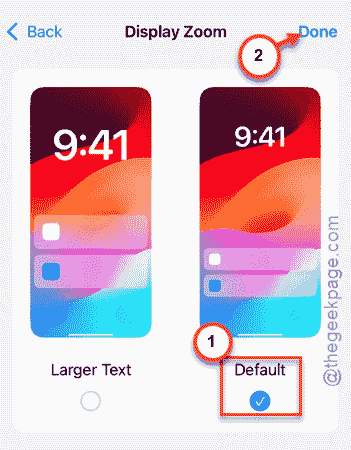
Step 6 – If a warning prompt shows up, tap the “Use Standard” option.
When you have set the display zoom level to the default setting, go to the YouTube app. Check whether you can get to stream the video in full screen mode.
Fix 5 – Update YouTube (if applicable)
You should look whether the YouTube app is pending an update.
Step 1 – Go to the App Store.
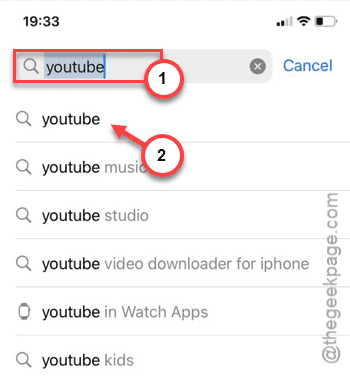
Step 2 – Search for the “YouTube” app and open it up.
Step 3 – In the YouTube app store page loads up, tap the “Update” option to start updating the app.
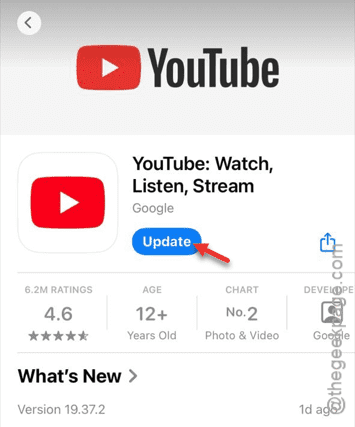
Once you have updated YouTube app, view a normal video. Check if the video is available in full screen mode.