Why This Is Happening?
So the hardware is fine. Your cables too. It’s a software bug wearing a hardware costume.
Current Status
Microsoft confirmed that the September 2026 security update KB5124008 caused Code 10 errors and audio failures on certain USB Audio Class 1.0 devices.
The issue was partially addressed by KB5129195 on September 14, 2026, and fully resolved through KB5132061 on November 10, 2026, for Windows 11 24H2 and 25H2.
Install the latest applicable cumulative security update to resolve this known issue.
Fix 1 – Install the latest Windows Update
Microsoft has confirmed that certain USB Audio Class 1.0 devices stopped working after the September 2026 Windows security update.
For Windows 11 24H2 and 25H2, Microsoft documented the full resolution in KB5132061, released November 10, 2026.
1 – At first, hit the Win+I keys together to load up the Settings.
2 – Then, go to the Windows Update tab.
3 – Next, tap the Check for Updates to download and install the latest update.
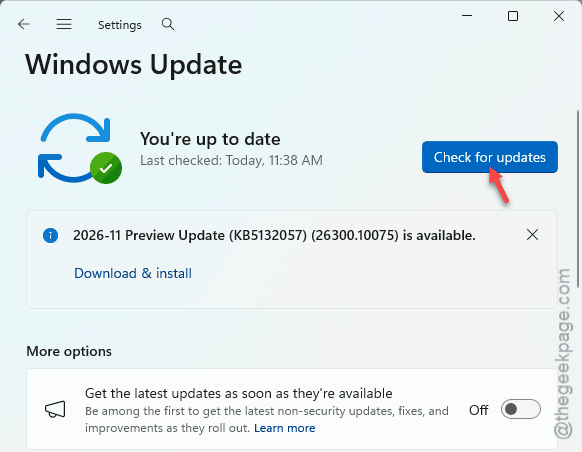
4 – Restart your computer to complete the update.
After the PC restarts, you are good to go.
Fix 2 – Switch the Device to 2-Channel Stereo
Fastest fix.
1 – Press Windows + R,
2 – Type , and press Enter.
mmsys.cpl
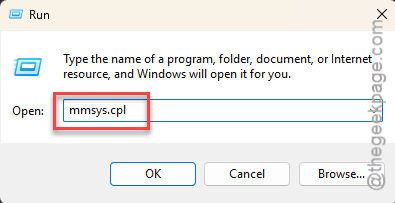
3 – On the Playback tab, double-click your USB audio device.
4 – Click the Advanced tab.
5 – Then, open the Default Format dropdown and pick a 2 channel option.
6 – Click Apply, then Test.
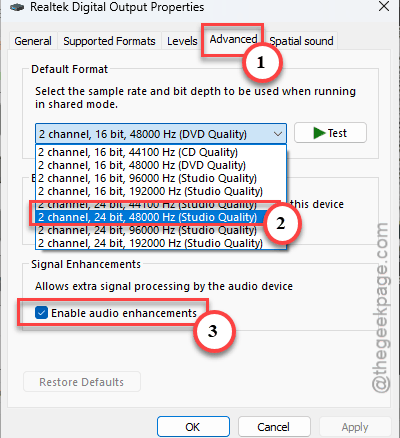
You should hear the test chime. Need 8-channel for a mixer or a surround setup? Stereo won’t cut it long term. Fix 3 is your real answer.
Using the interface for a mic or guitar too? Do the same thing on the Recording tab of that window. Inputs can hit the same crash, so pick a 2 channel format there as well.
Fix 3 – Plug Into a USB 2.0 Port
1 – Unplug the audio device.
2 – Wait about 10 seconds.
3 – Plug it into a USB 2.0 port directly on the back of your PC, where the motherboard ports are.
USB 2.0 ports are usually black. USB 3 ports are usually blue (or teal, or red, depending on the board). And skip front-panel ports and hubs for now.
Then open Device Manager and check. The yellow triangle should be gone.
Fix 4 – Update or Reinstall the USB Audio Driver
Hit or miss. Sometimes Windows just needs to rebuild the device from scratch.
1 – At first, right-click Start and click Device Manager.
2 – Expand Sound, video and game controllers. If your device isn’t there, check Universal Serial Bus controllers instead.
3 – Right-click your USB audio device and pick Update driver.

4 – Click Search automatically for drivers.
No luck?
1 – Then, right-click the device again.
2 – This time, choose Uninstall device, and restart.
Windows sets it up fresh when it boots back up. Takes a minute or so.
Fix 5 – Remove the October Update
For when you need 8-channel audio today and the patch from Fix 3 didn’t take.
1 – Press Windows + I.
2 – Click Windows Update,
3 – Later, reach the Update history.
4 – Then Uninstall updates near the bottom.
5 – Find KB5127648, click Uninstall, and restart.
The yellow triangle in Device Manager should clear after that.
But don’t stop there. Go back to the main Windows Update page and click Pause updates for a few weeks.
People Also Ask
What does the Realtek audio error Code 10 mean?
Same thing as on any device: the driver failed to start it. On built-in Realtek audio, an outdated or damaged driver is the usual cause, so update it from your PC maker’s site. USB audio Code 10 after October’s update is a different bug with its own patch.