Are your USB devices repeatedly disconnecting and reconnecting in Windows 11? Your mouse, keyboard, or USB headset may cease responding momentarily, particularly after the device wakes up from sleep. Sometimes the whole PC crashes to a blue screen that says DRIVER_POWER_STATE_FAILURE(0x9F).
Feels random. But it is not the case.
The Short Version
Windows likes to save power. So it puts USB ports to sleep when it thinks you’re not using them, and then tries to wake them back up.
DRIVER_POWER_STATE_FAILURE (0x9F) is what you get when a driver doesn’t wake up in time. Windows waits, gives up, and crashes on purpose. Lovely.
Fix 1 – Temporarily Turn Off USB Selective Suspend
If your USB devices disconnect after remaing idle or when your machine wakes up from sleep, try turning off the selective suspend.
1 – Press Windows + R, type powercfg.cpl, and press Enter. The Power Options window opens.
2 – Click Change plan settings next to the plan that’s selected.
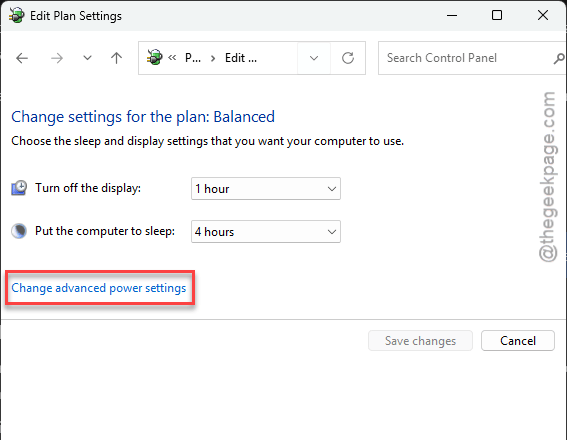
3 – Click Change advanced power settings near the bottom.
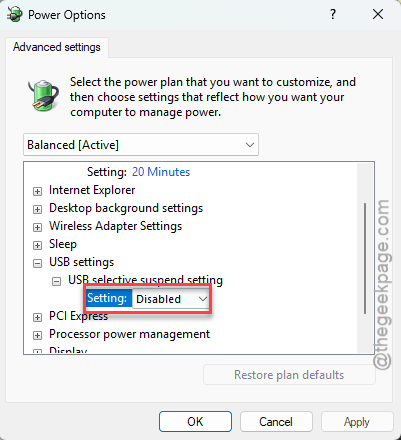
4 – Expand USB settings, then USB selective suspend setting.
5 – Set it to Disabled. On a laptop, set both On battery and Plugged in.
6 – Click OK.
Check if this helps.
Fix 2 – Analyze the MiniDump to Pinpoint the Issue
You can analyze the minidump file that the crash has created and pinpoint the driver that is causing the issue.
1 – Go to this address and check whether the crash dump file actually exists –
C:\Windows\Minidump
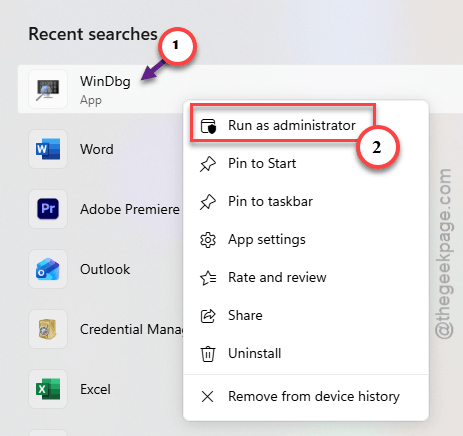
2 – Install WinDbg from Microsoft Store. Launch WinDbg as an administrator.
3 – Then, open the minidump file that you have noticed before going this way –
File > Open dump file
4 – Once you have opened up that .dmp file, enter the following code in the shell –
!analyze -v

Look for FAILURE_BUCKET_ID to pinpoint which driver is causing this issue. You can easily look for that driver update and install it on your own.
Fix 3 – Disable USB Root Hub Power Management
Sometimes Windows might turn off USB Root Hub completely to save power.
1 – Start by right-clicking the Start button and then, click on Device Manager.
2 – Expand the Universal Serial Bus controllers tab.
3 – Double-tap the USB Root Hub or Generic USB Hub.
4 – Load the Power Management tab.
5 – There, you have to uncheck the Allow the computer to turn off this device to save power option.
6 – Finally, click OK.
7 – Don’t forget to repeat the same feat for the other USB hubs that appears there.
Once you are done, you can check whether the USB devices are still disconnecting.
NOTE – If you do not notice any Power Mangement tab for any of the USB hubs on your machine, skip this fix entirely.
So It Doesn’t Happen Again
- Leave USB selective suspend off. It saves almost nothing on a desktop.
- Plug audio gear straight into the PC, not a cheap unpowered hub. Hubs are the first thing to drop out when power gets tight.
- Wait a week before installing cumulative updates. Let other people find the bugs. Seriously.
Quick Answers
What causes the driver_power_state_failure error?
A driver didn’t respond when Windows tried to put a device to sleep or wake it up. Windows waits a set time, then crashes to protect itself. USB power saving is a common trigger. So are the UNIDRV.DLL files from the latest update, plus older Wi-Fi and Bluetooth drivers.
How do I fix USB drivers in Windows 11?
First, turn off USB selective suspend so Windows stops putting ports to sleep. For USB audio, set the format to 2 channel in the old Sound panel. Laptop with Intel or Broadcom Wi-Fi? Disable Bluetooth Collaboration in Device Manager. Still dropping? Uninstall the latest cumulative update.
Will uninstalling the cumulative update delete my files?
No. Uninstalling an update only removes that update’s system changes. Your files, photos and apps stay put. You will lose that month’s security fixes for a while, though. Pause updates for about a week, then let Windows install the next, fixed version.