Are your Word or Excel files stuck on ‘Saving…‘ mode? MS Office applications, like MS Word or Excel can become unresponsive sometimes due to synchronization issues in OneDrive or SharePoint.
What’s Actually Going On
This problem generally originates from the synchronization issues, corrupted or malfunctioning add-ins, application problems or even storage issues.
So if that cache gets stuck, the save never finishes. Same if the sign-in token behind AutoSave expires. A bad add-in can hold the file open too. Don’t forget to back up the files in a safe place before you committ any of these chnages.
Fix 1 – Save a Copy to Your Desktop Right Now
Before anything else. Protect what you’ve typed. And don’t click the X on the stuck window.
1 – Click File at the top left.
2 – Click Save As (or Save a Copy if AutoSave is on).
3 – Click Browse and choose Desktop.
4 – Give the file a new name, like adding “backup” to the end.
5 – Click Save.
Saved fine? Then the file is okay. The problem is the cloud location. Keep going.
Fix 2 – Turn Off COM Add-ins
Add-ins (extra tools from other companies, like PDF or CRM plugins) can lock the file while it saves. But they’re easy to test.
1 – Click File > Options.
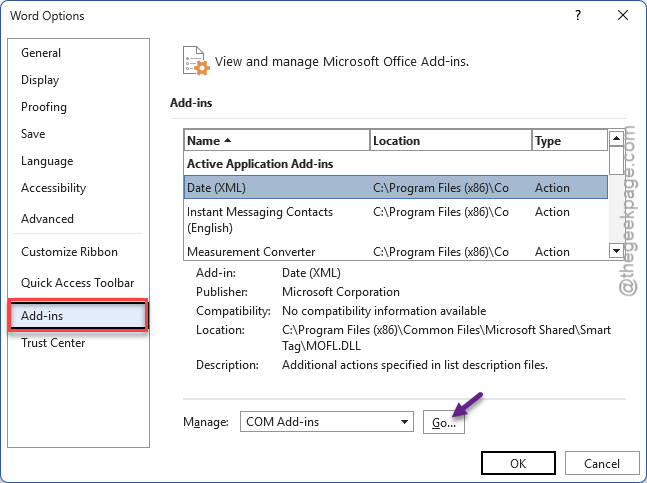
2 – Click Add-ins in the left menu.
3 – At the bottom, next to Manage, choose COM Add-ins and click Go.
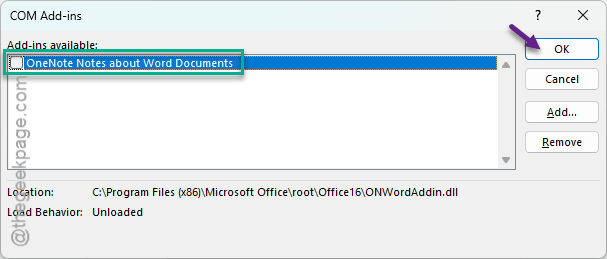
4 – Uncheck every add-in and click OK.
5 – Try saving again.
Works now? Turn the add-ins back on one at a time until saving breaks. That’s your culprit.
Fix 3 – Clear the Office Document Cache
If Word or Excel or any other Microsoft 365 app is stuck on a limbo of ‘Saving…’ status, you should clear the Office document cache to fix the issue on your own.
1 – Open Word or Excel, if you have already closed it. Go this way –
File > Open
2 – Choose the Files Needing Attention, if that option shows up there.
3 – If you can see that option, you can store a local copy to the location of your choice.
4 – Once the files are safe and secure, proceed this way –
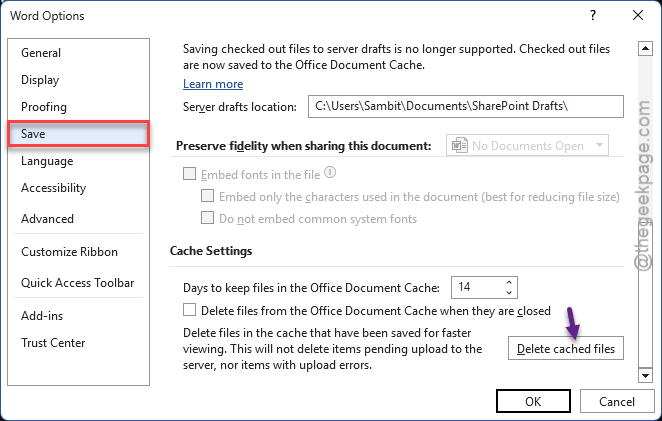
File > Options
5 – There, you can choose the Save tab. Locate the Cache Settings there, and click Delete cached files option.
Then, go ahead and restart the office client. Now, you can check again.
Fix 4 – Unlink and Relink OneDrive
AutoSave depends on OneDrive’s sign-in. If that token goes stale, saves hang forever. And relinking gets a new one.
NOTE – Before you unlink the OneDrive, do perform this check to watch out for any hidden synchronization fault.
1 – Open OneDrive from the cloud icon in the system tray.
2 – Then, check for any synchronization errors, any paused syncing or sign-in prompts there.
3 – You can also do one thing: Try to save a demo document in the affected OneDrive folder.
If you still can’t get through, do this:
1 – Click the OneDrive cloud icon at the bottom right of the taskbar.
2 – Click the gear icon, then Settings.
3 – Open the Account tab and click Unlink this PC.
4 – Click Unlink account.

5 – Sign back in when OneDrive asks, and pick the same folder as before.
Your files stay in the cloud the whole time. Nothing is deleted.
Fix 5 – Run an Online Repair
If the problem still exists,
1 – Press Windows + R, type appwiz.cpl, and press Enter. This opens Programs and Features in Control Panel.
2 – Click Microsoft 365 (or Microsoft Office) in the list.
3 – Click Change at the top.
4 – Choose Online Repair, then click Repair.
5 – Keep the internet connected. It can take 20 minutes or more.
6 – Restart your PC and test saving again.
Fix 6 – Update Microsoft 365
1 – In Word or Excel, click File > Account.
2 – Click Update Options on the right.
3 – Click Update Now.
4 – Let it finish. Office closes your apps to install, so save first.
Avoiding This Next Time
- Save big files to your desktop first, then move them to OneDrive. Fewer hangs. Less panic.
- Don’t save to network drives or USB sticks while AutoSave is on. It is built for OneDrive, not those.
- Keep add-ins to the ones you actually use.
- Restart your PC once a week. OneDrive’s sign-in refreshes cleanly that way.
Quick Answers
My Microsoft Word document is stuck on saving. What can I do?
First, use File, then Save As or Save a Copy, and put it on your Desktop so nothing is lost. Then update Microsoft 365 from File, Account, Update Options. Still stuck? Turn off COM add-ins, clear the OfficeFileCache folder, or unlink and relink OneDrive.
Why is Excel getting stuck while saving?
Excel saves to a local cache first, then uploads to OneDrive. A stuck cache, an expired AutoSave sign-in or a faulty add-in can freeze that process. Network drives and USB sticks cause it too. Try saving to your Desktop, then disable COM add-ins one by one.
Will I lose my work if I close Word while it’s saving?
You might. Unsaved changes may only exist in memory, so closing Word could drop them. Save a copy to your Desktop with Save As first. After that, it’s safe to close Word, clear the cache and fix the sync problem without risking anything you typed.
Does an Online Repair delete my Office files?
No. Online Repair only reinstalls the Office program itself. Your documents, spreadsheets and settings stay where they are. It does need a steady internet connection and can take about 20 minutes. Restart your PC afterward, then open your file and try saving again.