This one looks like the AI is broken on your system. Don’t worry. It’s almost always a switch flipped the wrong way. You just press the Windows + Click. The overlay appears. but, some of the affected users have said this “Couldn’t highlight anything.” Nothing on the screen is selectable. Text, images, nothing. Here are some fixes to solve the issue for you.
Why It Can’t Highlight
Click to Do is picky about security. Really picky. It refuses to run the on-device AI unless Secure Boot is on, and when it refuses, you don’t get a clear error. You get a blank overlay and that useless message.
And then there’s the policy side. Microsoft gave admins (and anyone with a registry tweak script) a switch called DisableClickToDo. A half-finished update or a domain script can leave that flag set. So the tool opens, finds the flag, and quits before it loads the part that does the highlighting. Why does it bother opening at all in that state? No idea.
Four things to check. Start with the easy toggle.
Fix 1 – Check the Click to Do Toggle
1 – Press Windows + I to open Settings.
2 – Click Privacy & security in the left sidebar.
3 – Click Click to Do.
4 – Make sure the toggle at the top is On. Flip it off and on again if it already was.
5 – Press Windows + Click on any window and try again.
Updates flip this one off more often than they should. So check it again after each big Windows update. Takes ten seconds.
Fix 2 – Turn On Secure Boot
Here’s the one that catches people who built their own PC. Click to Do checks for Secure Boot before it does anything. And a lot of custom builds ship with it off.
First, see where you stand.
1 –Press Windows + R buttons together.
2 – Type msinfo32 press Enter.
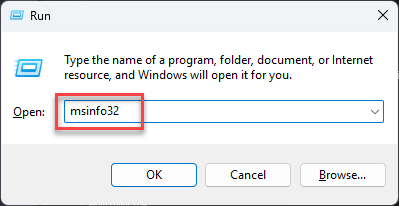
3 – Look for Secure Boot State in the right pane.
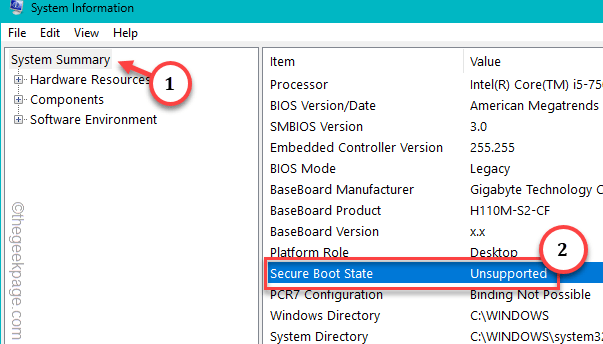
Says Off? Keep reading.
1 – At first, restart the PC and tap Delete (or F2) while the computer boots to open the BIOS.
2 – Then, locate the Secure Boot option. It is usually under a Boot or Security tab.
3 – Set it to Enabled.
4 – Save and exit.
Windows boots like normal. Then try Click to Do again.
Fix 3 – Clear the Group Policy Block
If your PC runs Pro or Enterprise, there’s a policy that can switch Click to Do off entirely. Admins use it. So do a lot of “debloat” scripts.
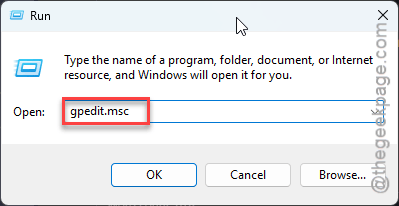
1 – At first, hit the Windows + R buttons at once.
2 – Type gpedit.msc, and press Enter.
2 – Go to the left pane and proceed to this way –
Computer Configuration > Administrative Templates >Windows Components >Windows AI
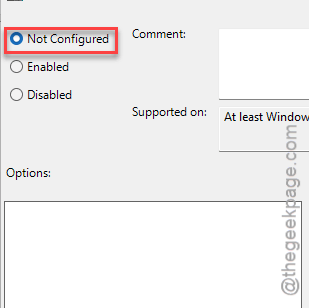
3 – Then, double-tap the Disable Click to Do in the right pane.
4 – Set it to Not Configured and click OK.
5 – Sign out of Windows and back in.
Ran a debloat script recently? Those are the usual source of this policy. So read what they turn off before you run the next one.
Fix 4 – Delete the DisableClickToDo Registry Flag
Last stop. The policy from Fix 3 lives in the registry too.
1 – Press Windows + R, type regedit, and press Enter. Click Yes on the prompt.
2 – Paste this into the address bar at the top and press Enter:
HKEY_CURRENT_USER\Software\Microsoft\Windows\Shell\ClickToDo
3 – Now, look for the DisableClickToDo in the right pane.
4 – If it’s there, double-click it and set it to 0, or right-click it and pick Delete.
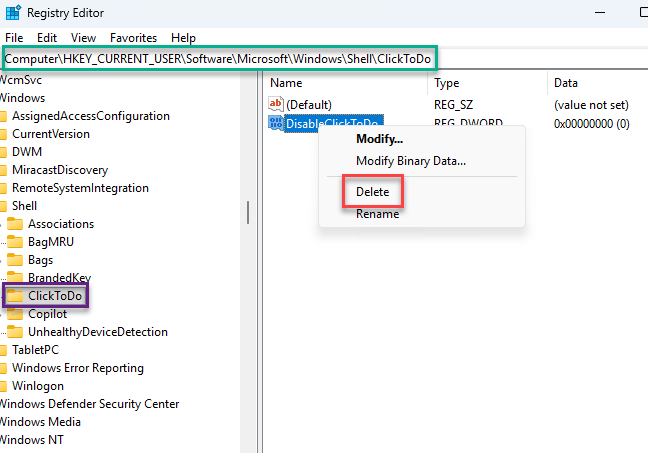
4 – Now go to HKEY_LOCAL_MACHINE\SOFTWARE\Policies\Microsoft\Windows\WindowsAI and delete DisableClickToDo if it exists.
5 – Check HKEY_CURRENT_USER\Software\Policies\Microsoft\Windows\WindowsAI as well. Same deal.
6 – Close Registry Editor, sign out, and sign back in.
Export the key before you delete anything (File, then Export). Thirty seconds, and you can undo it if something goes sideways.
Don’t see the value in any of the three spots? Then nothing is blocking it on the policy side. So back to Secure Boot. That’s the culprit nine times out of ten when the registry is clean.
People Also Ask
Does Click to Do work on any Windows 11 PC?
No. It needs a Copilot+ PC, meaning one with a neural processing unit (NPU) fast enough for on-device AI. Older laptops and most desktops without an NPU never get it, so the toggle won’t even show up in Settings. On a Copilot+ machine, it also needs Secure Boot turned on.
Will turning on Secure Boot delete my files?
No. The one catch is a drive set up the old MBR way, which will not boot in UEFI mode. If Windows won’t start, switch it back off. Your files are untouched.